Free Screen Recorder

Bandicam is easy-to-use, free screen recording software that lets you capture everything on your screen. Easily record tutorials, meetings, lectures, presentations, and online videos with audio recording, webcam overlay, real-time drawing, scheduled recording, and no watermark. After recording, you can transcribe your video, add subtitles, or trim clips.

Try the free version of Bandicam Screen Recorder.
For Windows and Mac screen recording.

Bandicam screen recorder with webcam overlay and drawing tools

Try Bandicam Screen Recorder to capture any area of your screen

Bandicam is a free screen recorder for Windows that enables you to capture any area of your screen as a screenshot or screencast video file. You can record your full screen, a selected area, or a specific window with Bandicam's Screen Recording mode, making it easy to create screen recordings for work, school, tutorials, and personal projects.


Screen recording features

Everything you need to record your screen

01

Record screen video and audio in full resolution

Record and save online videos from Facebook, Vimeo, and TikTok, or capture Zoom meetings and Discord calls. Bandicam’s screen recorder with audio lets you record system sound and your microphone together, then save your recordings as high-quality video files.

Selected screen area for recording an online video
02

Transcribe Video & Audio to Text with AI

Convert video to text or audio to text with Bandicam’s AI transcription after recording. Save TXT transcripts, export SRT subtitle files, or export your recordings with burned-in subtitles.

How to transcribe video & audio to text »

Bandicam video-to-text transcription with subtitles
03

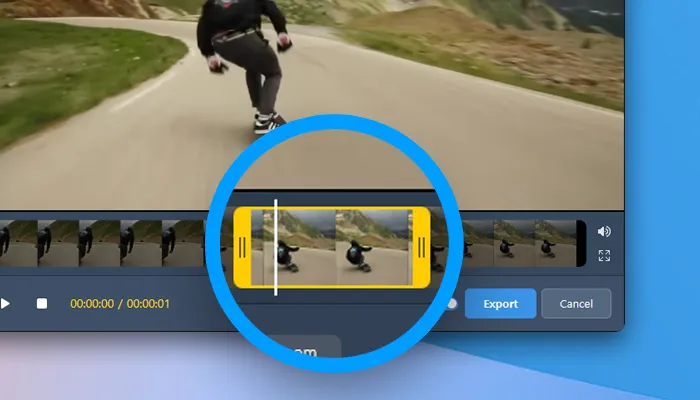
Trim your video and audio recordings

Trim recorded videos and audio directly in Bandicam without opening a separate editor. Remove unwanted sections and save the parts you need from your screen recordings or audio recordings.

Videos exported after trimming in the free version include a watermark.

How to trim video and audio recordings »

Selected video segment ready to trim and export in Bandicam
04

Create screencasts with real-time drawing

Draw and annotate your screen while recording. Add arrows, text, and highlights to explain each step in educational videos and emphasize key points in business presentations.

How to draw on your PC screen »

Annotating a presentation with Bandicam's real-time drawing tools
05

Record your screen and webcam with your voice

Capture your screen and webcam together using Bandicam’s screen recorder with facecam. Add microphone narration for tutorials, educational videos, and PowerPoint presentations. Move your webcam overlay or expand it to full screen while recording.

Facecam Recorder »

Screen recording of a presentation with a webcam overlay
06

Record only a specific window while multitasking

Record a specific application window or a selected area within it with Bandicam’s Specific window mode. Keep recording your chosen window while working in other windows.

How to record only a specific window »

Recording a video window while working in another application

How to record your screen with Bandicam

Bandicam Screen Recorder
01

Select recording area

Select an area, the full screen, or a window to record.

02

Start recording

Record your screen with a webcam overlay and live annotations.

03

Save your recording

Save your recording, then trim it or transcribe speech to text if needed.


Easily record your screen with Bandicam.

Customer Reviews & Testimonials

4.7 (7,314)
Daphne Cole★★★★★

I have been using the program for a long time and have always been satisfied. It is still perfect for what I need. I only use it for screen recording in MP4 and it records in perfect quality, fast and without stuttering.

Evan Park★★★★★

Bandicam is a great program with an easy interface and many choices for video quality and settings, for both .mp4 and .avi formats. Overall, this is an excellent product.

Imani Brooks★★★★★

I've tried at least two other screen capture software, Bandicam was by far the best. Easy to use(interface), more features, excellent picture quality and little to no jitter during the recorded playback. Excellent product.

Caleb Ross★★★★★

It's easier to use than other screen recording software I've used. It’s ready to go after installation and has easy-to-understand options.

Zoe Martin★★★★★

I set Bandicam to start recording an hour before my Zoom meetings. When I come back, the recording is ready and waiting for me.

Clara Wells★★★★★

The screen recording was very helpful and useful professionally and personally. I could catch up with forum sessions I missed and redundant training sessions.


Frequently Asked Questions

Yes. Bandicam 2027 is a free screen recorder that lets you record your screen without a watermark. The free version supports up to 5 minutes per recording.
  1. Install Bandicam Screen Recorder and select the 'Screen Recording' mode.
  2. Choose the full screen, a selected area, or a specific window to record.
  3. Click the ' ● REC' button or press the hotkey (F12) to start/stop the recording.

» Learn more about recording your screen on Windows
In Bandicam's Recording settings, select '(Default Output Device)' for Speakers to record system audio and select your microphone under Microphone to add your voice. You can record computer audio and microphone sound together while recording your screen.
Select 'Rectangle on screen' in Bandicam to record part of your screen, then adjust the recording area. You can also use 'Specific window' to capture an application window or 'Around mouse' to record the area around your cursor.
Yes, you can record multiple monitors using Bandicam. Start Bandicam and choose the 'All display' option in the Fullscreen menu.

» Learn more about recording multiple/dual monitors
Yes. You can record your Mac screen with system audio, microphone sound, and a webcam overlay using Bandicam Screen Recorder for Mac.