Tips for advanced users »
- Upload videos to YouTube
- Bandicut project file (*.bcpf)
- Capture image from video
- DVD to MP4
- Edit Bandicam videos

How to convert video files to MP4 format
You can convert multiple video files into your preferred video formats, such as MP4, MKV, WebM, and AVI, with Bandicut (AVI to MP4, DVD to MP4, FLV to MP4, MOV to MP4).
- If you want to convert your videos for viewing on smartphones or streaming, use Bandicut, a professional video cutter program that allows you to convert videos to MP4.
- You can also convert videos for social media platforms, such as Instagram, Facebook, and Vimeo, without losing video quality.
How to trim and convert video clips to MP4

- You can convert specific parts of your videos and save them as an MP4 file in Bandicut.
- Bandicut supports the hardware accelerated H264 codec (Nvidia, Intel, AMD) which allows you to convert videos at a higher speed than the software-based encoder.
1. Download and install Bandicut Video Cutter.
2. Start Bandicut, click the 'Cut' button and select the video you want to convert.
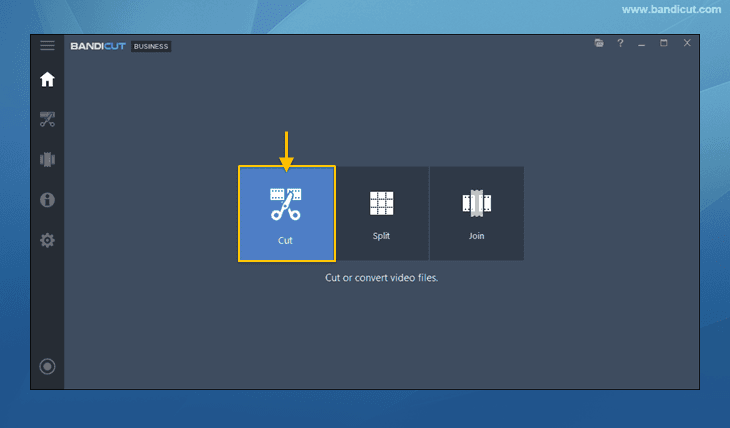
3. You can also add additional video files by clicking the [+] button.

4. Set the beginning and end points of the portion you want to save.

5. Choose whether to convert files individually or merge them, and then click 'Start' to begin.
- To convert multiple files separately to MP4, make sure the 'Merge' option is unchecked.
- To combine multiple files into a single MP4, check the 'Merge' option.

6. Select the MP4 file type in 'Encoding settings' and click the 'OK' button.

7. Set the output settings, and then press 'Start' to begin the conversion.

8. When the process is complete, click the 'Open' button to check the converted video files.

How to optimize your MP4 video for fast streaming
- When streaming, you can start watching your video right away without downloading the entire file first, with the MOOV atom placed at the start of the file.
- MOOV atom is the part of the file that holds index information for the whole file. Without MOOV atom, the uploaded video is unplayable. By relocating MOOV atom to the beginning of the file, you can play the video while downloading MP4 files.
- Therefore, please check the 'Save the file information at the beginning of the file (only MP4)' option to play the video right away while downloading.


