How to Edit Bandicam Videos with Bandicut
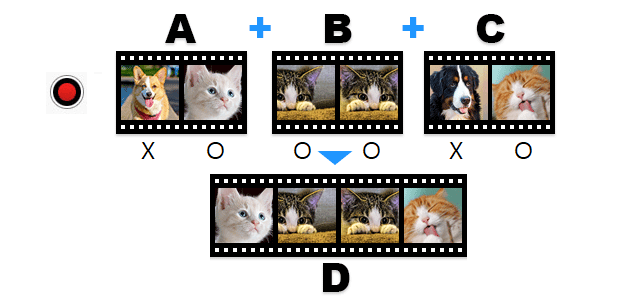
Capture and create flawless videos with the powerful combination of Bandicam and Bandicut. Bandicam allows you to record anything on your PC screen in high quality. Once your recording is complete, Bandicut's High-Speed mode offers the fastest tools for editing your videos without re-encoding.
This guide will show you how to master High-Speed mode, from editing multiple files at once in the new Bandicut 2025 to using the traditional join-then-cut workflow in the classic Bandicut 2024.
Table of Contents
Try Bandicut Video Batch Converter!
For Bandicut 2025: How to Edit Multiple Files at Once
With Bandicut 2025, multiple video files can be imported and edited simultaneously. High-Speed mode ensures efficient processing without re-encoding. Follow the steps below to edit multiple Bandicam video files:
-
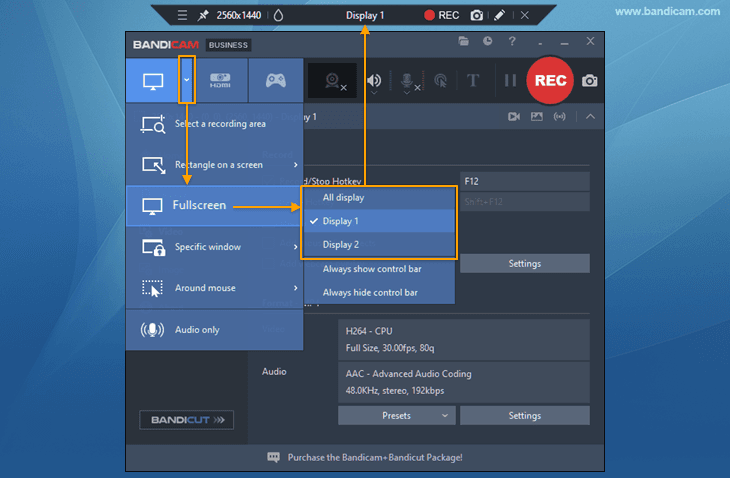
Record videos with Bandicam Screen Recorder.
- Ensure all recording clips use the same recording profile (e.g., resolution, video format) to edit them in High-Speed mode.
- Fullscreen mode
 is recommended. If using Rectangle mode, keep the screen size consistent.
-
Launch Bandicut 2025 and import multiple files.
- Click 'Cut' and select the Bandicam video files you want to edit.
- Tip: Check the Bandicam output folder
![import multiple files]()
-
Adjust the section you want to keep.
Use the blue slider to choose the portion to keep from each file.
![choose the portion to keep]()
-
Once all segments are set, check the 'Merge' option and click the 'Start' button.
![check merge option]()
-
Click the 'Start' button again in High-Speed/Encoding mode to save the file.
Use High-Speed mode to avoid re-encoding; if unavailable, switch to Encoding mode.
![High-Speed/Encoding mode]()
-
When the process is complete, click the 'Open' button to view the edited file.
- Click the 'Upload' button to upload videos to YouTube/Vimeo.
- Click the 'Play' button to playback the videos with the default media player.
![edit complete]()


For Bandicut 2024: Join Multiple Files First, Then Cut
To edit Bandicam video files in Bandicut 2024 and ensure High-Speed mode works properly, it's best to join the files first and then trim the combined video. If you cut the files before joining, Bandicut may re-encode parts of the video, which can disable High-Speed mode.
Edit multiple Bandicam videos in Bandicut 2024 by following these steps:
-
Record videos with Bandicam Screen Recorder.
Ensure all recording clips use the same recording profile (e.g., resolution, video format) to edit them in High-Speed mode.
-
Launch Bandicut 2024 and open your recorded video files.
You can download Bandicut 2024 here.
![joining multiple videos,bandicut]()
-
Press the 'Start' button and then merge the videos with High-Speed mode.
![joining multiple videos with high speed mode,bandicut]()
-
After merging, open the combined file in Bandicut.
Click the ‘Cut’ button, and open the merged video file from 'Step 3.'
![cutting a merged video file]()
-
Set the parts you want keep, and click the 'Add segment (+)' button.
![cutting a merged video file]()
-
Check the 'Merge Segments' option, and click the 'Start' button in High-Speed mode.
![Merge segments]()
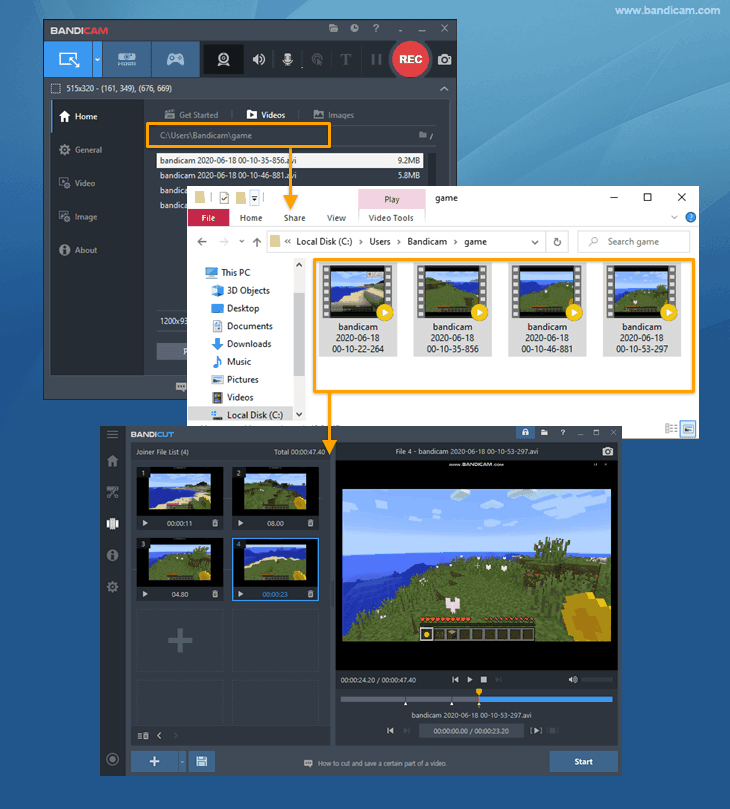


If you work in the same order as above, you can edit your videos with Bandicut’s High-Speed mode without losing video quality.
Last Updated on