- Upload videos to YouTube
- Bandicut project file (*.bcpf)
- Capture image from video
- DVD to MP4
- Edit Bandicam videos

How to cut/merge/split multiple sections at the same time
Bandicut can cut multiple videos allows you to import one video file, and then split/merge/cut multiple sections at the same time.
* The multiple video cutting process is as follows:
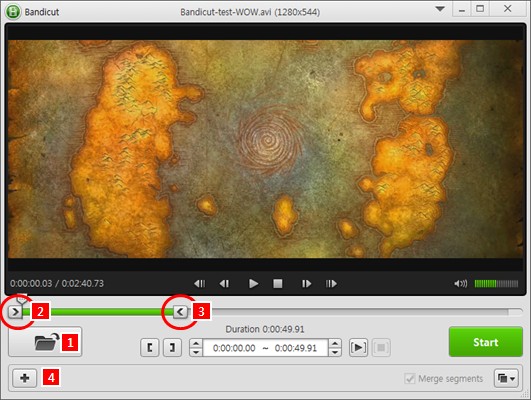
- 1 Click the 'Open File' button to import a video you want to edit.
- 2 Set the first beginning point of the video.
- 3 Set the first ending point of the video.
- 4 Click the 'Plus (+)' button to add the section to the segment list.

- 5 Set the second beginning point of the video.
- 6 Set the second ending point of the video.
- 7 If you check the "Merge segments" option, you can delete the unwanted segments and create a new video.
- 7 If you uncheck the "Merge segments" option, you can split one video file into several segments/videos.
- 8 Click the 'Start' button to cut, merge or split the segments.
Add segment and select the beginning/end point

- 1 Set the beginning/eding point of the video, and click the 'Plus (+)' button.
- 2 The selected section is shown in the first list, and the rest is shown in the second list.
- 3 You can now set the second beginning/end points of the video.
For more details, please see the manual below:
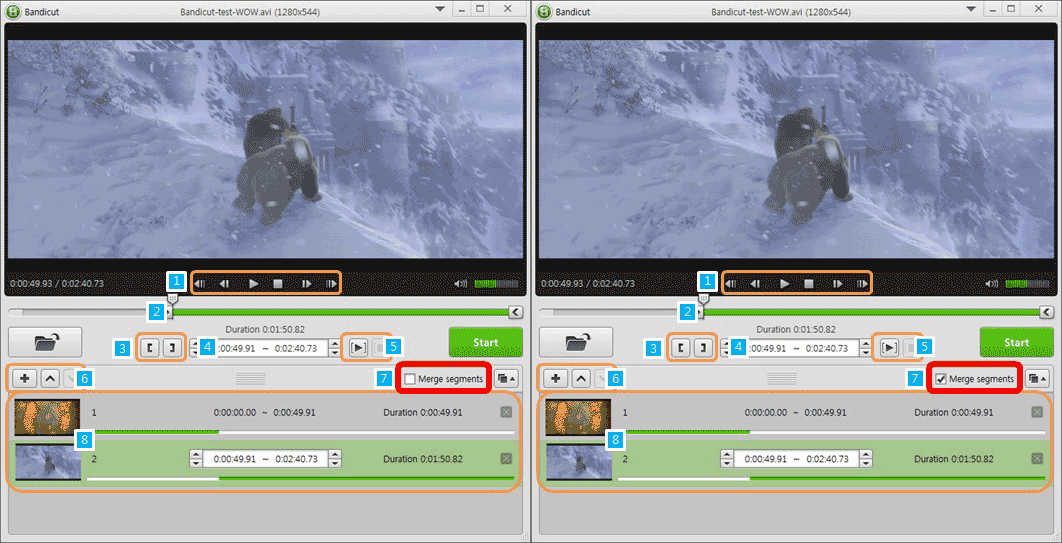
1. Select a cutting area with the playback controls.
- Previous Keyframe: Move to the previous keyframe.
- Previous Frame: Move to the previous frame.
- Play/Pause: Play or pause videos.
- Stop: Stop playback of videos.
- Next Frame: Move to the next frame.
- Next Keyframe: Move to the next keyframe.
* Term) Frame and Keyframe

- Frame: A frame is a single shot of a series of still transparent pictures that form a video. (A frame contains partial information of a still scene.)
- Keyframe: A video file has a limited number of keyframes - not every frame is a keyframe. A keyframe is a frame used to indicate the beginning or end of a change made to the signal. (A keyframe contains full information of a still scene.)
=> If there is a 30 FPS video, it will have 30 "Frames" and may have 1~5 (?) "Keyframes" per second.
=> Bandicut can cut videos by frame.
2. Select a cutting area using 'Segment Start/End' button ([ or ]), 'Playhead', and/or 'Mouse Wheel.'
3. Click the 'Set Segment Start/End Time' button to fix the cutting section.
4. Set the start/end time of a segment in detail
- Use the 'Adjustment buttons' to set the starting/ending section.

- To adjust [Hour : Minute : Second : Frame], click the section, and then use the 'Adjustment buttons' or the 'Mouse Wheel.'

5. 'Sectional Playback/Pause' and 'Sectional Stop.'
- Play back the selected section to check if the right section is selected.
6. Add segment, and/or move segment up or down.
7. Check the 'Merge segments' option to merge the segments into one video file, and uncheck to split one video file into several segments/videos.
8. Check the segment list and re-adjust the start/end time of each segment.
Related FAQs
- What is the difference between [High-Speed mode] and [Encoding mode]?
- Please explain [Encoding mode] - Codec, Quality, Size, and Sound Configuration.
- How to remove the Bandicut watermark.
- I cannot select the cutting area properly.
- I cannot play / upload the video edited with Bandicut.
- I cannot use [High-Speed mode].
- The video and audio are out of sync.
- "Output folder" and "Cache folder".
- Problems and Solutions | I need technical support.