How to Schedule a Screen Recording
Schedule Bandicam to start and stop recording at a set time, once, daily, or weekly. Keep Bandicam running for scheduled recordings to start.
Contents
Steps to Schedule a Screen Recording
Step 1. Open Scheduled Recording.
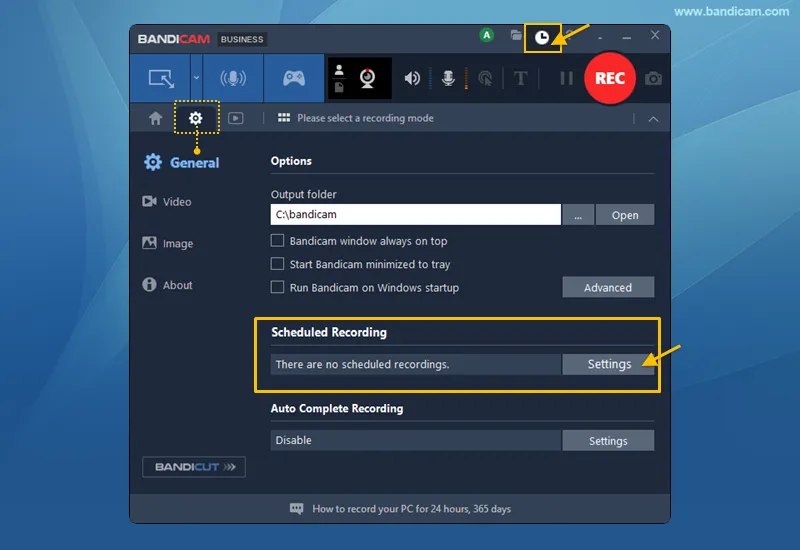
Click the clock icon at the top of Bandicam, or go to General and click Settings under Scheduled Recording.
Step 2. Click Add to create a schedule.
You can add up to 100 scheduled recordings.

Step 3. Set the recording time and target.

- Name: Enter a name for the schedule.
- Active: Enable or disable the schedule.
- Repeat: Choose One time, Daily, or Weekly.
- Recording time: Set the start and end times or duration, and select the days for Weekly recording.
- Recording Target: Choose what to record.
- (Do not change): Use the last recording target. Choose this for webcam or audio only recording.
- Fullscreen: Select a display or all displays from the list on the right.
- Rectangle on a screen: Record a selected area.
- After recording: Do nothing, exit Bandicam, shut down, or hibernate your computer when recording ends.
Step 4. Click OK to save the schedule and keep Bandicam running.
Recording will start at the scheduled time. Keep your computer awake and the recording target ready.
How to Schedule a Webcam Recording
- Choose Device Recording mode and select your webcam or capture device.
- Click the Scheduled Recording clock icon.
- Click Add, set the recording time, choose (Do not change) for Recording Target, and click OK.
Keep Bandicam running in Device Recording mode until recording ends.

How to Schedule an Audio Only Recording
- Choose Audio only Recording mode and select your speakers or microphone.
- Click the Scheduled Recording clock icon.
- Click Add, set the recording time, choose (Do not change) for Recording Target, and click OK.
Keep Bandicam running in Audio only Recording mode until recording ends.

Precautions for Scheduled Recording
- Bandicam must be running. To start recording when it is not running, use Windows Task Scheduler and Bandicam command-line parameters.
- To keep your computer awake, set the sleep and hibernate timeouts to Never in Windows power settings
 .
- Scheduled recording may not work on a remote computer after the remote connection is lost.
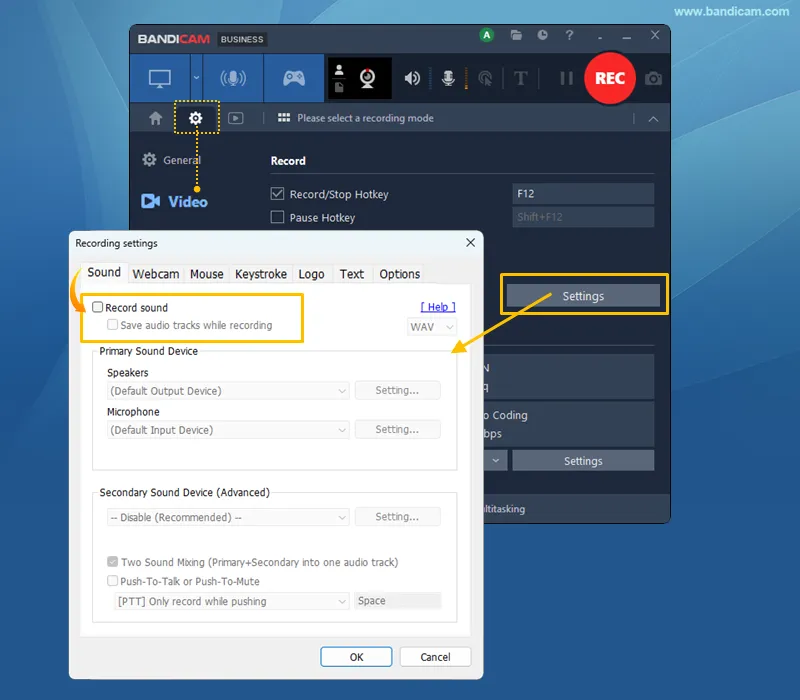
- If you do not need computer or microphone audio, uncheck Record sound in Video > Settings > Sound.
- To check recording status, show the Bandicam icon in the system tray.
- Antivirus software, hardware encoder issues, or an unavailable output folder may prevent recording from starting.