Text overlay: Recording date/time, watermark, CPU usage
This Text tab allows users to add a text watermark, recording date/time/timestamp, elapsed recording time, CPU/memory usage, and video resolution to the recorded video.
The text overlay will be added to the entire video you're recording.

- If this option is checked, up to 10 texts can be added to the streaming video that is being recorded.
- The user can set the font, size, margin, alpha, outline, and shadow in the Text overlay settings window.
- This area allows users to preview the position of the text overlay.
How to add the recording date/time, text watermark to the video
- Open Bandicam, go to the Video tab, click Settings, and select the Text tab.
- Check "Add text overlay to video" and click Add to create a text overlay. To change an existing overlay, select it and click Edit.
- Enter your text or use Add text macro (Date, Time...). Adjust its appearance and position, then click OK to save.

Tip: How to enter text in real time
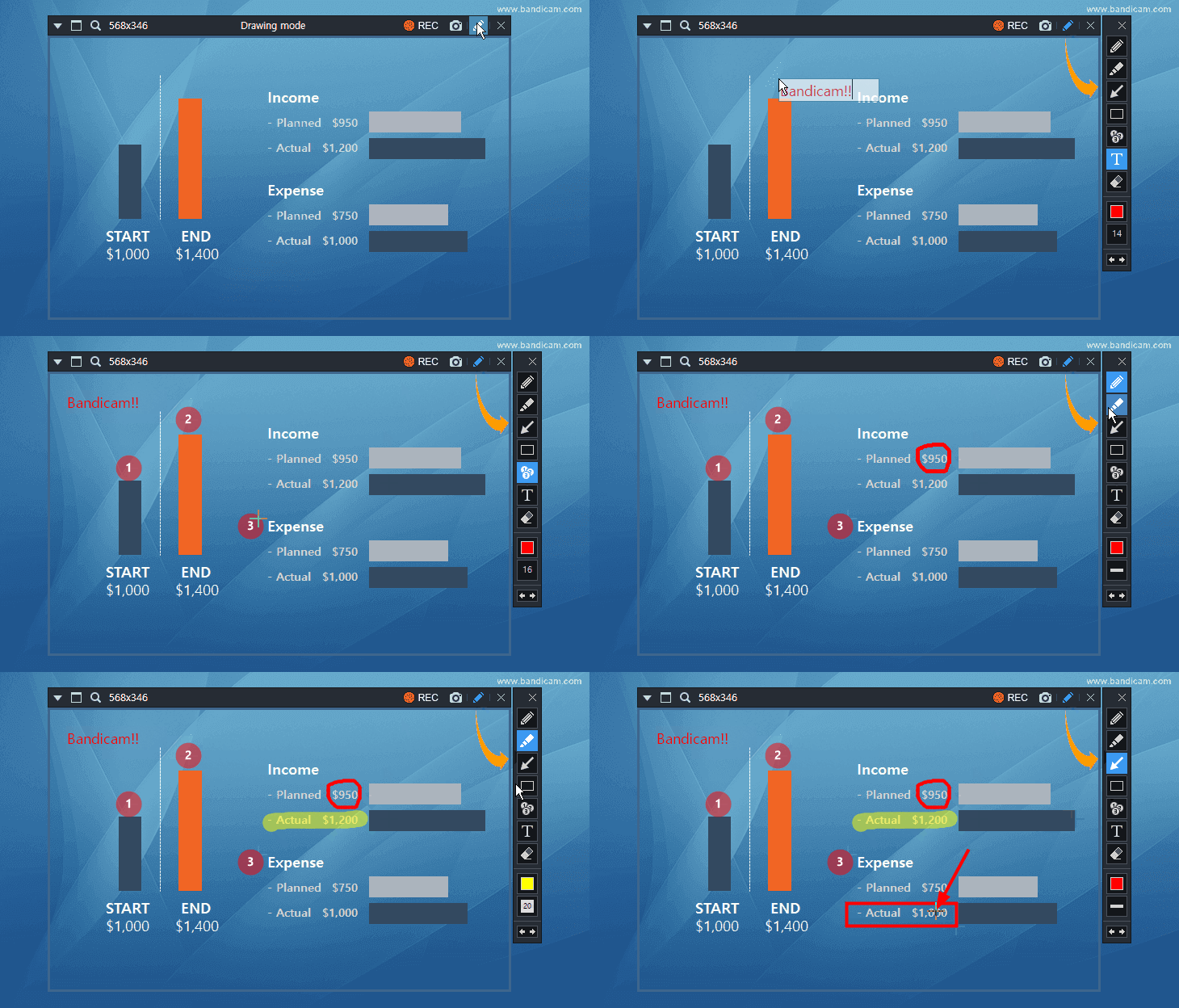
If you use the drawing tool, you can simultaneously write or enter text while recording in 'Screen Recording' mode.