How to Record Specific Sounds from a Program
The latest version of Bandicam lets you capture audio from a specific window, such as a game, online lecture, video player, or browser. This allows you to record only the sound from the selected window.
Contents
[Windows 11]: Record sound from a specific program
The latest version of Bandicam offers Specific window recording mode, which lets you record the screen and audio from a selected window only.
Step 1. Download and install Bandicam.
Step 2. Choose Specific Window, enable Capture audio exclusively from a specific window process, and then select the program you want to record.
- This setting records only the screen and audio of the selected program.
- This option is available only on Windows 11.

Note: When recording a browser, be careful of audio from other tabs.
Since most browsers share the same audio output, sounds from other tabs in the same browser may also be recorded.
- Solution: In this case, use separate browsers for recording and other tasks.
- Example: When recording audio from a specific Chrome window, use Edge or another browser for your other tasks.
Step 4. Click the '● REC' button to start or stop recording.
You can also start and stop recording with the shortcut key F12, and the shortcut can be changed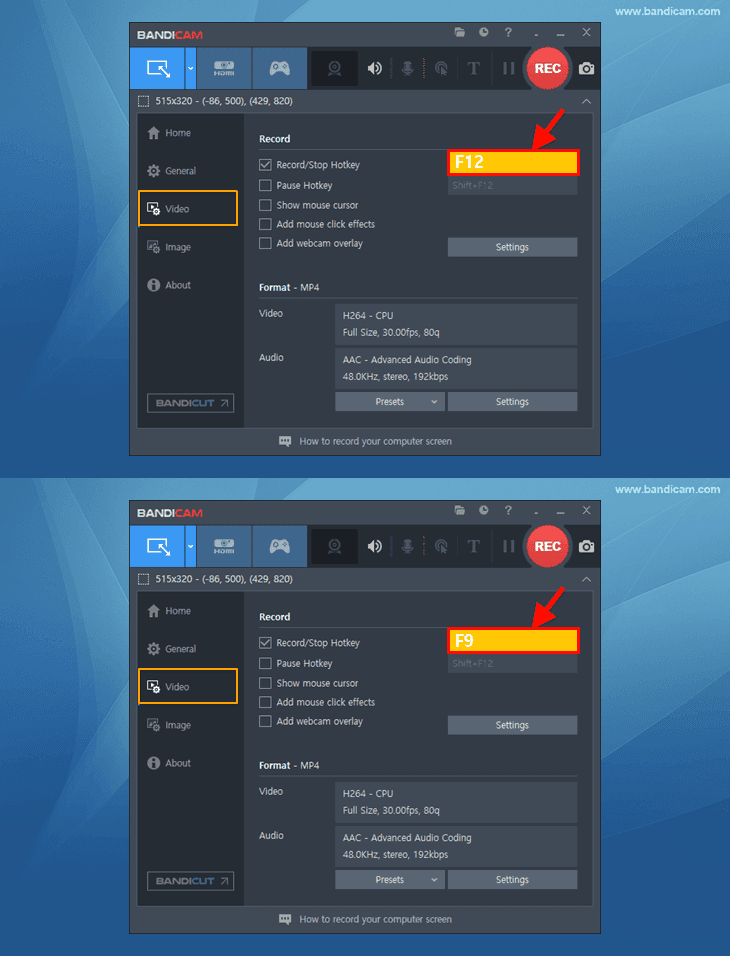 .
.

Step 5. Stop the recording and check your recorded video.
Click the video icon to play, edit, or upload the recorded video to YouTube, Google Drive, or Vimeo.
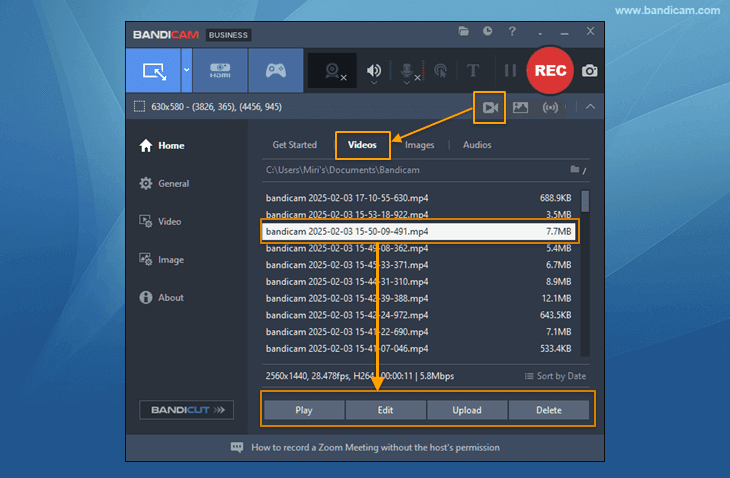
Using this method, you can record only the screen and audio of a specific program, such as a game, online lecture, video player, or YouTube video.
Record Audio from a Single Application
(Windows 7/8/10)
In Windows 7, 8, or 10, you can record sound from a specific program if you meet these two conditions:
- You have two or more sound playback devices connected to your computer (e.g., speakers and a headset).
- The program you want to record allows you to select a specific sound output device (e.g., configuring Zoom to use only a headset).
Step 1. Download and install Bandicam.
Step 2. Sound settings for Windows and Bandicam

- If "Speaker A" is selected in Windows, select another device, such as "Speaker (Speaker B)," in Bandicam.
- Check "Do nothing"
 under the [Communications] tab in Windows settings.

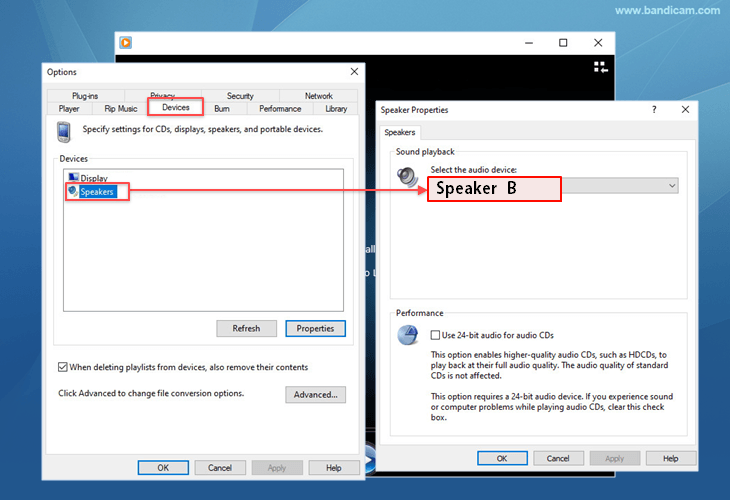
Step 3. Sound settings for the program you want to record

- In the program settings, select the same device as Bandicam, such as "Speaker (Speaker B)." This allows you to capture only the audio from that program without recording other computer sounds.
- Examples of sound settings for programs: Zoom, Teams, Windows Media Player
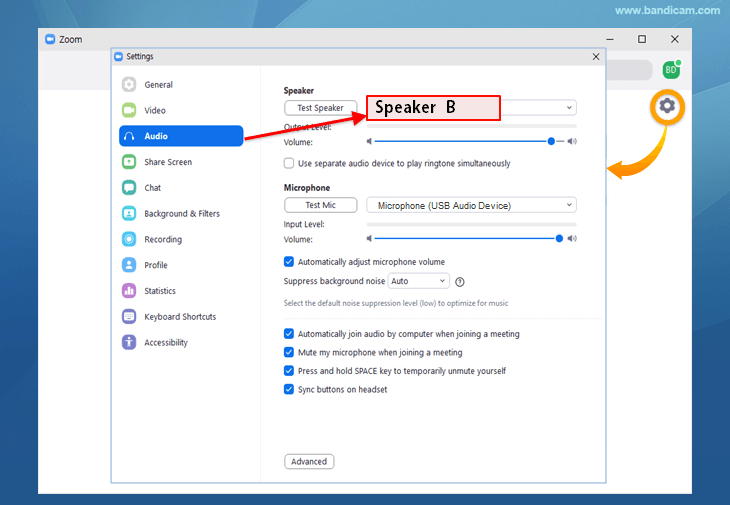
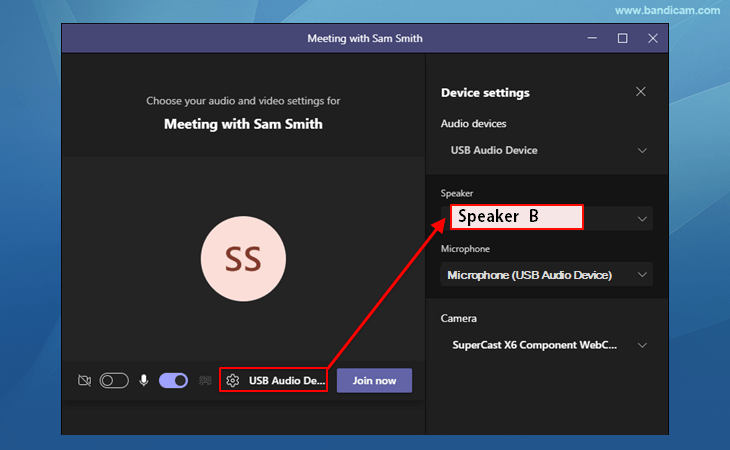
Step 4. After configuring the sound settings, select a recording mode and start recording.
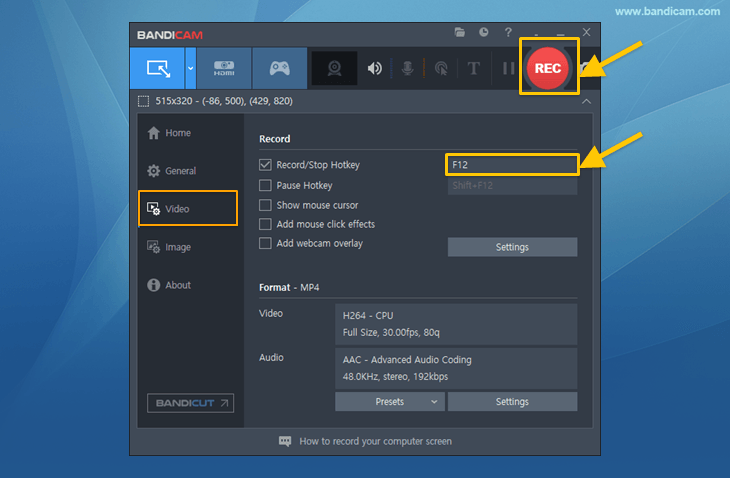
- Press the recording start/stop shortcut key (F12) or click the '● REC' button. The shortcut can be changed.