How to remove microphone howling/robotic/echoing/fireworks noise
Fix microphone noise, echo, robotic sounds, howling, chipmunk audio, and unwanted Windows sound effects in Bandicam recordings.
If there is a microphone howling/robotic/echoing sound/fireworks noise in the recorded video, reinstall Bandicam from https://www.bandicam.com/downloads/ and try recording. If you still have problems, try the solutions below.
- CASE 1: The audio makes a quick chirp at the beginning of the video.
- CASE 2: How to remove the fireworks/noise.
- CASE 3: How to remove microphone howling/robotic/echoing/fireworks noise.
- CASE 4: Others.
CASE 1: The audio makes a quick chirp at the beginning of the video (chipmunk squeak sound)
If the audio makes a quick chirp at the beginning of the video, there might be a problem with the codec or your media player.1. Download the latest version from https://www.bandicam.com/downloads/, and try the .mp4 file type.
2. Try VLC Media Player.
3. Uninstall codec packs on your PC.
CASE 2: How to remove the fireworks/noise
1. Choose the "MP3" audio codec and try again.
If you select the "MP3" instead of "AAC", you may be able to remove the fireworks/noise.
2. Use the "Noise Suppression" option in Bandicam
If you want to suppress external noise, such as mouse clicks and keyboard sounds, select the "Noise Suppression" option.
3. Disable "Secondary Sound Device" of Bandicam
Disable the Microphone and "Secondary Sound Device" of Bandicam. Without the "Secondary Sound Device," Bandicam can record your microphone with "Stereo Mix" or "Volume Mixer (WASAPI)" of Windows. » See more
4. Reduce the microphone volume by 50%
If you use the "Two Sound Mixing" option in Windows XP, go to the Volume control window, choose "Recording," and then reduce the microphone volume by 50%.
If you use the "Two Sound Mixing" option in Windows Vista/7/8/10/11, reduce the microphone volume by 50% as shown below:

You may also check "Disable all enhancements" as shown below:

CASE 3: How to remove microphone howling/robotic/echoing/fireworks noise
1. Use a headset instead of speakers
If you use speakers, the microphone picks up the sound and creates the howling sound. To reduce the howling/robot/echo sound, you have to use a headset instead of speakers. If you don't have a headset, reduce the speaker volume and keep the speakers away from the microphone.2. Disable the microphone and "Secondary Sound Device" of Bandicam
3. Mute the microphone volume
If you use the "Two Sound Mixing" option in Windows Vista/7/8/10/11, go to the "Playback" tab, double-click "Speakers," click the Levels tab, and then mute the microphone volume.
4. Uncheck the "Listen to this device" in Windows Vista/7/8/10/11
Go to the [Recording] tab of Windows, right-click on Microphone, select Properties, uncheck the "Listen to this device" option, and try recording.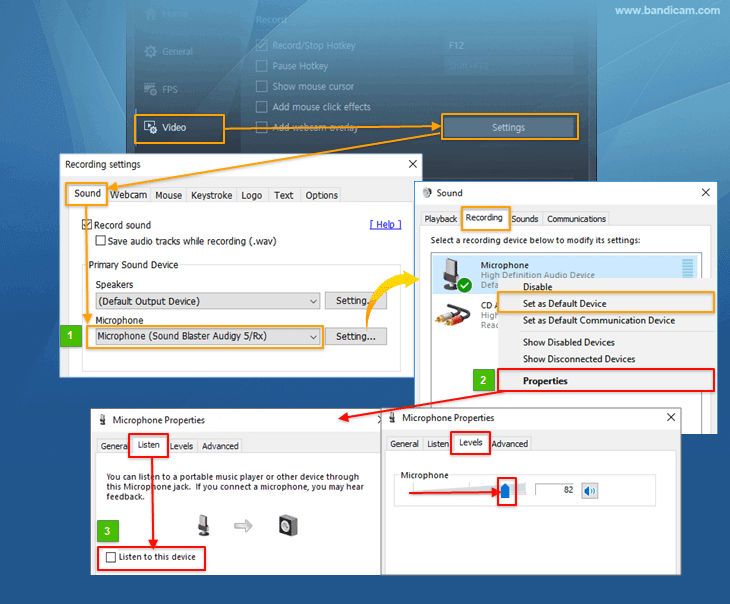
CASE 4: Others
To remove the mouse click sound while recording, select "No Sounds" under the Sounds tab of Windows.
To remove the sound effect of Windows, check "Disable all enhancements" as shown below:

If you still have problems, please try "Windows Sound Recorder" (or "Windows Voice Recorder").
If you have the same problem with Windows Sound Recorder, it is not a problem of recording software.

FAQs
- Why does my recording start with a chipmunk-like chirp sound?
- If the audio makes a quick chirp at the beginning of the video, there might be a problem with the codec or your media player. 1. Download the latest version from https://www.bandicam.com/downloads/ , and try the .mp4 file type. 2. Try VLC Media Player . 3. Uninstall codec packs on your PC.
- How can I remove crackling or fireworks-like noise from recorded audio?
- Try the MP3 audio codec instead of AAC, enable Bandicam Noise Suppression, and reduce microphone boost or sensitivity. Updating the sound driver can also help remove crackling or fireworks-like noise.
- How can I fix microphone echo, howling, robotic sound, or noise?
- Use a headset instead of speakers to prevent the microphone from picking up speaker output. Lower speaker volume and microphone boost, enable noise suppression, and keep the microphone away from speakers.
- How can I remove Windows sound effects or mouse click sounds from recordings?
- Disable mouse click sounds, Windows sound effects, and audio enhancements if they are being recorded. If the problem continues, test the microphone with Windows Sound Recorder to check whether the issue comes from the device or driver.
If you still have problems, record the sound settings of Bandicam/Windows and send the video file to bandicam@bandicam.com
Related FAQs
- Voice: How to record microphone sound
- Sound: How to record computer sound
- Sound+Voice: How to record "computer sound" and "your voice" at the same time
- Audio only (without video): How to record only audio
- Noise: How to remove microphone noise/howling/robot/echo sound
- Error: Failed to start audio capture | The video and audio are out of sync
- How to adjust the volume while recording