

Adrian Blake★★★★★
Works very well, for many applications, from gamers to in-house surveillance while away. Guarantees success for all webcam-based situations! Highly rated!
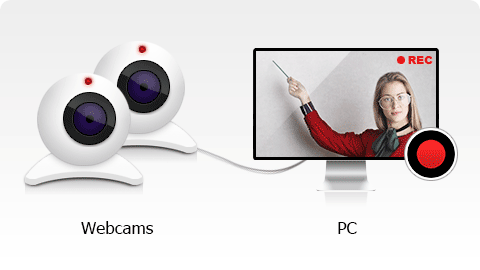
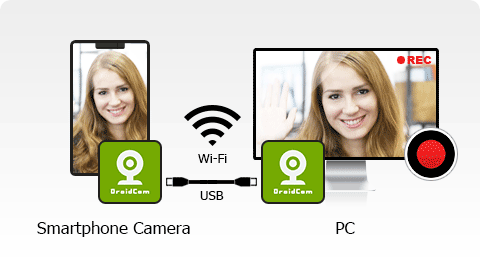
Bandicam allows you to record an external video device such as a webcam, Xbox/PlayStation, smartphone, IPTV, etc., in super high quality. You can also put your webcam/facecam on one corner of your video (Picture-in-Picture, Video-in-Video).
Record webcam videos on Windows and Mac.
Bandicam Webcam Recorder is a professional webcam capture software that allows you to record from compatible video devices, including USB webcams, video capture cards, and camcorders.
With Bandicam, you can capture webcam videos with audio and upload them to YouTube.
Bandicam allows you to automatically stop recordings based on file size or recording time. Recorded webcam videos can be saved in various file formats including MP4 and AVI.
Bandicam Webcam Recorder fully supports the hardware-accelerated H.264 encoder of NVidia NVENC, Intel Quick Sync video, and AMD VCE, allowing videos to be recorded with high speed, high compression ratio, and excellent quality.
You can record real-time webcam videos with a high compression ratio and in high quality with Bandicam.
How to record webcam and microphone »
How to put your webcam/facecam on one corner of your video »
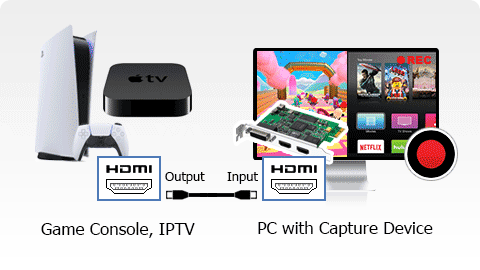
You can record video game consoles (Xbox, PlayStation, etc.), Apple TV, or IPTV set-top boxes in high quality with Bandicam.
Note: a capture card and an HDMI cable are needed.
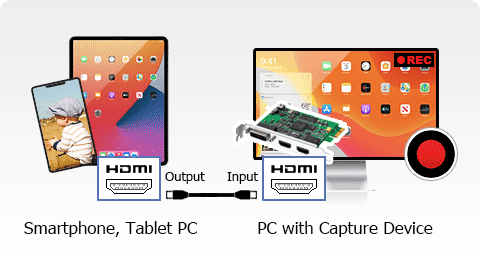
You can record your iPhone, iPad, or Android smartphone screen in high quality with Bandicam.
Note: a capture card and an HDMI cable are needed.

Choose your webcam and check the video preview.
Check your audio settings, then click REC to start recording.
Stop recording, then trim your video or transcribe speech to text if needed.
Works very well, for many applications, from gamers to in-house surveillance while away. Guarantees success for all webcam-based situations! Highly rated!

Great program, easy interface, many choices for video quality/settings, for both .mp4 and .avi formats. It does take a little time to play with the settings to get it to where it works best for you, but that's not any different than it is for any of the other video recording software programs that are out there. Overall, excellent product.

The user interface is sleek, simple, and easy to use. The quality of the videos is very good and there are numerous settings to choose from. I would highly recommend this product for anyone trying to record themselves playing games.

BANDICAM IS EPIC! It is easy to use and produces high quality videos with small file sizes. The free version is great, but the registered version is affordable and well worth the purchase.

Can use any external sources as well. Very easy to use. Settings are wide to customize media.

Bandicam is a great program with an easy interface and many choices for video quality and settings, for both .mp4 and .avi formats. Overall, this is an excellent product.


