Try Bandicam Screen Recorder!
Download Bandicam (Free)How to record my screen with Bandicam Screen Recorder
Use Bandicam to record your screen, gameplay, or webcam on Windows.
- YouTubers: I need to record my computer screen for my YouTube channel.
- Teachers: I record my screen to create teaching sessions and online training videos.
- Students: I need to record my screen for school projects/assignments, as well as to review online courses at a later time.
- Others: I use a screen recorder to capture my gameplay, presentations, videos, music, webcam, day trading, etc.
Bandicam screen recorder fits perfectly with any purpose. In this article, we will show you how to record a PC screen using Bandicam, a video recorder. You will also learn about some valuable tips for screen recording.
Use Bandicam to record my computer screen
How to record my screen on a computer/laptop
Bandicam makes it possible to record PC screen with audio on Windows. Moreover, it offers screen recording with a high compression ratio that helps preserve the quality of the original work in your final video. Follow the simple steps below to record your screen:
-
Install Bandicam and choose Rectangle on a screen.
Move the rectangle over the area you want to record, then drag its edges or corners to resize it.
![Select Rectangle on a screen]()
-
To record the screen with audio, set the sound settings.
- To record computer sound, ensure that “(Default Output Device)” is selected for the Speakers.
- To record your voice too, select (Default Input Device) or choose your microphone under Microphone.
![Speaker and microphone settings]()
-
Click the '● REC' button or press the hotkey (F12) to start recording.
![REC button in Rectangle area mode]()
-
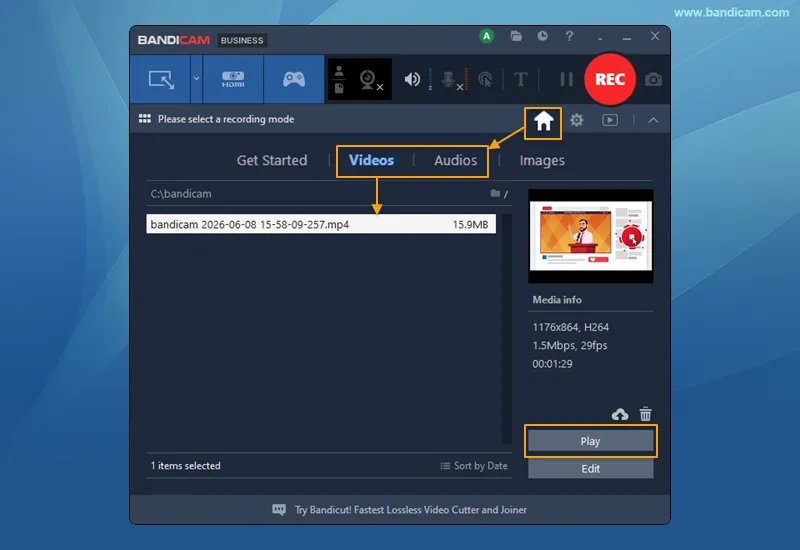
Stop recording and check your video.
Click Stop or press F12 again, then go to Home > Videos to play, edit, or upload your recording.
![Recorded videos in Bandicam]()


How to record my screen when playing games
If you are a gamer looking for the best video recorder for your gameplay, look no further because the Bandicam game recorder is your best option. This game recording software allows gamers to record 2D and 3D games with 4K UHD video. Follow the steps below to record gameplay:
-
Choose the 'Game Recording' mode.
It's better to use 'Game Recording' mode to get a high quality video file.
![Select Game Recording mode]()
-
Select the speaker and microphone device if you want to record your voice and gameplay.
![Speaker and microphone settings]()
-
Start the game that you want to play and record.
- While running a game in 'Game Recording' mode, you should see the green FPS number on your screen.
- Press the 'F12' function key (or the 'Record' button in Bandicam) to start recording.
- During the recording, the green FPS number will change to red.
![Game detected with green FPS]()
-
Stop recording and check your video.
Click Stop or press F12 again, then go to Home > Videos to play, edit, or upload your recording.
![Recorded gameplay videos in Bandicam]()


How to record my webcam screen
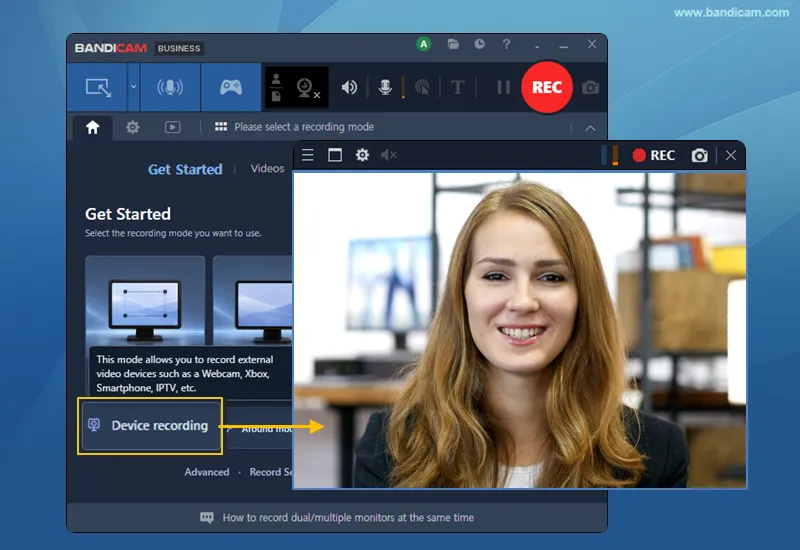
Do you want to record your webcam screen? Bandicam's Device Recording Mode allows you to record your webcam screen and voice. Below are examples of when you can record your webcam with Bandicam:
- I want to record myself working through my webcam.
- I also want to use my webcam to record my work to create a time-lapse video.
- I need to make a video resume for myself.
Start Bandicam, and select the ‘Device Recording’ mode.
Select the webcam device you want to record, and click the OK button.
![Select a webcam in Device Recording mode]()
Set the sound settings to record your voice and audio.
If you select "(Default Output Device)" for the Speakers and "Your microphone device" for the Microphone, you can record your webcam and microphone sound with computer sound.
![Speaker and microphone settings]()
-
Record your webcam and check the video.
Click REC to start recording and Stop to finish. Then go to Home > Videos to check your recording.
![Webcam preview and REC button in Bandicam]()

Additional Tips for Screen Recording
1. Webcam overlay (facecam)
Users can engage their audiences with the Add Webcam Overlay function.

2. Real-time drawing function
Users can simultaneously draw lines, boxes, or highlights while recording in 'Screen Recording' mode.

3. Uploading video to YouTube
When you finish recording, you can upload your video to YouTube without any conversion in Bandicam. This feature is especially helpful for YouTubers.

4. Recording only audio
Bandicam provides the best solution to the question, “How can I record my voice for free?” With the Audio-only recording mode, you can save your voice as an audio file for free.

5. Overlay effects
You can use the mouse, text, and logo overlay effects to highlight or take notes while recording. These effects are especially useful when creating tutorial or lecture videos.
Last Updated on