- Upload videos to YouTube
- Bandicut project file (*.bcpf)
- Capture image from video
- DVD to MP4
- Edit Bandicam videos

How to Edit Multiple Files Simultaneously
Do you want to edit multiple video files at the same time? With the latest version of Bandicut 2025, you can now load multiple files into Cut mode and edit them all at once.
In addition to cutting video files in bulk, you can merge and even batch convert multiple video files in a single workflow—saving time and improving your productivity.
1. How to Cut and Merge Multiple Files
Step 1: Install the latest version of Bandicut 2025, then run the program.
Step 2: Click the 'Cut' button, select the video files you want to edit, and click 'Open.'
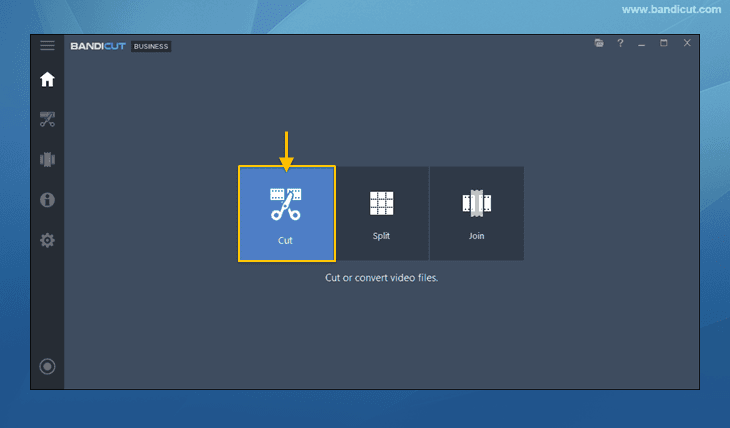
- You can also add additional video files by clicking the [+] button.

Step 3: Use the blue slider to set which part of the video you want to keep.

- After adjusting the section, you can also add another segment.
- Add Segment (Ctrl+N): Adds section after the blue slider
 .
. - Add from Current Position (Ctrl+B): Adds section after the orange playhead.
- Copy Segment (Ctrl+V): Copies the currently selected section.
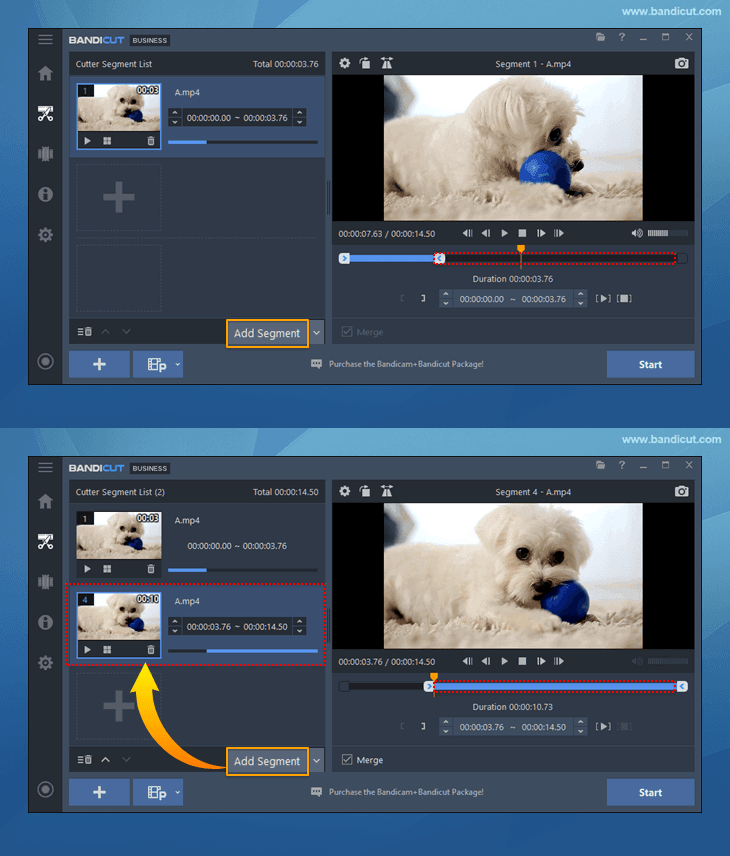
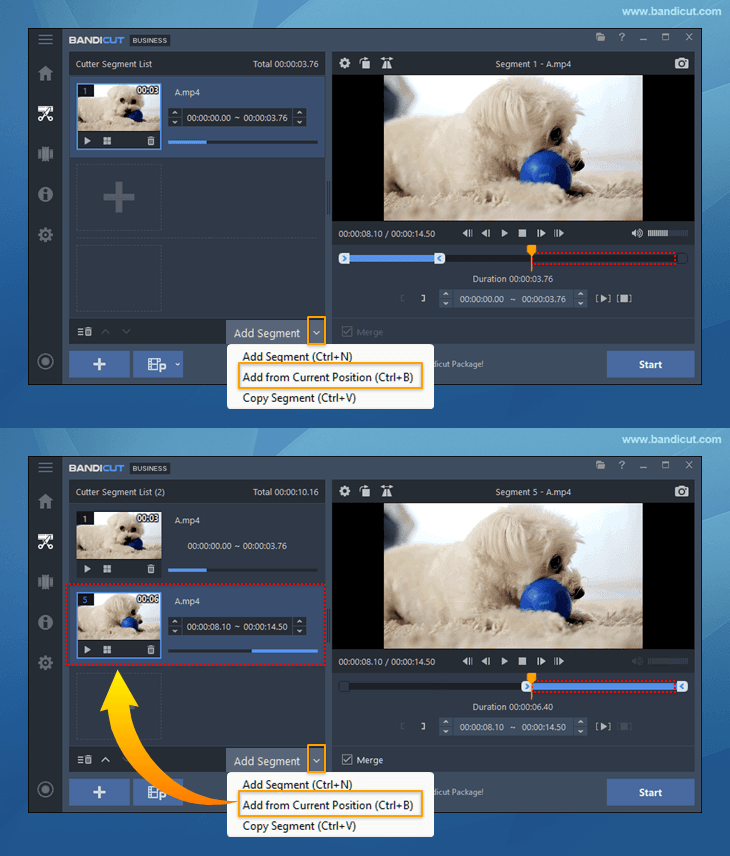
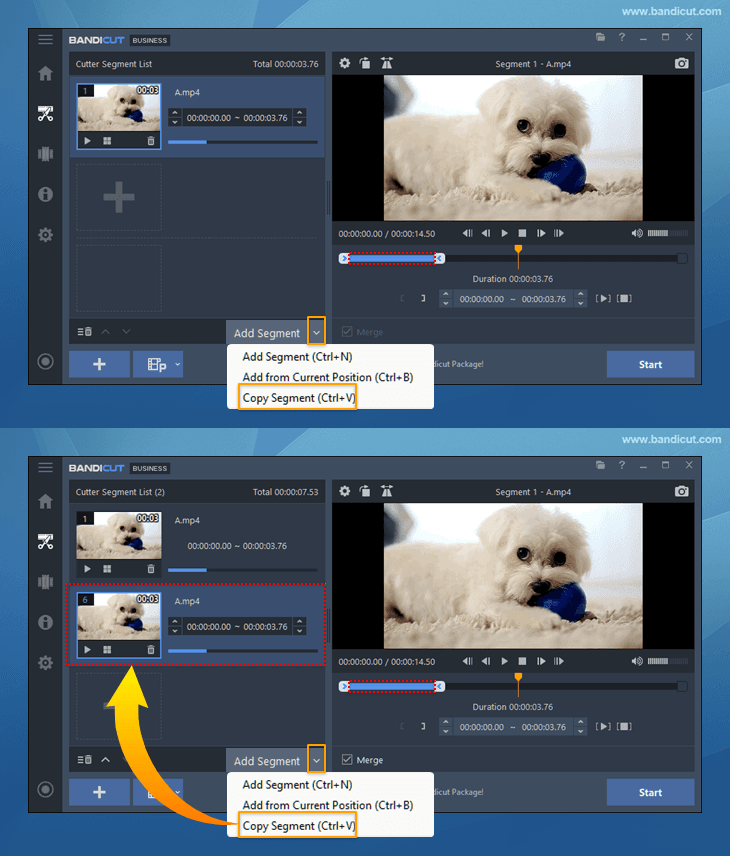

Step 4: Once all segments are set, check the 'Merge' option and click the 'Start' button.

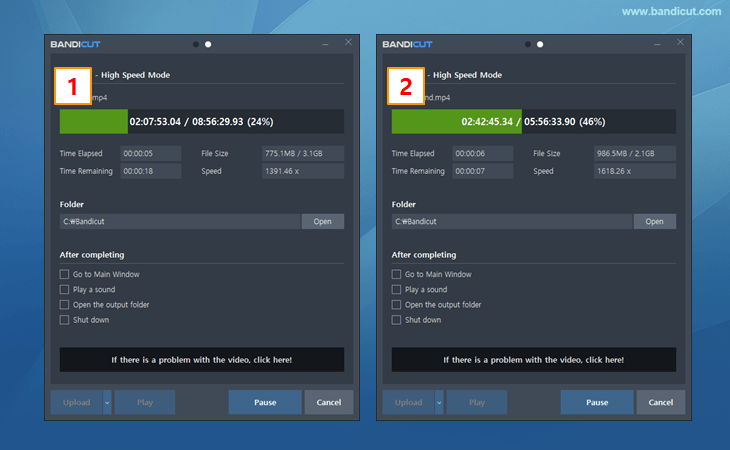
Step 5: Click the 'Start' button again in the High-Speed/Encoding mode to save the file.

Step 6: When the process is complete, click the 'Open' button to view the edited file.

2. How to Batch Convert Multiple Files
Step 1: Install the latest version of Bandicut 2025, then launch the program.
Step 2: Click the 'Cut' button, select the video files you want to convert, and click 'Open.'
- You can also add additional video files by clicking the [+] button.
Step 3: To convert multiple files, make sure the 'Merge' option is not selected, and then click 'Start.'

Step 4: Select the file type you want in 'Encoding settings' and click the 'Start' button.
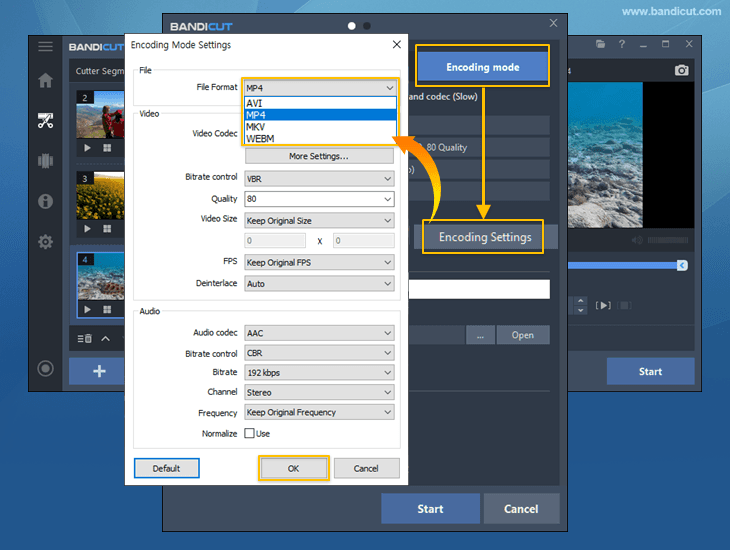
Step 5: When the process is complete, click the 'Open' button to check the converted video files.
For additional tip: Besides converting, you can also batch resize video files, adjust video speed, and extract or remove audio from multiple files. » Find out more in How to Batch Edit Multiple Videos
3. Editing Multiple Videos (Bandicut 2024 & Earlier Versions)
In Bandicut 2024 or earlier, editing multiple files at once requires opening multiple instances of the program. For example, you can edit the first file in one Bandicut window, then launch another Bandicut window to work on a second file simultaneously.

Step 1: Open Bandicut by double-clicking on the icon.
Start your first edit by selecting a video editing feature: Video Cutting, Video Splitting, or Video Joining.
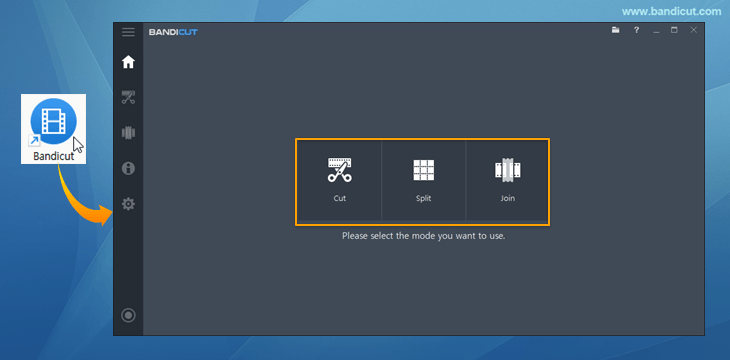
Step 2: During your first edit, launch an additional Bandicut program.
When the message “Bandicut didn’t shut down correctly. Do you want to restore your previous task?" appears, click "No" and start your second edit.

With these steps, you can launch multiple Bandicut programs to edit multiple files at the same time.
For example, while cutting a file in Bandicut, you can run additional Bandicut programs to cut other files or perform multi-tasking such as merging/splitting.