Tips for advanced users »
- Upload videos to YouTube
- Bandicut project file (*.bcpf)
- Capture image from video
- DVD to MP4
- Edit Bandicam videos

How to Rotate or Flip a Video
The latest version, Bandicut 2025, has added video rotation and flip (mirroring) features, allowing you to rotate or flip a video and save it.
If the orientation of your video is set incorrectly, such as when you’ve recorded a video with a smartphone or camera, you can now rotate it by 90, 180, or 270 degrees, or flip it left or right.

How to rotate a video (90°, 180°, 270°)
1. Download and install Bandicut.
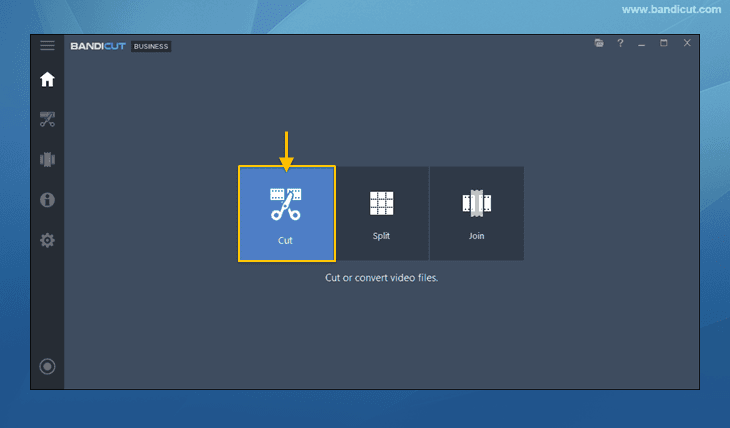
2. Start Bandicut and click the 'Cut' button.
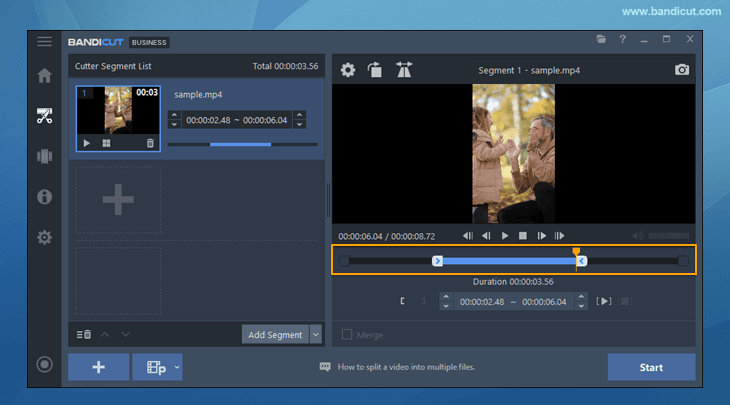
3. Load the video file and set the beginning and end points of the portion you want to keep.
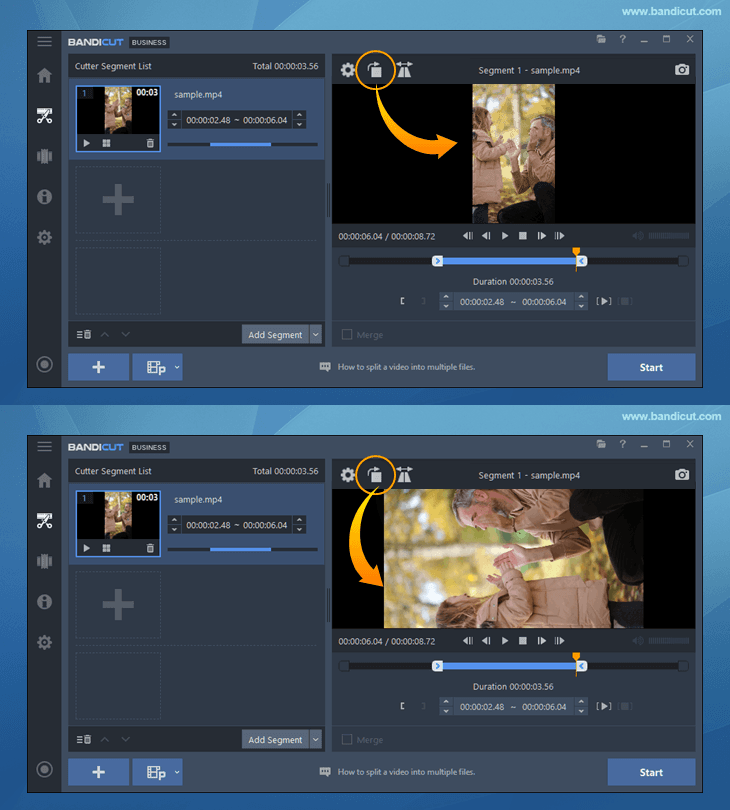
4. Click the rotate icon to rotate your video by 90, 180, or 270 degrees.
5. Add videos and apply rotation settings to all clips.
Click the [+] button to add more videos. Then use the gear icon to select 'Apply to all videos' before rotating.

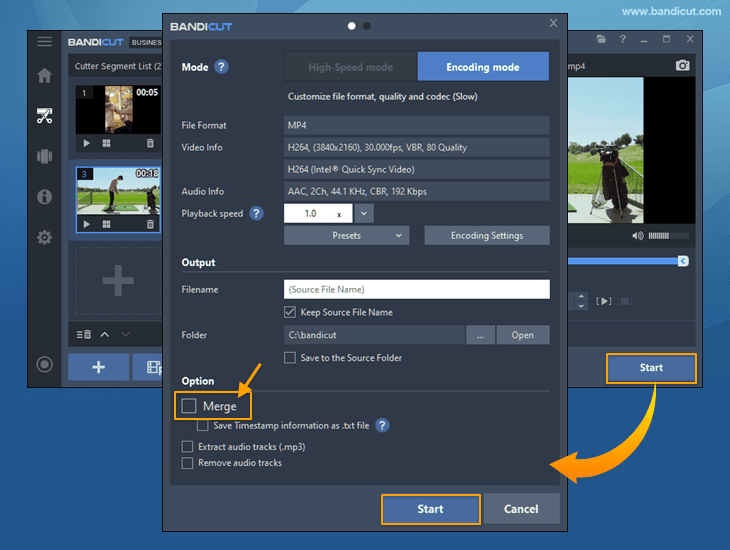
6. To save the rotated video, click the Start button, and click the Start button again in Encoding mode.
- To rotate multiple files individually, leave 'Merge' unchecked; to rotate them as one, check 'Merge.'
- High-speed mode is not available when rotating or flipping videos.
7. Click the 'Open' button to check the rotated video.

- Click the 'Upload' button to upload videos to YouTube/Google Drive/Vimeo
- Click the 'Play' button to playback the videos with the default media player
How to flip (mirror) a video
1. Download and install the latest version of Bandicut 2025.
2. Start Bandicut and click the 'Cut' button.
3. Load the video file and set the beginning and end points of the portion you want to keep.
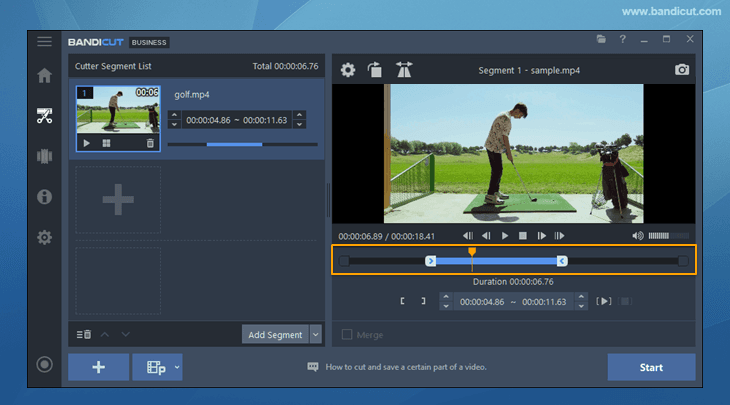
4. To flip your video horizontally, like a mirror, click the flip icon.
- If you click the Rotate and Flip buttons, you can flip a video vertically.
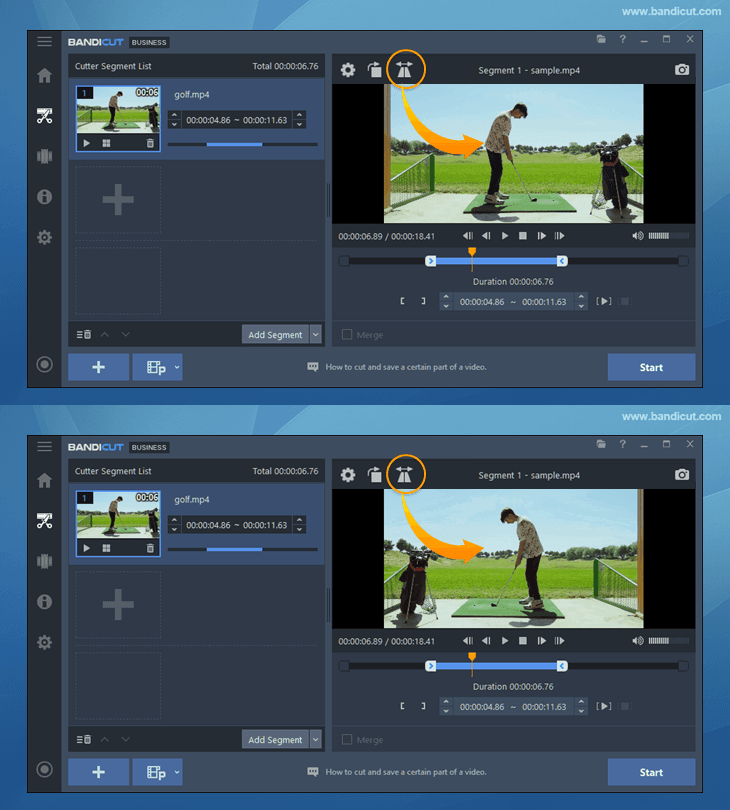
5. Add videos and apply flip settings to all clips.
Click the [+] button to add more videos. Then use the gear icon to select 'Apply to all videos' before flipping.
6. To save the flipped video, click the Start button, and click the Start button again in Encoding mode.
- To flip multiple files individually, leave 'Merge' unchecked; to flip them as one, check 'Merge.'
- High-speed mode is not available when rotating or flipping videos.
7. Click the 'Open' button to check the flipped video.
- Click the 'Upload' button to upload videos to YouTube/Google Drive/Vimeo
- Click the 'Play' button to playback the videos with the default media player


