Tips for advanced users »
- Upload videos to YouTube
- Bandicut project file (*.bcpf)
- Capture image from video
- DVD to MP4
- Edit Bandicam videos

 Upload to YouTube
 Upload to Google Drive
 Upload to Vimeo
Upload edited videos to Google Drive from Bandicut
Bandicut versions 3.7.0 and higher allow users to upload videos to Google Drive directly. If you are using Bandicut and want to share or store videos on your Google Drive, try Bandicut’s upload feature. It allows users to store files in the cloud, access them across devices, and share files with anyone through a link.

Please see the tutorial below to upload videos to Google Drive from Bandicut.
1. Click the [Upload] button when the task has been completed.
Choose one of the two methods below for uploading to Google Drive.- Don’t Share: Only your Google account can view uploaded videos.
- Create a share link: Anyone with the link can view the uploaded video.

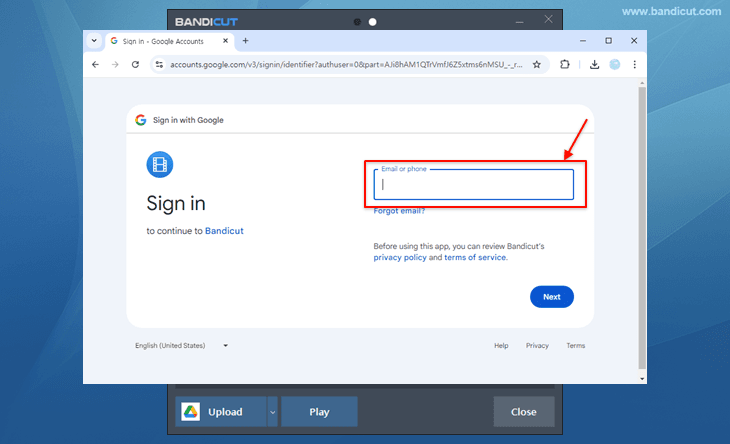
2. Sign in with your Google account by entering your email address and password.
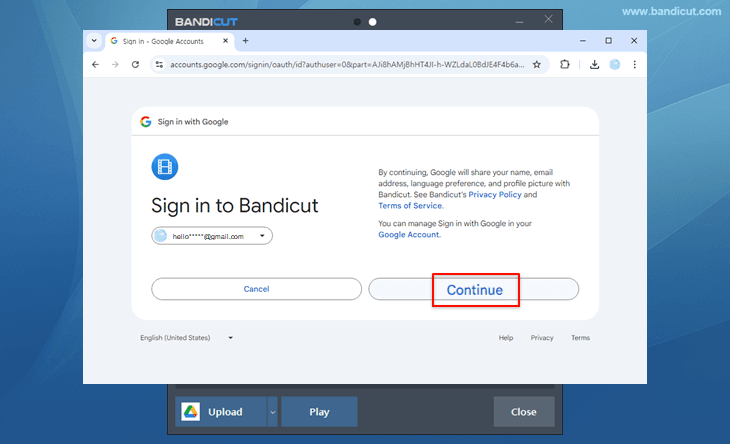
3. Click the "Continue" button to connect Bandicut to your Google account.
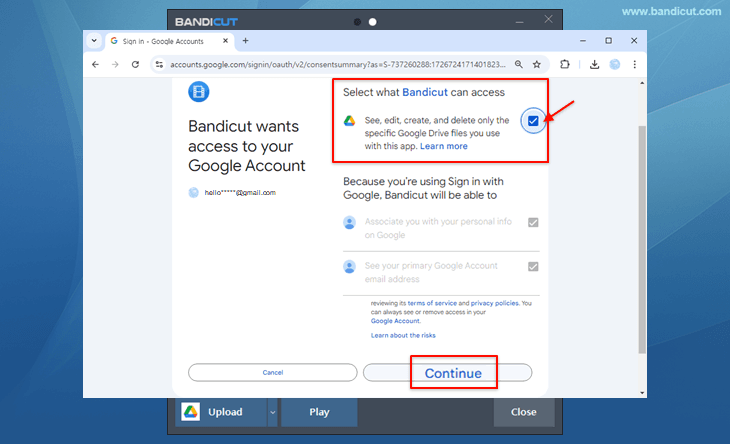
4. Check the access option and click the "Continue" button.
5. Now, the video will be uploaded from Bandicut to Google Drive.
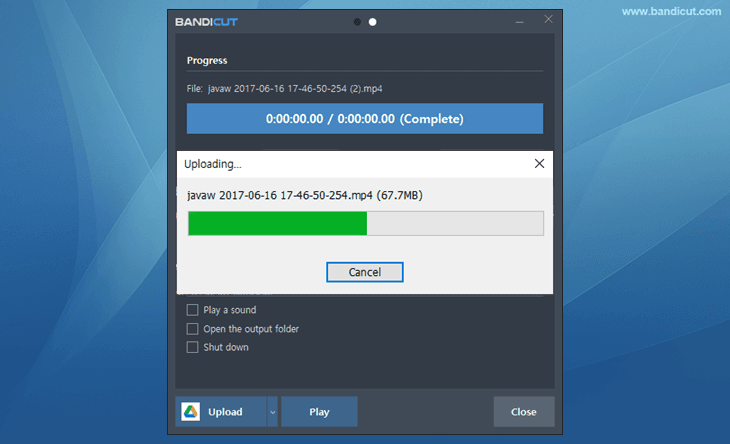
6. After uploading, click the [Go] button to view the uploaded video in Google Drive.
If you click the [Copy Share Link] button, the link to share with others will be copied to the clipboard.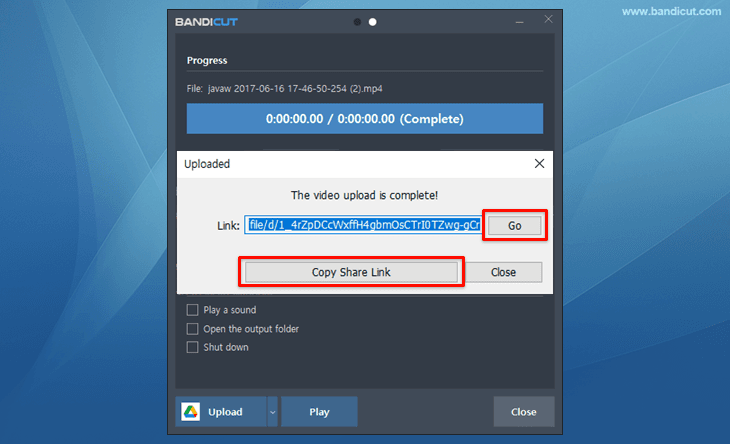
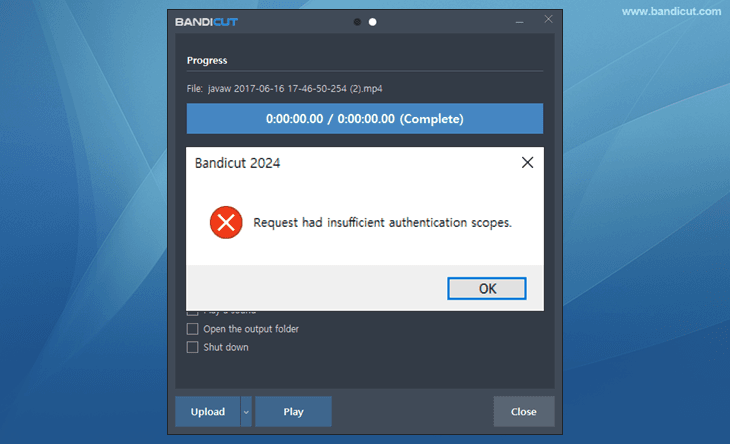
[Error] Request had insufficient authentication scopes
If an error message (as shown in the image below) appears when uploading, check the access option when logging in to your Google account, and then try to upload again.