Tips for advanced users »
- Upload videos to YouTube
- Bandicut project file (*.bcpf)
- Capture image from video
- DVD to MP4
- Edit Bandicam videos

How to Split a Video into Multiple Equal Files
Bandicut supports splitting a video based on either the selected number of segments, or the duration of each segment. If you want to split a video into multiple equal files, please see the tutorial below:
How to Split a Video

1. Download and install Bandicut Video Splitter.
2. Start Bandicut and click the 'Split' button.

3. Select the video you want to split, and click the 'Open' button.

4. Choose a split method, and then click 'Apply' and 'Start.'
- Split into XX segments: If you enter "2" segments, the video will be split into 2 equal segments.
- Split by duration: If you enter "5 Min.," the video will be split into 5-minute segments from the beginning.
- Keep the selected segment: This feature allows you to preserve the original segment in the segment list.
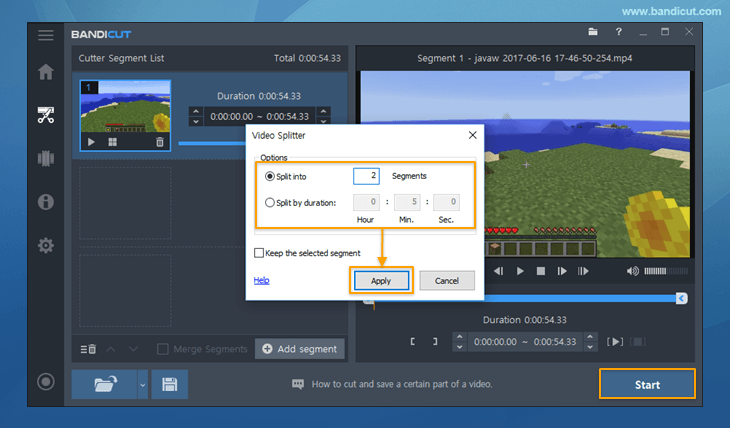
5. Choose [High-Speed mode] to quickly split a video while preserving the original quality.

- Learn more on the "High-Speed mode vs. Encoding mode" page.
6. Click the 'Open' button to check the clipped video.

- Click the 'Upload' button to upload videos to YouTube/Google Drive/Vimeo
- Click the 'Play' button to playback the videos with the default media player


