Tips for advanced users »
- Upload videos to YouTube
- Bandicut project file (*.bcpf)
- Capture image from video
- DVD to MP4
- Edit Bandicam videos

How to Remove Unwanted Parts of a Video (e.g., advertisements, commercial breaks)
To trim a specific part of a video, select where the parts you want to keep begin and end, and then merge those segments.

* How to Remove Unwanted Parts of a Video (Video tutorial)
1. Download and install Bandicut Video Cutter.
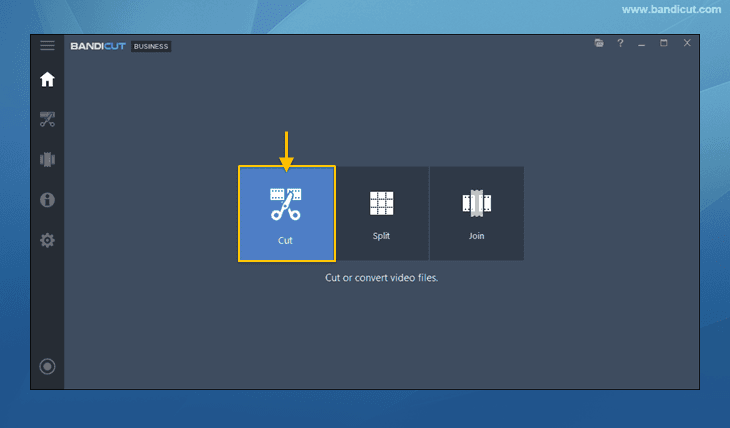
2. Start Bandicut and click the 'Cut' button.
3. Select a video, and click the 'Open' button.

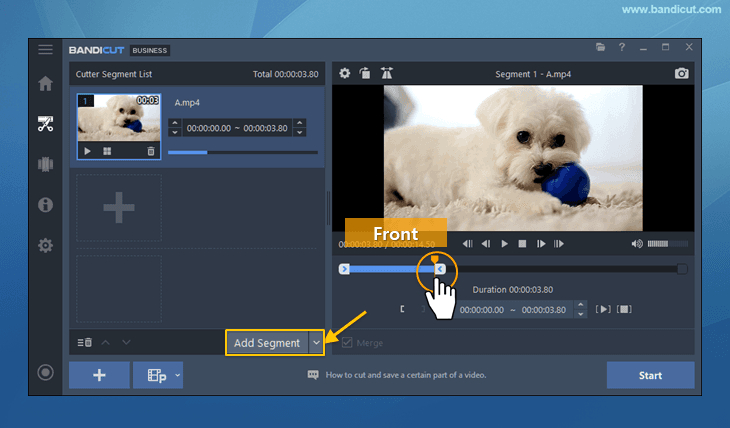
4. Move the slider to the front of the portion you want to save. Then, click on the 'Add segment' button.
- Add Segment (Ctrl+N): Adds section after the blue slider
 .
. - Add from Current Position (Ctrl+B): Adds section after the orange playhead.
- Copy Segment (Ctrl+V): Copies the currently selected section.
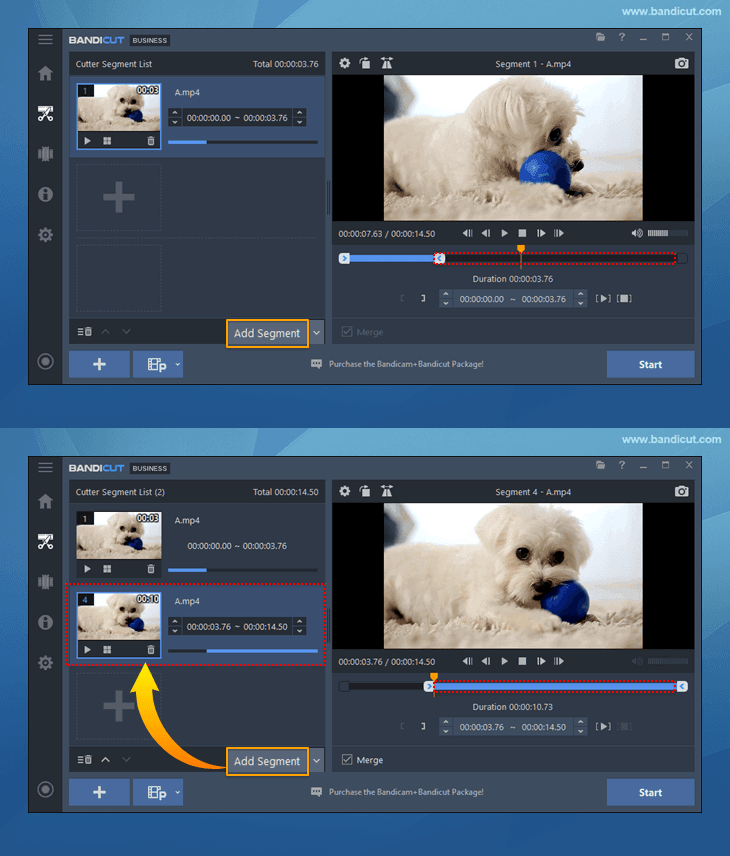
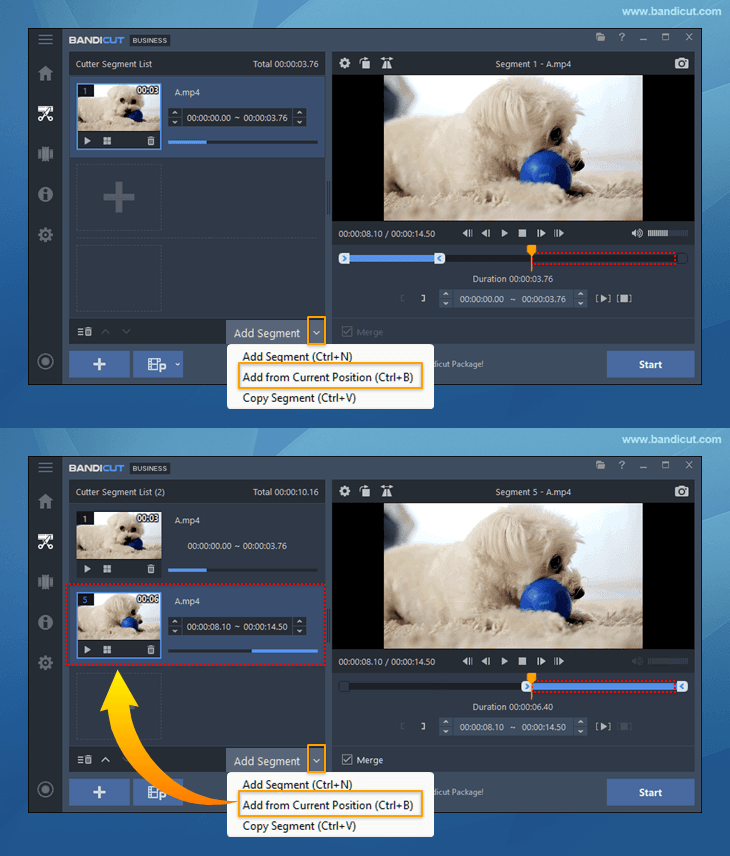
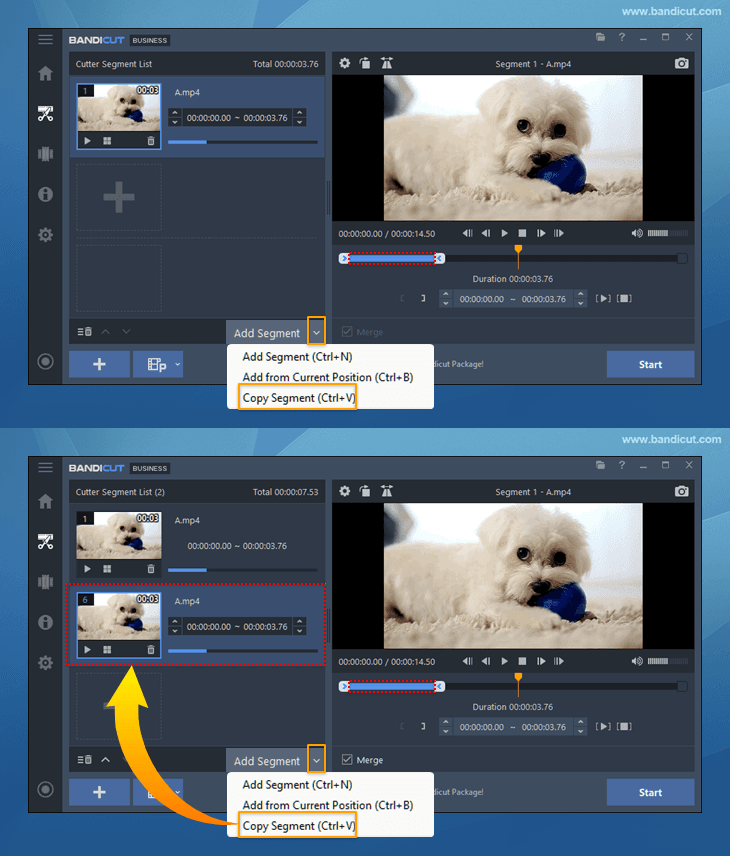
5. Move the slider to the end of the portion you want to save, and click the 'Start' button.

6. Once all segments are set, check the 'Merge' option and click the 'Start' button.
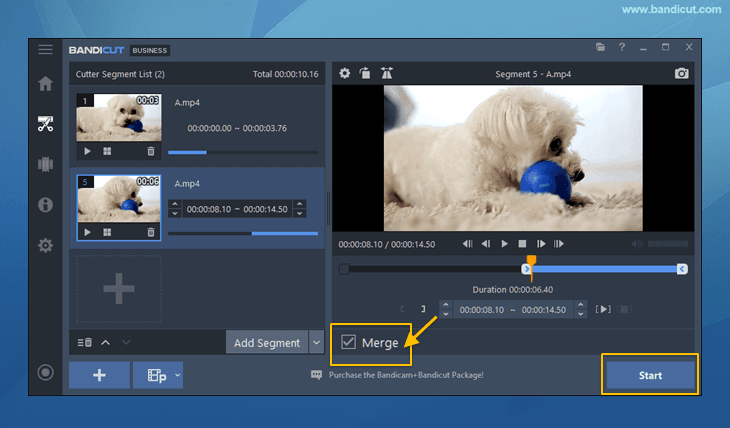
7. Click the 'Start' button again in the High-Speed/Encoding mode to save the file.
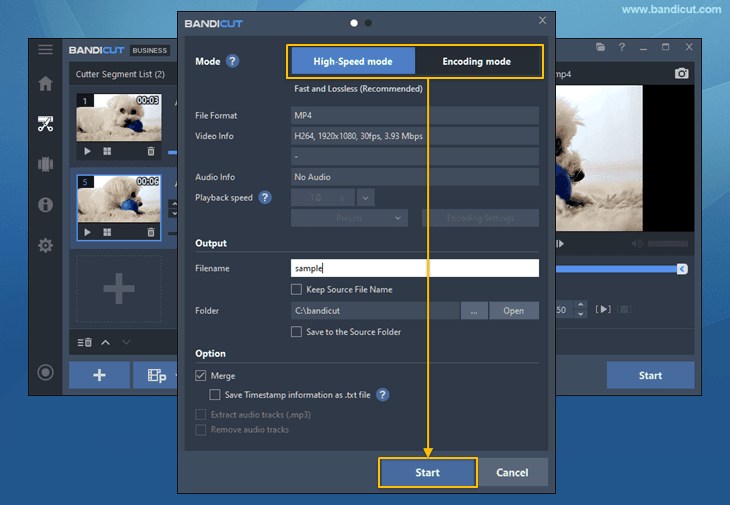
- If you use the "Save Timestamp information as .txt file" option, you can easily save timestamp information as a text file.
- Learn more on the "High-Speed mode vs. Encoding mode" page.
8. Click the 'Open' button to check the video.

- Click the 'Upload' button to upload videos to YouTube/Google Drive/Vimeo
- Click the 'Play' button to playback the videos with the default media player


