Tips for advanced users »
- Upload videos to YouTube
- Bandicut project file (*.bcpf)
- Capture image from video
- DVD to MP4
- Edit Bandicam videos

How to Cut a Video Segment You Want to Use
If you want to cut and save specific segments of a video, please see the manual below:

* Bandicut Video Cutter (Video tutorial)
1. Download and install Bandicut Video Cutter.
2. Start Bandicut and click the 'Cut' button.
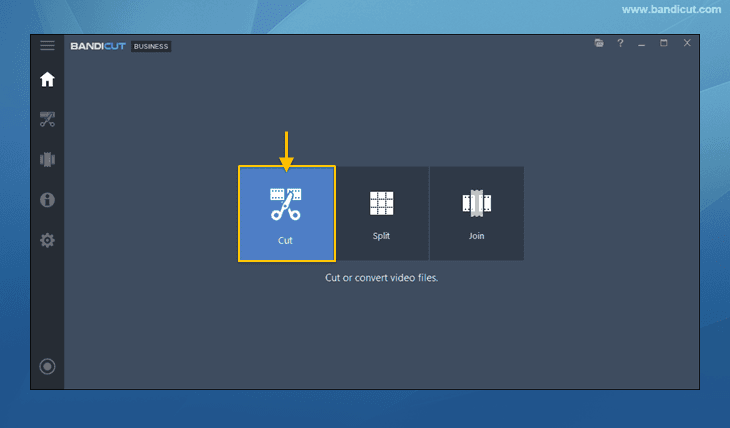
3. Select the video you want to cut, and click the 'Open' button.

4. You can also add additional video files by clicking the [+] button.

5. Set the beginning and end points of the portion you want to save, and click on the 'Start' button.

- For precise editing, refer to How to edit a video frame by frame.
6. Click the 'Start' button to initiate the video cutting.

- Learn more on the "High-Speed mode vs. Encoding mode" page.
7. Click the 'Open' button to check the clipped video.

- Click the 'Upload' button to upload videos to YouTube/Google Drive/Vimeo
- Click the 'Play' button to playback the videos with the default media player


