Tips for advanced users »
- Upload videos to YouTube
- Bandicut project file (*.bcpf)
- Capture image from video
- DVD to MP4
- Edit Bandicam videos

Bandicut window
The Bandicut window allows users to cut specific parts of a video, merge multiple sections, split a video into multiple files or configure the main settings related to Bandicut.

- Bandicut menu: It allows users to check the major functions of Bandicut from the drop-down menu.
- Start Page, Cutter, Joiner and license information: It allows users to go to the start page, cutting page, joining page or license information page.
- Configuration: It allows users to configure the main settings related to Bandicut.
- Cut: It allows users to perform file operations such as cutting and converting multiple files.
- Split: It allows users to split a video into multiple equal files.
- Join: It allows users to join multiple videos or merge more than 2 video files.
- Register: It allows users to register the Bandicut serial number obtained from purchasing the product.
Main window control

- Thumbnail: Click the thumbnail image to play/split/delete the selected section.
-
Close File, Move Up/Down, Merge segments, Add segment
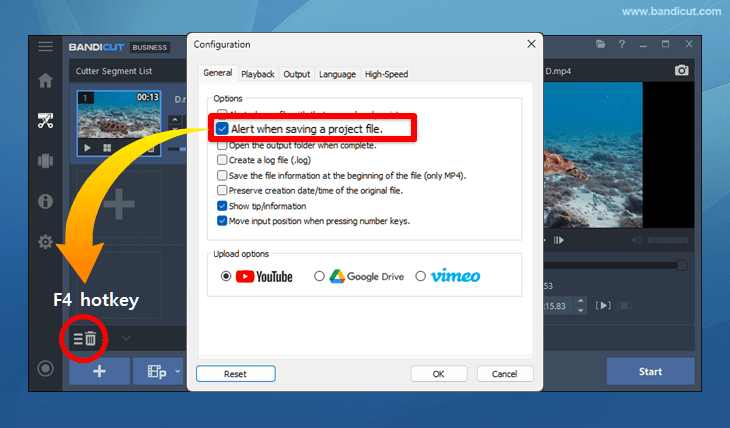
- Close File: You can delete all videos in the list (To hide the project file alert message, uncheck the 'Alert when saving a project file' option and use the "F4" hotkey
 ).
). - Move Up/Down: Click the 'Move Up/Down' button to change the order of the segments.
- Add Segment
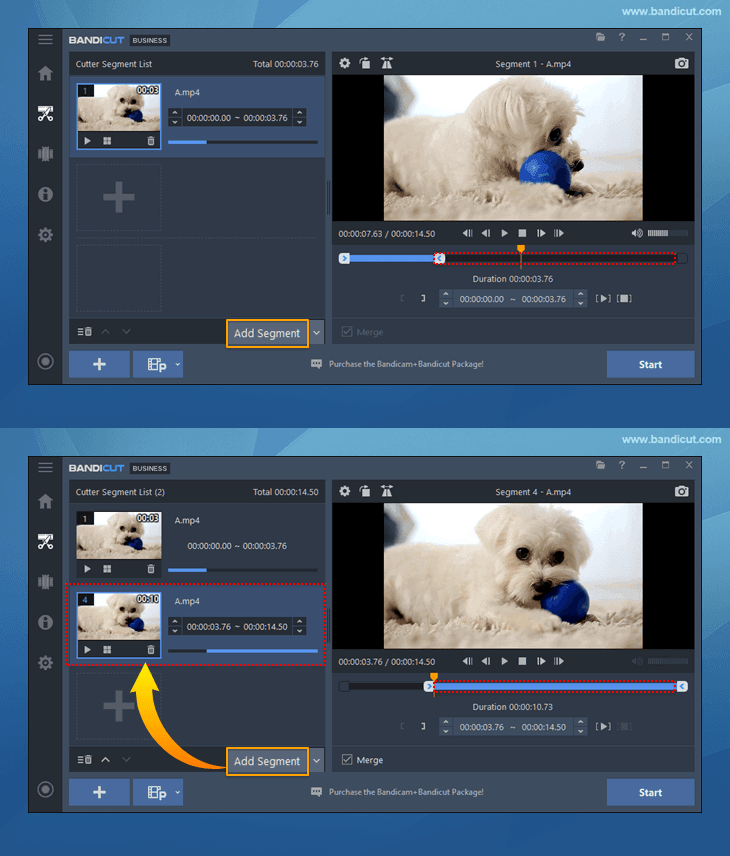
- Add Segment (Ctrl+N): Adds the area after the blue slider.
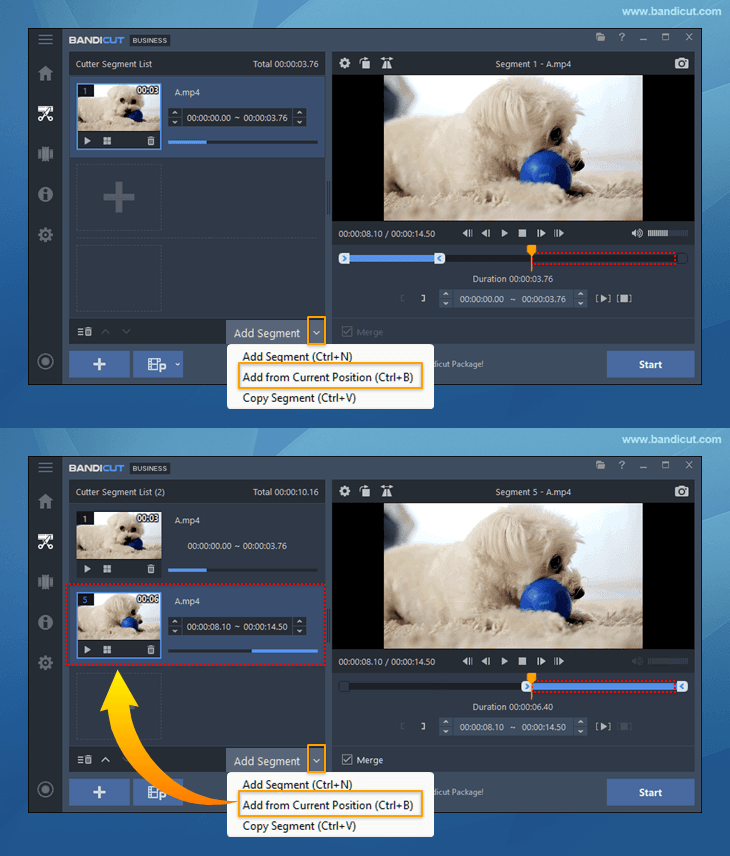
- Add from Current Position (Ctrl+B): Adds the part after the orange playhead.
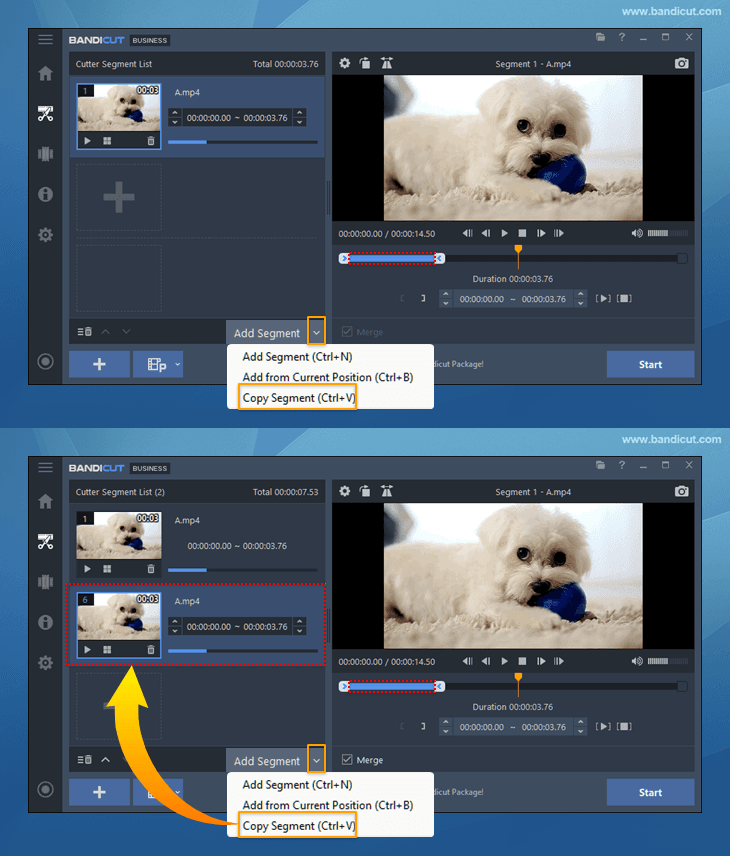
- Copy Segment (Ctrl+V): Copies the currently selected section.
- Add Segment (Ctrl+N): Adds the area after the blue slider
- Merge: Check the 'Merge' option to merge multiple sections/files.
- Close File: You can delete all videos in the list (To hide the project file alert message, uncheck the 'Alert when saving a project file' option and use the "F4" hotkey
-
Open File, Open/Save Project File
- Open File: Click the 'Open File' button to import a video you want to edit.
- Open/Save Project File: Click the 'Open/Save Project File' button to open/Save a Bandicut Project File (*.bcpf) which contains the file location information.
-
Playback controls: Adjust the cutting area with the playback controls.
- Playing time: Check the current playing time and total play time of the video.
- Previous/Next Keyframe: Move to the previous/next keyframe.
- Previous/Next Frame: Move to the previous/next frame.
- Play/Pause: Play or pause videos.
- Stop: Stop playback of videos.
-
Segment Start/End, Playhead
- Segment Start/End: Use the left/right [Section] button to select a cutting area to be clipped.
- Playhead: Preview and move the current video location through 'Playhead' and 'Mouse Wheel'.
-
Start/end time
- Set Segment Start/End Time ( [, ] ): Click the [Set Segment Start/End Time] button to fix the cutting section.
- Start/end time: Set the start/end time of a segment in detail.
- Use the 'Adjustment buttons' to set the starting/ending section.

- To adjust [ Hour : Minute : Second : Frame ], click the section, and then use the 'Adjustment buttons' or 'Mouse Wheel.'

-
Rotation Settings, Rotate, Flip(Mirror)
- Rotation Settings: Reset the values applied to rotation/flipping or apply all values when joining videos.
- Rotate: Rotate the video 90, 180, or 270 degrees. » How to rotate a video
- Flip(Mirror): Flip the video horizontally. » How to flip a video
-
Image capture
- Capture an image from the video frame in the original quality.
-
Start
- Click the 'Start' button to initiate the video editing.

* Term) Frame and Keyframe

- Frame: A frame is a single shot of a series of still transparent pictures that form a video. (A frame contains partial information of a still scene.)
- Keyframe: A video file has a limited number of keyframes - not every frame is a keyframe. A keyframe is a frame used to indicate the beginning or end of a change made to the signal. (A keyframe contains full information of a still scene.)
- If there is a 30 FPS video, it will have 30 "Frames" and may have 1~5 (?) "Keyframes" per second.
- Bandicut can cut videos by frame.