Tips for advanced users »
- Upload videos to YouTube
- Bandicut project file (*.bcpf)
- Capture image from video
- DVD to MP4
- Edit Bandicam videos

Bandicut Configuration
The Configuration window allows users to configure Bandicut’s main settings, such as choosing the default output folder, using a hardware accelerated H.264 encoder, changing the default language, etc.
Configuration :: General
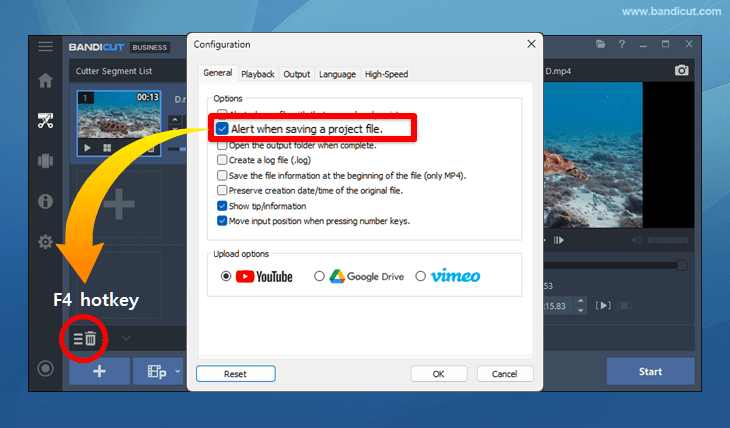
Press the 'F5' function key or click the 'Configuration' menu to configure the main settings as shown below:

- Options
- Alert when a file with that name already exists: If unchecked, the file is saved as "Filename (2).avi/mp4."
- Alert when saving a project file: Show an alert message when you try to open a new file while editing.
To hide the alert message, uncheck the 'Alert when saving a project file' option and use the "F4" hotkey
- Open the output folder when complete: Check this option to open the output folder after editing.
- Create a log file (.log): Check this option to see the video and output settings after cutting/merging/splitting.
- Save the file information at the beginning of the file (only MP4): If this option is checked, Bandicut will move the video information (MOOV) to the beginning of your video files which allows you to enable MP4 streaming.
This will allow the video to begin playing before the entire video is downloaded. - Preserve creation date/time of the original file (Tag data): Keep the original date/time of the video.
- Show tip/information: If this option is checked, Bandicut will show the tip/information at the bottom of the Bandicut window.
- Move input position when pressing number keys: If this option is checked, the input position is moved to the next section when a user inputs a number.
- Upload options: Select the default setting for video uploading (YouTube, Google Drive or Vimeo).
- Reset: Click this button to reset Bandicut to default settings.


Configuration :: Playback

- Playback
- Alert when opening non-seekable media files: Show a message when file/header information is broken.
- Use the deinterlace filter when playing interlaced video: If checked, interlaced videos with horizontal lines will be played smoothly without visible line artifacts.
- Use the hardware video render for playback: If this option is checked, videos will be played in Bandicut with better quality.
- Use the hardware video decoder: The hardware decoder enables smoother preview playback and lower PC load.
- Advanced: You can choose whether to use a hardware decoder for each video codec.
Configuration :: Output

- Output folder: Click [Browse...] to set the output folder as another folder, and click [Open] to view the output folder.
- Save to the Source Folder: The output files are saved to the same folder as the source file.
- Cache folder: Click [Browse...] to change the cache folder. » See more
- File naming settings: This option allows you to set the file name of the output video and audio files.
Configuration :: Language
Users can choose from a selection of languages to optimize their experience with Bandicut.

Configuration :: High Speed

- Alert when unable to use High-Speed mode: If Bandicut is unable to use High-Speed mode, an alert message will be shown.
- Always cut/merge by keyframe in High-Speed mode: If this option is checked, Bandicut will always cut/merge by keyframe in High-Speed mode. Term) Frame and Keyframe
- Alert when the start time of the file will change: Refer to "The start time of this file may change when using High-Speed mode."
- Enable flexible High-Speed merge criteria: Enable this option if files that merged successfully in High-Speed mode in earlier versions no longer merge in the latest version.
