How to record your computer sound
Fix no-sound recording issues in Bandicam by checking speaker devices, Windows sound settings, Stereo Mix, and audio drivers.
If you set the sound settings correctly in Bandicam and Windows, you'll be able to record all computer sounds.
1. [Windows Vista/7/8/10/11] Record your computer sound
Choose "(Default Output Device)" as Speakers in Bandicam and set "Speakers (or Headphones)" as the default play device (green check mark)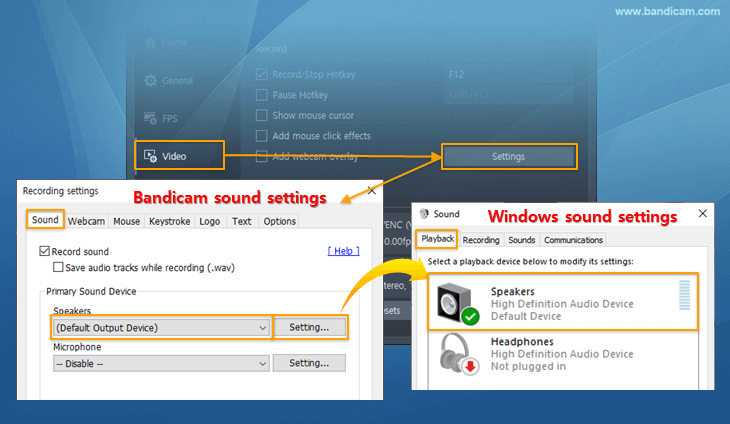 in Windows sound settings.
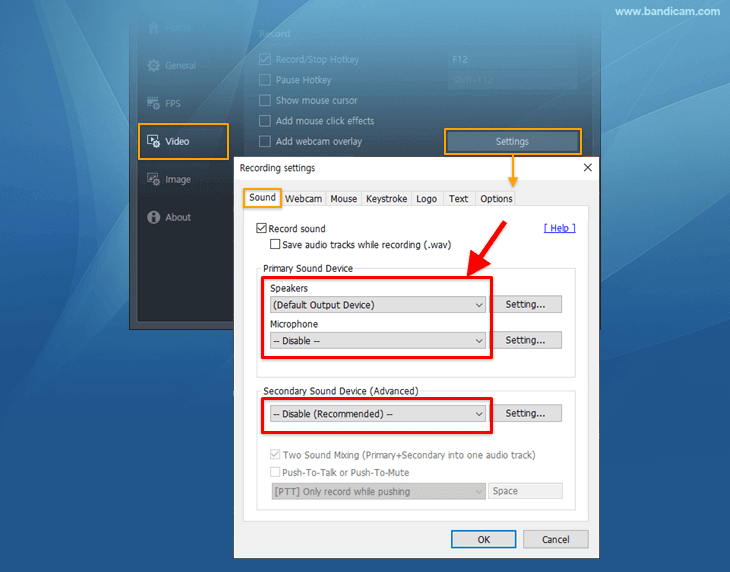
2. [No sound] Solutions for sound recording
1) If "(Default Output Device)" is selected, but no sound is recorded, select the speaker (or headphone) device directly.
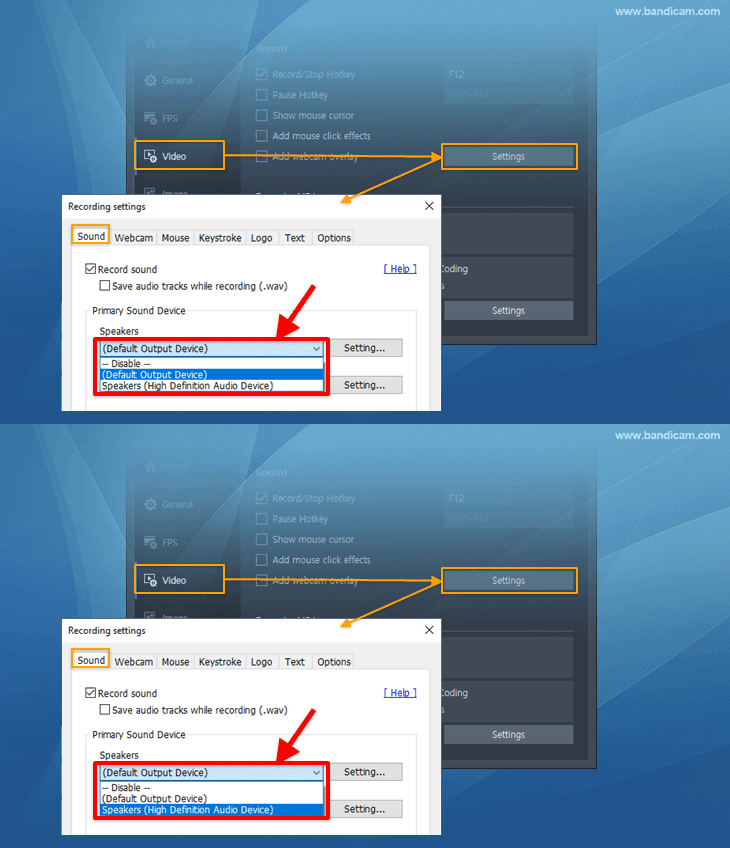
2) If you still can't record computer sound, check the Windows sound settings as shown below:

- If you see "Not plugged in," connect the audio cable to your computer.
- If you see "Disabled," select the "Enable" option.
- If you see "Ready," set "Speakers (or Headphones)" as the default sound device.
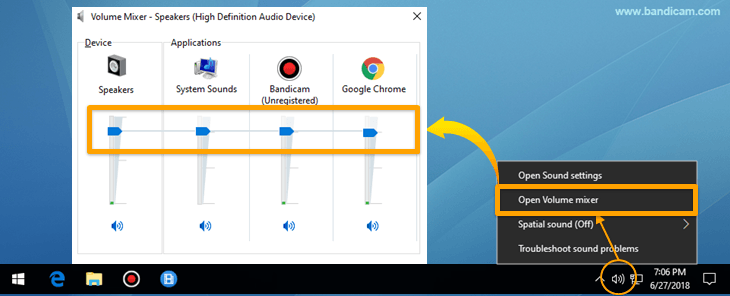
- Select 'Open Volume Mixer' in the system tray, and set the Device/Applications volume to 70-90%

Note: If Bandicam is muted in Windows sound settings or volume mixer, you won't be able to record all computer sounds.
3) If the sound settings are correct, you will be able to see the sound bar while recording.

4) If you still have a problem with sound recording, try reinstalling the sound card driver, check or uncheck "Run this program in compatibility mode for: " and try again.
3. How to record computer sound in Windows XP
To record computer sound in Windows XP, choose "Primary Sound Capture Driver" (or audio device to be captured) as the primary sound device in Bandicam. Then, check the "Stereo Mix" option in Windows.

* Windows XP settings (Stereo Mix)
1. Right-click on the Speaker icon in the system tray -> Open Volume control -> Click Properties .
.
2. Select the 'Recording' icon from the 'Properties' window, and then check the 'Stereo Mix' option .
.
- If there is no "Stereo Mix" option, you can check “Wake output mix,” “What U hear,” “Stereo out,” “Mixed output,” “Post-mix,” “Loop back,” “SUM,” and the like.
3. Set the volume of Stereo Mix to 70-90% .
.
- If there is a 'Mute' checkbox instead of a 'Select' checkbox, the box needs to be left unchecked.
* Tips
Tip 1) If you use Windows XP, you can't record computer sounds with the 'USB headset/sound device' .
.
Tip 2) If the sound is not being recorded even after you've adjusted your setting as above, try reinstalling the sound card driver again.
FAQs
When using Bluetooth earphones or headset
A problem may occur if you use a Bluetooth device as both [Speaker] and [Microphone] at the same time. We recommend you select another sound device for [Speaker] and select a Bluetooth device only for [Microphone]. If you still have problems, please use a USB microphone/headset, or use your smartphone as a microphone.
When using a laptop's built-in speaker device
If the computer sound is not being recorded when using the built-in speakers of the laptop, use a USB microphone/headset or reinstall your sound card drivers.
When the recorded sound is low
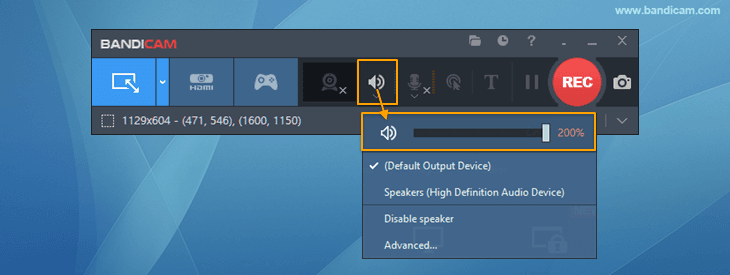
If the sound is recorded low, plug the headset into another USB slot, click the speaker icon in Bandicam -> increase the volume to 200% and try recording again.
Why is there no sound in my recorded video?
Select the actual speaker or headphone device directly instead of only using the default output device, then check Windows sound settings, volume, and device connection. Reinstalling or updating the audio driver can also fix missing sound.
How to record computer sound in Windows XP?
Choose Primary Sound Capture Driver or the target audio device as Bandicam's primary sound device, then enable Stereo Mix in Windows. After Stereo Mix is enabled, Bandicam can record computer sound in Windows XP.
If you still can't record your computer sound, record the sound settings of Bandicam/Windows and send the video file to bandicam@bandicam.com
Related FAQs
- Voice: How to record microphone sound
- Sound: How to record computer sound
- Sound+Voice: How to record "computer sound" and "your voice" at the same time
- Audio only (without video): How to record only audio
- Noise: How to remove microphone noise/howling/robot/echo sound
- Error: Failed to start audio capture | The video and audio are out of sync
- How to adjust the volume while recording