Try Bandicam Screen Recorder!
Download Bandicam (Free)How to Download Udemy Courses

Udemy is an online learning platform that offers a wide range of courses on various subjects. Courses on Udemy cover diverse topics such as programming, marketing, data science, personal development, and more. You can learn new skills, improve job-related abilities, or explore personal interests through video lectures, quizzes, and assignments in Udemy.
You may often want to download Udemy lectures to access the course without needing an internet connection or review the material at your own pace without worrying about buffering or connectivity issues. In this article, we will explain how to save Udemy lectures.
Can I Download Udemy Videos?
Some lectures can be downloaded to a computer if the instructor has enabled the download feature. Click the gear icon at the bottom right of the course player and select ‘Download lecture.’
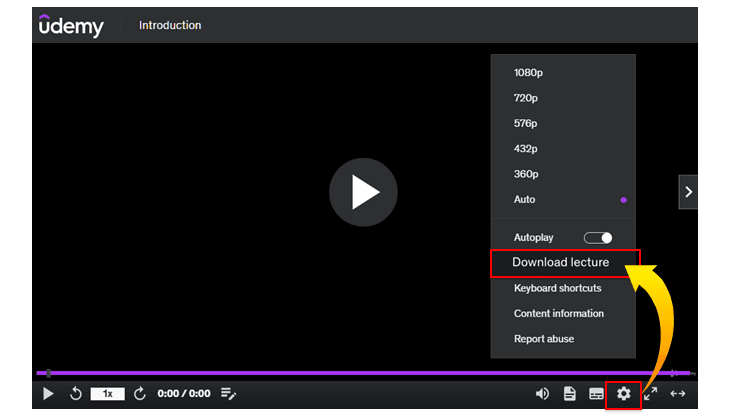
However, the ‘Download lecture’ option may be disabled in some courses. In this case, you can save Udemy lectures without limitations using Bandicam Screen Recorder.
How to Download Udemy Videos by Recording
If you can’t download Udemy lectures since the ‘Download lecture’ option is grayed out, use Bandicam Screen Recorder. Follow the steps below to download Udemy courses for free using Bandicam:
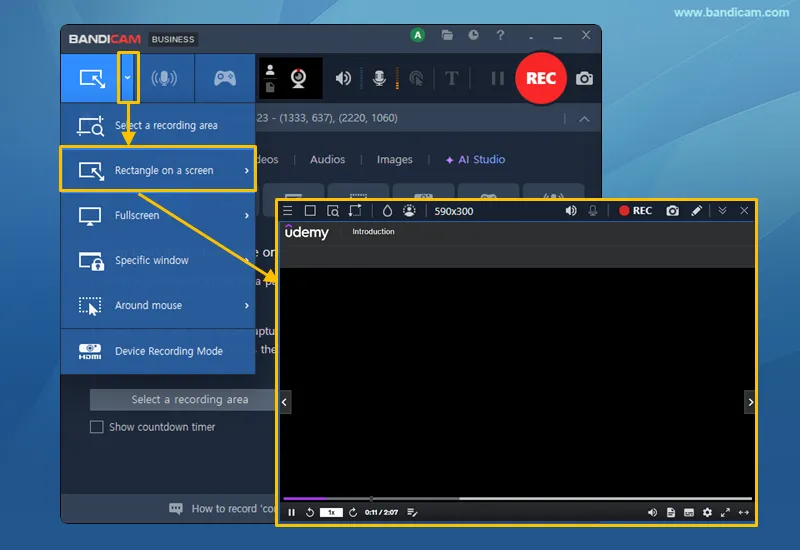
Install Bandicam Screen Recorder and start the software.
Choose Rectangle on a screen and adjust the recording area.
![Record a Udemy lecture]()
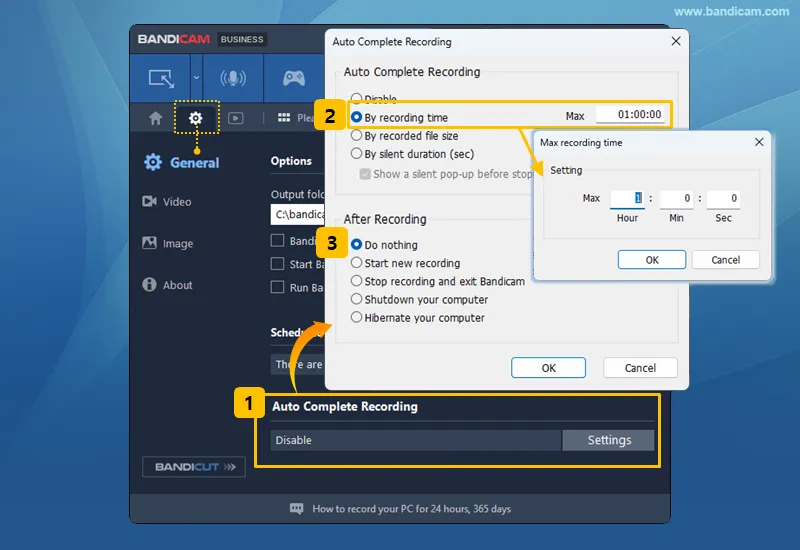
Optional: Use the Auto Complete Recording option to end recording automatically.
For example, if you want the recording to stop automatically one hour after it starts, set the 'By recording time' option to '1 hour' and select 'Do nothing.'
![Stop recording after one hour]()
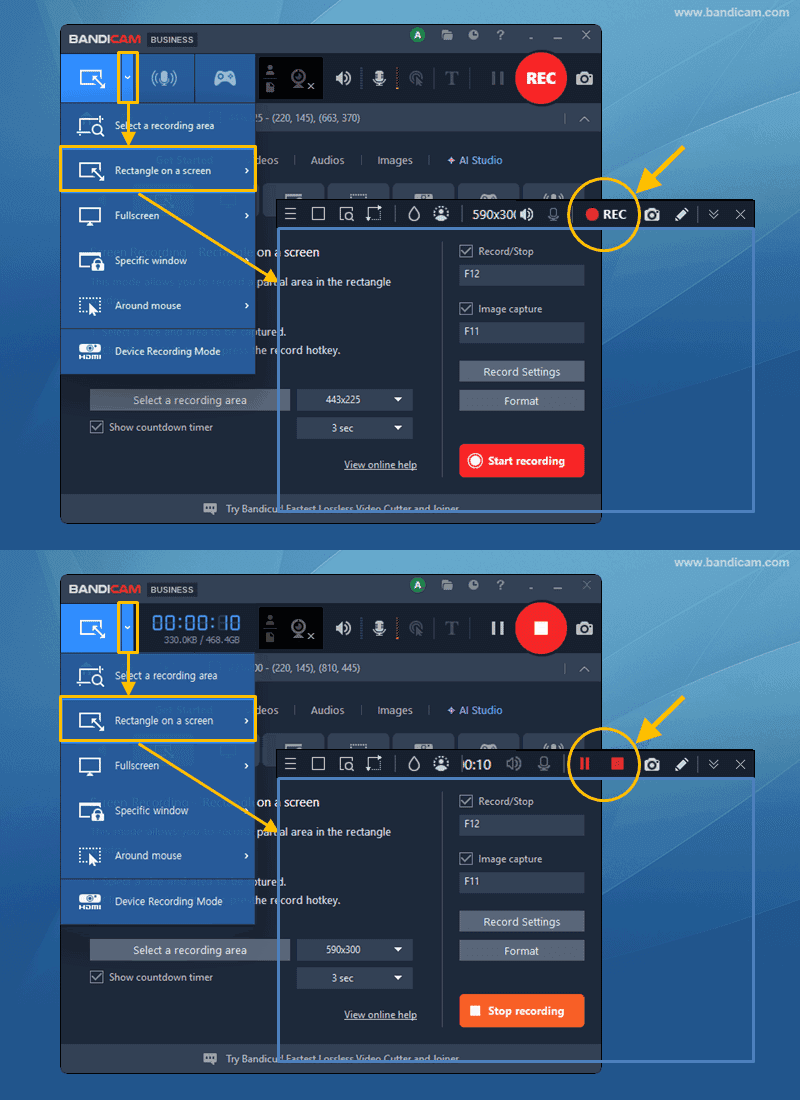
To begin recording, click on the '● REC' button.
Click the ■ stop button to finish the recording and save it as a video file.
![Start and stop recording]()
Go to Home > Videos to check your recorded lectures.
Select your recording to play or edit it. You can also convert the lecture audio to text or create subtitles in Bandicam's built-in player.
![Recorded lecture videos]()

With these simple steps, you can save Udemy courses to your computer and watch them later at your own time. However, remember that Udemy content is copyrighted and cannot be recorded or distributed without permission. Recordings should only be used for personal learning purposes and should not be shared with third parties.
Related FAQs for downloading Udemy courses
1. Can I watch Udemy courses offline on my phone?
Yes. Download available lectures in the Udemy app for iOS or Android. Downloaded videos can only be watched within the app.
2. How do I download Udemy video courses to my computer?
First, check if the course you are listening to on Udemy is available for download. If the download option is unavailable, use a third-party app like Bandicam Screen Recorder to download Udemy video courses for free.
3. Why do I hear audio but see a black screen in my recording?
Content protection or browser graphics settings may cause a black screen. See the black screen recording FAQ for troubleshooting.
Additional Tips
1. Record lecture audio only
- Use Audio-only Recording mode to record lecture audio without video.
- Choose MP3 or WAV as the audio format.
2. Convert Udemy Videos to MP3
If you have Udemy videos and want to convert them to MP3, use Bandicut. You can extract audio from video to MP3 for free.

3. Create lecture summaries and quizzes
After transcribing your recording, use AI tools to summarize the lecture or create a quiz for review.
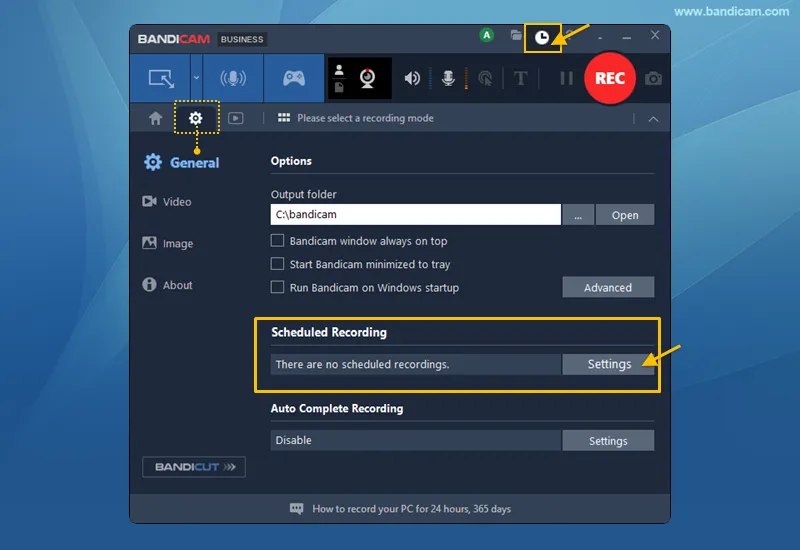
4. Schedule and record Udemy lectures.
Bandicam has a scheduled recording function. You can automatically start recording "at a specific time on a daily/weekly schedule" or "with the most recently used recording mode."
5. Record a specific window and its audio
- Record the lecture window even when other windows cover it.
- Enable Capture audio exclusively to record only the selected app's sound.
Note: This option works on Windows 10/11. » Check more precautions when recording a specific window.

Last Updated on