Free Webcam Recorder

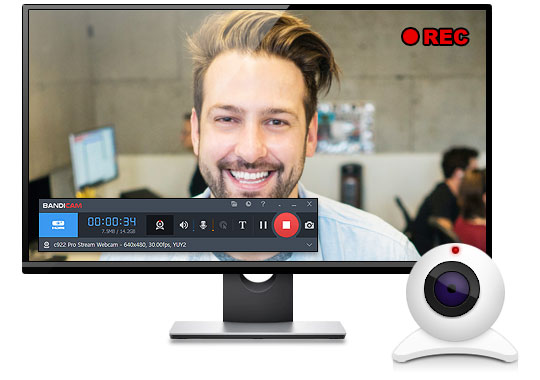
Bandicam allows you to record an external video device such as a webcam, Xbox/PlayStation, smartphone, IPTV, etc., in super high quality. You can also put your webcam/facecam on one corner of your video (Picture-in-Picture, Video-in-Video).

Free Download

Windows 10 and Windows 11 compatible!

Try the free version of Bandicam Webcam Recorder!

Webcam Recorder

Try Bandicam Webcam Recorder and capture any webcam video!

Bandicam Webcam Recorder is a professional webcam capture software that allows you to record from any video device including USB webcam cameras, video capture cards, and camcorders. With Bandicam, you can capture webcam videos with audio and upload them to YouTube.
Bandicam allows you to automatically stop recordings based on file size or recording time. Recorded webcam videos can be saved in various file formats including MP4, AVI, and WAV.

Bandicam Webcam Recorder fully supports the hardware-accelerated H.264 encoder of NVidia NVENC, Intel Quick Sync video, and AMD VCE, allowing videos to be recorded with high speed, high compression ratio, and excellent quality.


Some ways to use the 'Webcam Recording' mode

Capture webcam video on PC

Capture "webcam videos" on PC

You can record real-time webcam videos with a high compression ratio and in high quality with Bandicam.

How to record webcam and microphone »
How to put your webcam/facecam on one corner of your video »

Use your phone as a webcam on a PC

Use your phone as a webcam on a PC and Record

You can use your smartphone or iPhone camera as an external webcam device using the IRIUN or DroidCam application.

How to use your phone as a webcam on a PC »

Capture Xbox, PlayStation, IPTV, APPLE TV, HDTV screen on PC

Capture Xbox, PlayStation, IPTV, APPLE TV, HDTV screen on PC

You can record video game consoles (Xbox, PlayStation, etc.), Apple TV, or IPTV set-top boxes in high quality with Bandicam.
Note: a capture card and an HDMI cable are needed.

Capture your iPhone/Smartphone screen on PC

Capture your iPhone or Android Smartphone screen on PC

You can record your iPhone, iPad, or Android smartphone screen in high quality with Bandicam.
Note: a capture card and an HDMI cable are needed.

How to record the screen of your smartphone or tablet »


Screenshots of Bandicam Webcam Recorder

Customer Reviews & Testimonials

Tips and Tricks for Webcam Recording


Frequently Asked Questions

To record your webcam, launch Bandicam and select “Device Recording Mode.” Choose your webcam from the device list, and press the REC button to start capturing your webcam video.
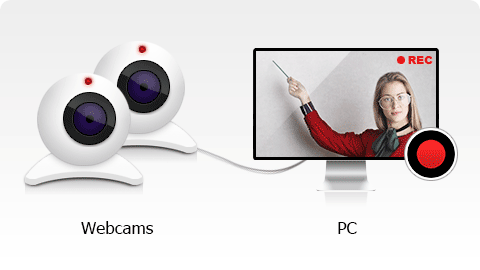
You can record multiple webcams or external devices at the same time by running more than one Bandicam program on your computer. Each instance can capture a different device and save the recordings as separate video files.
Yes. Bandicam allows you to flip, mirror, and rotate your webcam feed before recording. These options can be found under the Device Selection settings.
Yes. You can use apps like DroidCam or Iriun to connect your smartphone as a webcam on your PC. Once connected, select your phone as the input device in Bandicam’s Device Recording Mode and start recording.
Looking for a Mac screen recorder?
Bandicam is also available for macOS.
Download Bandicam for Mac