How to make and upload videos to YouTube from Bandicam
Bandicam is a screen recording program that allows you to record everything on your computer screen. When you finish recording, you can upload the video (including 1080p HD and 4K UHD) to YouTube without any conversion.
If you want to upload the recorded video to YouTube, download the free version of Bandicam from https://www.bandicam.com/downloads/, record the target, and click the Upload button on Bandicam.

Please see the tutorial below to upload videos to YouTube from Bandicam.
-
Record your PC screen with the Screen Recording, Device Recording, or Game Recording mode.
-
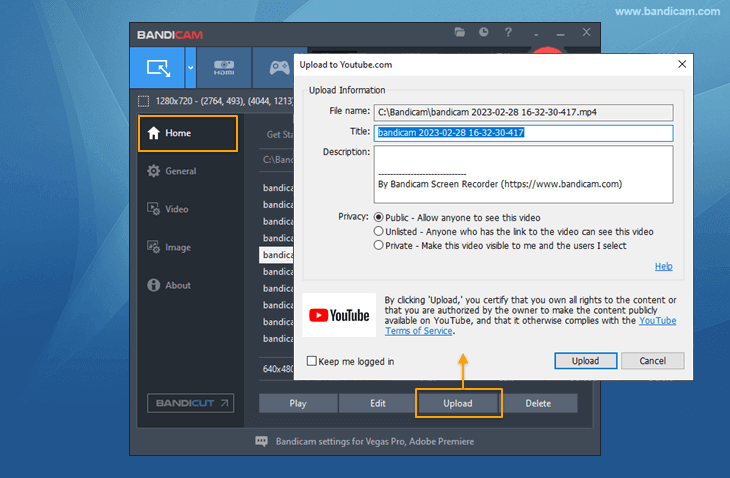
Click the [Upload] button under the [Home - Videos] tab of Bandicam.
![Bandicam video uploader]()
-
Sign in with your Google account by entering your email address and password.
![Bandicam, YouTube sign up]()
-
Click the "Continue" button to connect Bandicam to your Google account.
![Bandicam, connect Bandicam to Google]()
-
Check the access option and click the "Continue" button.
![Bandicam, Video uploading]()
-
Now, the video will be uploaded from Bandicam to YouTube.
![Bandicam, Video uploading]()
-
After uploading, click the [Copy] button to share your video on other websites.
![Bandicam, Video uploaded]()
If you click the [Go] button, you will see the uploaded video.


[Error] Request had insufficient authentication scopes
If an error message (as shown in the image below) appears when uploading, check the access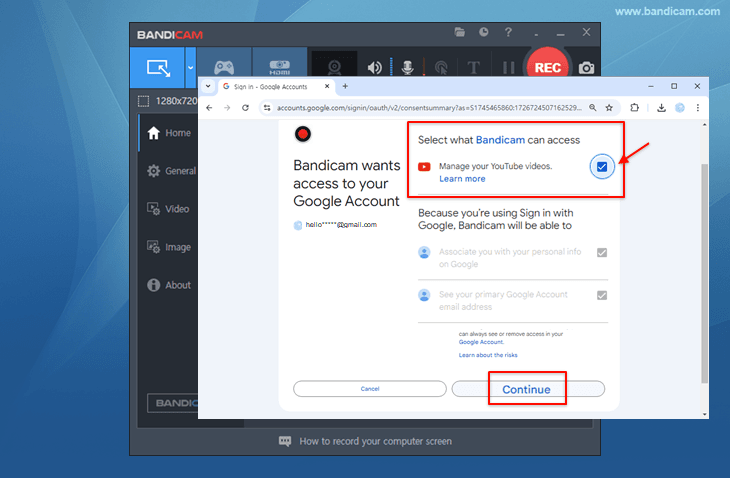 option when logging in to your Google account, and then try to upload again.

How to make and upload YouTube Shorts
YouTube Shorts require videos that are up to 60 seconds long and have a square or vertical aspect ratio.
1. After selecting the Rectangle on a screen mode, lengthen the rectangle recording window vertically. Then, record a video that is up to 1 minute long.

2. Click the [Upload] button under the [Home - Videos] tab and enter #Shorts in the title or description.
If you upload the short vertical video with the #Shorts tag, your video will be uploaded as a YouTube Shorts video.
YouTube FAQs
- To make 1080p/720p YouTube videos on Bandicam, simply select the "YouTube (1080p/720p)" Preset.
- If the "Upload to YouTube.com" window closes after clicking the Upload button, set your computer time correctly.
- By default, you can upload videos that are up to 15 minutes long. The maximum file size you can upload to YouTube is 64GB.
- If you see the "Unauthorized" error message, please create a YouTube channel and try again.
- If you see "Failed to get an access token", click the Logout button
 at the "Upload to YouTube.com" window and try again.
- YouTube Help - Recommended resolution & aspect ratios: https://support.google.com/youtube/answer/6375112
- YouTube Help - Recommended upload encoding settings: https://support.google.com/youtube/answer/1722171
- YouTube Help - Low video quality after upload: https://support.google.com/youtube/answer/71674
- Error messages that the YouTube API can return: https://developers.google.com/youtube/v3/docs/errors

Last Updated on