Best Online Screen Recorders for Chrome (2026)
Recording your screen in Chrome used to require installing extensions or downloading heavy desktop software. In 2026, that’s no longer necessary.
Most users now prefer online screen recorders that work instantly inside the browser. These web-based tools eliminate installation, reduce browser clutter, and allow you to start recording in seconds. Whether you’re creating tutorials, recording meetings, or sharing product walkthroughs, a browser-based screen recorder offers a faster and more convenient workflow.
Below, we compare five of the best online screen recorders for Chrome, focusing on usability, features, limitations, and ideal use cases.
What is an Online Screen Recorder for Chrome?
An online screen recorder for Chrome is a web-based tool that lets you record your browser tab, application window, or full desktop directly from a website.
Unlike traditional Chrome extensions, online screen recorders:
- Do not require installation
- Do not permanently access your browsing data
- Start recording immediately from a URL
- Work across Windows and macOS
For most everyday recording needs, including tutorials, training videos, demos, and quick explanations, a browser-based solution is often the simplest option.
1. Bandicam Online Screen Recorder
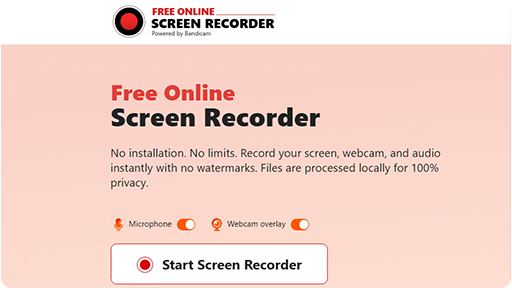
Bandicam Online Screen Recorder is designed for users who want to record their screen instantly without installing extensions or creating an account.
It runs entirely in the browser and focuses on speed, simplicity, and clean output. Real-time annotation tools allow you to draw, highlight, and emphasize important areas while recording, making it especially useful for tutorials and presentations.
Key Features
- Record browser tab, window, or full screen
- Microphone audio capture
- Webcam overlay support
- Real-time annotation tools for tutorials and walkthroughs
- No login required
- No watermark on exported videos
Strengths
Bandicam's biggest advantage is frictionless access. There is no account registration and no permanent extension installed in your browser. The interface is minimal, which makes it approachable even for first-time users.
It is also designed with privacy in mind. Recordings are processed locally in your browser session and are not uploaded to external servers, meaning only the user can access and save the recorded files.
Limitations
As a web-based recorder, it focuses on general-purpose screen capture. Advanced features such as scheduled recording and other specialized options are available only in the desktop screen recording software.
Best For
Users who want a free online screen recorder for Chrome with no login and no watermark.
2. Loom
Loom is a browser-based screen recorder widely used for business communication and remote collaboration. It allows users to record their screen, webcam, or both, and automatically generates a shareable cloud link.
Unlike lightweight instant recorders, Loom is built around sharing and feedback. After recording, videos are uploaded to your workspace where teammates can comment or react.
Key Features
- Screen and webcam recording
- Automatic cloud upload
- Basic trimming tools
- Viewer insights (plan-dependent)
Strengths
Loom is particularly strong for collaboration. If your main goal is to send quick updates to teammates or clients, its link-sharing workflow is both efficient and widely used.
Because it operates directly within your browser session, it avoids adding toolbar clutter or background processes.
Limitations
An account is required to use Loom. The free plan includes limitations, such as recording length or storage caps. Some features are restricted to paid plans.
Best For
Remote teams and professionals who prioritize cloud sharing and collaboration.
3. Screencastify
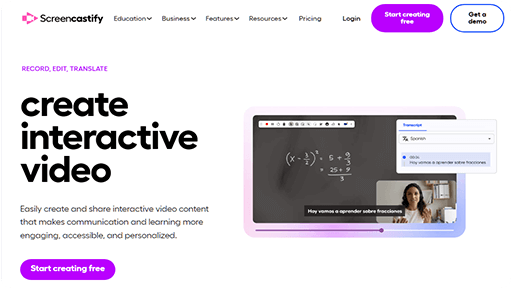
Screencastify is a Chrome-based screen recorder widely used in educational environments. It supports recording browser tabs, desktop activity, or webcam footage and integrates directly with Google Drive.
Designed with classrooms in mind, it provides a structured workflow for creating and sharing instructional videos within the Google ecosystem.
Key Features
- Record browser tab, desktop, and webcam
- Google Drive integration
- Basic editing functionality
Strengths
Screencastify integrates well with Google-based workflows, which makes it convenient for teachers and students using Chrome and Google Workspace tools.
Limitations
Login is required. The free version includes recording time limits, and some features are only available in paid tiers.
Best For
Educators and students who work primarily within the Google ecosystem.
4. ScreenApp
ScreenApp is a fully online screen recorder that combines screen capture with AI-powered transcription features. It allows users to record directly in the browser and convert recordings into searchable text.
Unlike basic capture tools, ScreenApp focuses more on documentation and productivity workflows than simple quick sharing.
Key Features
- Browser-based recording
- Optional AI transcription
- Cloud storage
Strengths
ScreenApp may be useful for meeting recordings or documentation workflows, where searchable transcripts add value.
Limitations
Account creation is typically required to save and manage recordings. Some features are limited depending on the plan selected.
Best For
Users who want recording combined with transcription or AI-based note tools.
5. Clipchamp Screen Recorder
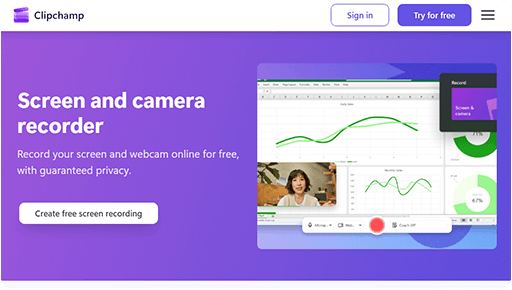
Clipchamp provides a browser-based screen recording tool integrated directly into its online video editor. Users can record their screen and webcam, and then immediately edit the video within the same platform.
Because it combines recording and editing, it is better suited for users who want more polished content rather than quick captures.
Key Features
- Screen and webcam recording
- Built-in browser video editing
- Microsoft ecosystem integration
Strengths
Clipchamp is convenient if you want to record and edit within the same platform. It works well for users already using Microsoft tools.
Limitations
A Microsoft account is required. Some export options and features depend on your subscription level.
Best For
Users who prefer an all-in-one recording and editing environment.
Online Screen Recorder for Chrome – Comparison
| Instant Use (No Sign-Up) | Installation | Free Recording Limit | Best For | |
|---|---|---|---|---|
| Bandicam Online | Yes | None | No fixed limit | Quick, private recording |
| Loom | Account required | None | 5 min per recording | Team collaboration |
| Screencastify | Account required | None | 30 min per recording | Education |
| ScreenApp | Account required | None | Plan-based (limited) | Meeting notes |
| Clipchamp | Account required | None | 30 min per recording | Recording + editing |
Need More Advanced Recording Features?
Online screen recorders are ideal for quick, browser-based capture. If you need longer recordings, higher performance, or advanced features such as scheduled recording or high-resolution capture, you may consider a desktop screen recorder. You can also explore the full comparison between online and desktop screen recorders in the link below.
» Learn more in our complete online vs. desktop screen recorder comparison.
FAQs
1. What is the best online screen recorder for Chrome?
The best option depends on your needs. If you want instant recording without creating an account, a browser-based recorder with no login requirement may be the simplest solution. Other tools may be better suited for collaboration or editing workflows.
2. Can I record my screen in Chrome without installing extensions?
Yes. Many modern online screen recorders allow you to record directly from a website without installing Chrome extensions.
3. Do online screen recorders work on Windows and Mac?
Yes. Because they run in the browser, most online screen recorders support both Windows and macOS.
4. Can I screen record with audio in Chrome?
Most online screen recorders support microphone audio capture. System audio support may depend on your browser and recording settings.
Last Updated on