How to Record Your iPhone or iPad Screen
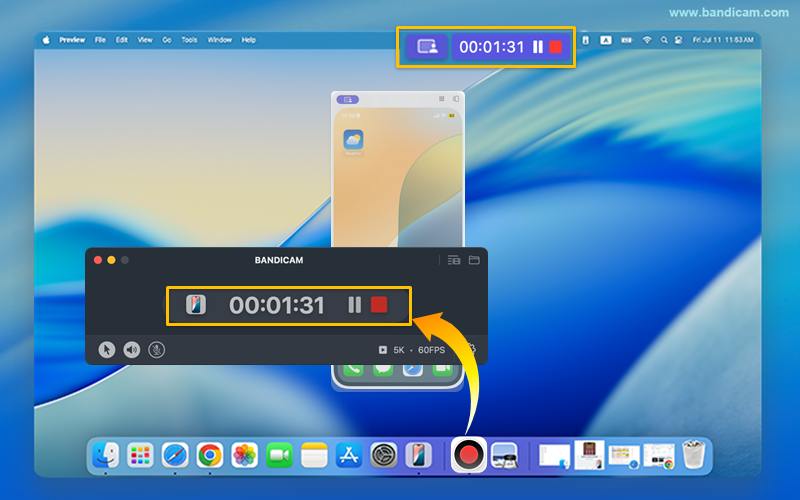
There are several ways to record your iPhone/iPad screens with Bandicam: You can mirror your smartphone screen to macOS and record it with Bandicam for Mac, use a capture card to display the smartphone screen on a computer and record it.
How to Record Your iPhone or iPad Screen on macOS
Starting with macOS Sequoia, Apple introduced a powerful new feature called iPhone Mirroring. This is more than just viewing your screen; it allows you to fully control your iPhone directly from your Mac. If you're on an earlier version of macOS or need a quick way to cast your iPhone to your Mac. For more information, please refer to »How to Mirror Your iPhone to a Mac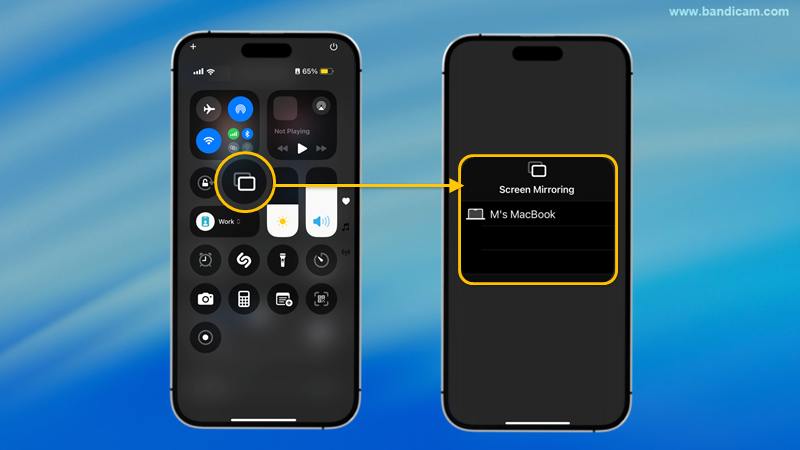
How to Record Your iPhone or iPad Screen on your Windows (PC)
To record an iPhone or iPad screen on your PC, you need a capture card, an MHL cable and a video capture software.

Follow these steps to record an iPhone / iPad Using a capture card and an MHL cable
( Hardware Requirements: iPhone/iPad, Capture card, MHL cable )
- Connect the MHL cable to an iPhone or iPad.
- Connect the other end of the HDMI cable to the HDMI input on your HDMI capture card.
- You are now able to see the iPhone screen on your PC through the 'Device Recording Mode' of Bandicam.
iPhone/iPad Recording Process
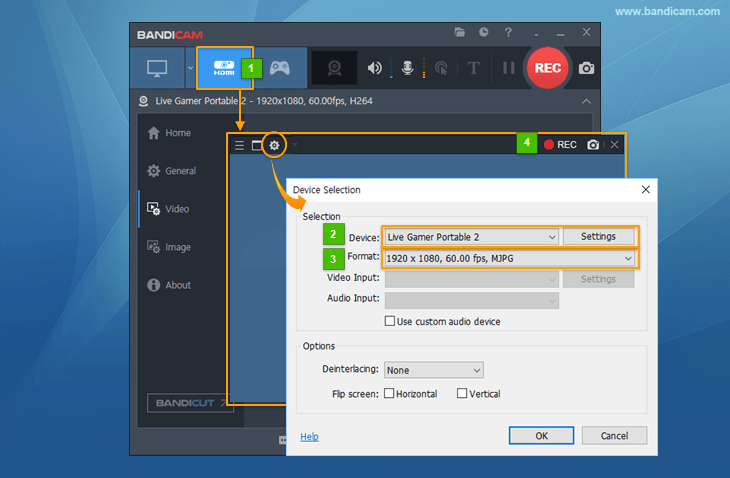
- Start Bandicam and choose "Device Recording" mode.
- Click the "Device Settings" button and select the device you want to record.
- Click the "Format Settings" button and select the video size, FPS, and color space.
(If you can't see the screen of the device, install a device driver and select another video size.) - If you can see the screen of the device, click the [ ● REC ] to start/stop the recording.
To record an external video and audio, please refer to » How to record capture card video and audio.
To record your iPhone/iPad screen on your PC, you need a capture card and an MHL cable.
| Hardware | Capture card (PCI or USB type) | MHL Cable Adapter |
|---|---|---|
| Image |   |
 |
| Price | $10~$200 (Amazon.com) | $10~$50 (Amazon.com) |
Related FAQs
- How to Record Smartphone Screens with Bandicam (Android/Galaxy, iPhone/iPad)- How to Record Mobile Games with Bandicam (BlueStacks)
Last Updated on