Try Bandicam Screen Recorder!
Download Bandicam (Free)What is Discord?
How to Record Discord Calls
Discord is a voice, video, and text communication service that is widely used around the world. It is especially popular among users who enjoy online gaming and streaming. Despite Discord’s popularity and diversity of functions, however, one limitation is that there is no feature to record Discord audio; users need to use a separate audio/screen recording software to record Discord audio or video calls.
Bandicam, which allows you to record video or voice chats on Discord, is a perfect voice and screen recorder for Windows PC. Whether you want to capture audio or video on Discord, using Bandicam to record is the easiest and best way to go.
How to Record Discord Calls
Bandicam is a free Discord recorder for Windows PC. With Bandicam's audio-only recording mode, you can record your own voice from Discord, as well as other users’ voices, for free. Follow the steps below to record Discord calls:
- Download the audio recorder, Bandicam. Then, start and choose the 'Audio Only' menu.
![Bandicam, audio recorder]()
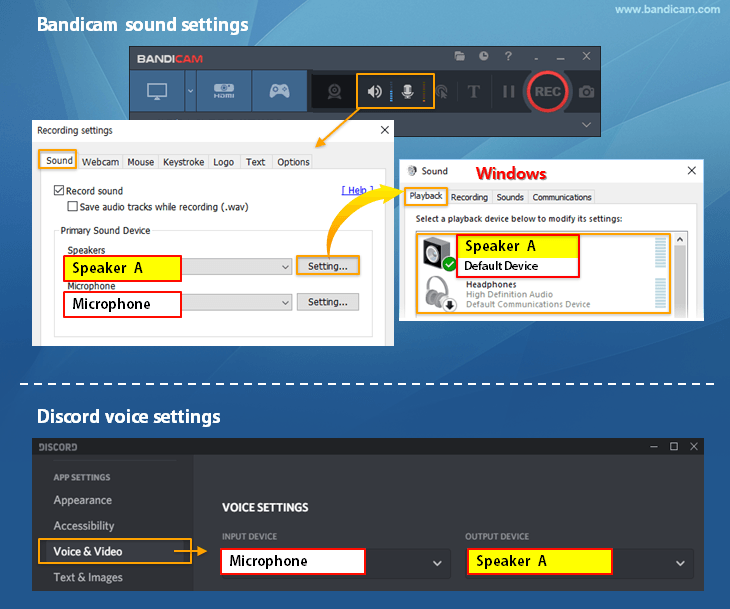
- To record Discord calls, set the sound settings as below:
- Select "Speaker (Speaker A) and Microphone" in Bandicam.
- In Discord voice settings, select your microphone and "Speaker (Speaker A)" as in Bandicam.
- Check "Do nothing"
 under the [Communications] tab in Windows settings.

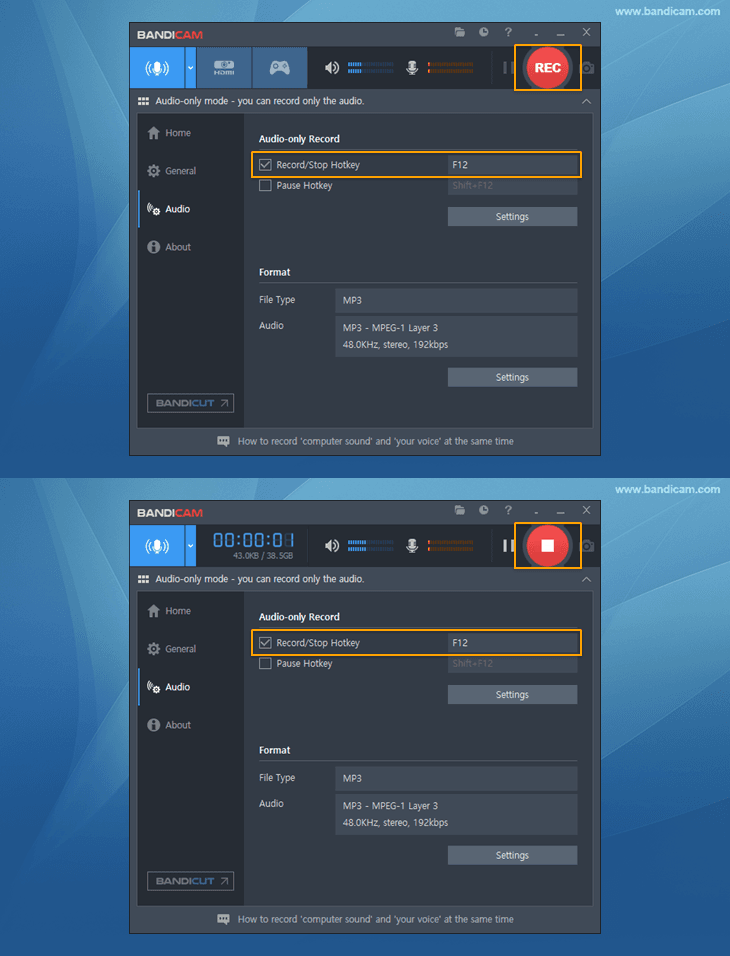
- Click the '● REC' button or press the hotkey (F12) to start the Discord recording.
![Bandicam, audio recorder, voice recorder]()
- To finish the recording, click the '● REC' button again. Once you’re done recording, you can check the recorded Discord calls in your folder.
![discord recorder, audio recorder, voice recorder]()



By default, the Discord audio will be saved as an MP3 file. If you want to change the audio format to WAV, click on the Settings button in Bandicam and select the WAV format. » Bandicam Audio format settings
How to Record Discord Video
You can screen record Discord video with Bandicam Screen Recorder. Bandicam's screen recording mode allows you to capture Discord audio and video calls. Follow the steps below to record a Discord video chat:
- Download the Discord recorder, Bandicam, and start.
- To record your voice, as well as other users’ voices, on Discord, set the sound settings as below:
- Select "Speaker (Speaker A) and Microphone" in Bandicam.
- In Discord voice settings, select your microphone and "Speaker (Speaker A)" as in Bandicam.
- Check "Do nothing" under the [Communications] tab in Windows settings.

- Start Discord and choose the recording mode in Bandicam. Click the '● REC' button or press the hotkey (F12) to start recording.
![record discord video call, Bandicam, game recorder, discord recorder]()
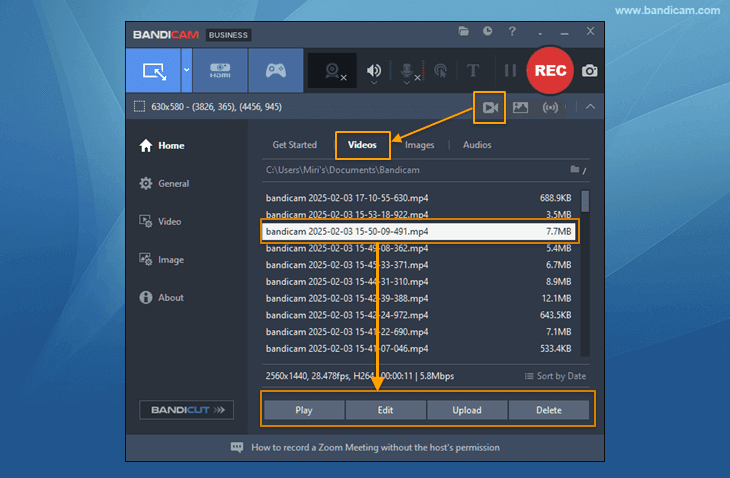
- Press the '● REC' button again to end the recording, and check the recorded video file in your folder.
![discord record, recorded video]()
- You can now share the recorded Discord video as a link or upload it directly to YouTube or Vimeo.
- Google Drive: Upload videos to Google Drive and share them with a link!
- YouTube/Vimeo: Upload videos to YouTube or Vimeo without additional encoding.
![share discord video, recorded video, Google Drive]()


Additional Tip) How to record games without recording Discord audio
When using Discord while gaming, you may want to record specific sounds, such as only the gameplay sound or the gameplay sound along with your voice but not other users’ voices.
If you have more than two speaker devices (or headsets) and use Bandicam, you can record the specific audio you want while playing the game and using Discord. Please check the methods below and choose the one you prefer:
Method 1: To record only gameplay (without recording Discord audio)

- Select "Speaker (Speaker A)" and "Disable" as Microphone in Bandicam.
- In Discord voice settings, select your microphone and "Speaker (Speaker B)," different from Bandicam.
- Check "Do nothing" under the [Communications] tab in Windows settings.
- After setting the sound as above, select among Audio Recording, Screen Recording, and Game Recording modes to record.
Method 2: To record gameplay + your voice (without recording other users’ voices)

- Select "Speaker (Speaker A) and Microphone" in Bandicam.
- In Discord voice settings, select your microphone and "Speaker (Speaker B)," different from Bandicam.
- Check "Do nothing" under the [Communications] tab in Windows settings.
- After setting the sound as above, select among Audio Recording, Screen Recording, and Game Recording modes to record.
Related FAQs about Recording Discord
1. How do I record audio on Discord for free?
Bandicam is free audio recording software that allows you to record Discord calls without a time limit. Moreover, you can screen record your video calls on Discord.
2. Can I use my phone microphone on my computer?
Yes, you can use your Android or iPhone as a PC microphone using the WO Mic app.
» Details can be found on this Phone as a Microphone tutorial page.
3. How do I make my OBS virtual camera work on Discord?
The OBS virtual camera can link your OBS scene to many other applications that can select camera devices, such as Discord, Zoom, Skype, and Google Meet.
» Here is a guide, "How to use the OBS virtual camera," to help you get started.
Last Updated on