How to Record Smartphone Screens with Bandicam
(Android/Galaxy, iPhone/iPad)

There are several ways to record smartphone (Android/Galaxy, iPhone/iPad) screens with Bandicam. You can mirror your smartphone screen to a PC and record it with Bandicam for Windows, or mirror it to macOS and record with Bandicam for Mac. For Galaxy devices, the Samsung Flow program lets you display and record the screen. You can also use a capture card to display your smartphone screen on a computer and record it, or record an emulator like BlueStacks with Bandicam.
1. Mirror your smartphone screen to a computer and record with Bandicam

Mirroring refers to duplicating the screen of one device onto another device.
For Android smartphones (or tablets), you can mirror the screen to Windows 10/11 and then record it using the Windows version of Bandicam.
For iPhones or iPads, you can mirror the screen to a Mac computer or MacBook, and then record it using the Mac version of Bandicam.
2. Record Samsung Galaxy smartphone screens
If you are using a Samsung Galaxy smartphone, you can record the screen in high quality using Bandicam, without additional hardware.
1) Install the Samsung Flow program (or legacy SideSync) to connect your PC and Android phone.
2) Connect your PC and smartphone using a USB data cable or Wi-Fi.
- Once the program is installed, you will be able to see the 'smartphone screen' on your PC.
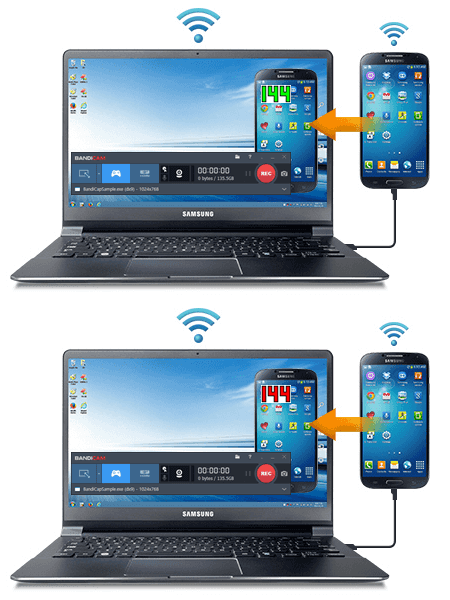
3) Launch Bandicam and use the 'Game Recording Mode' to record the smartphone screen.
3. How to record iPhone, iPad, or Android smartphones
To record an iPhone, iPad, or other Android devices, you will need a capture card and an MHL cable.
| Hardware | Capture card (PCI or USB type) | MHL Cable Adapter |
|---|---|---|
| Image | 
 |
 |
| Price | $10~$200 (Amazon.com) | $10~$50 (Amazon.com) |
1) Connect the MHL cable to your smartphone and the HDMI cable to the capture card.

2) Launch Bandicam and select "Device Recording Mode." (See figure 1 )
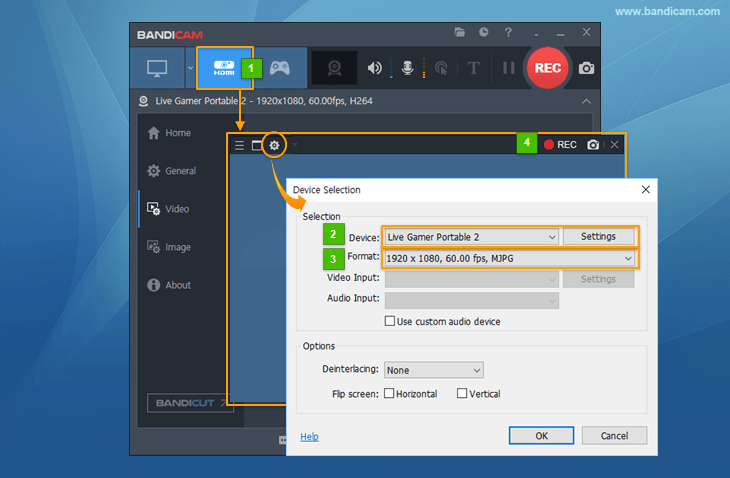
3) Click the "Settings" button and select the video device you want to record. (See figure 2 )
4) Choose the resolution, FPS, and video format you want to record. (See figure 3 )
5) Click the [ ● REC ] button to start/stop recording. (See figure 4 )
Frequently Asked Questions
Q1) How can I download Bandicam on Android smartphones or tablets?
Currently, Bandicam is a screen recording program available only for Windows and macOS, so there is no Android or iOS version. To record mobile devices running Android, such as Galaxy smartphones or Galaxy tablets, you can:
- Mirror your smartphone screen to your computer: Mirror your Android device screen to a Windows computer and record the mirrored screen with Bandicam.
- Use Samsung Flow for Galaxy smartphones: With Samsung Flow, you can record Galaxy smartphone screens in high quality using Bandicam.
- Use BlueStacks for mobile games: Run an emulator like BlueStacks on Windows and record it with Bandicam to capture mobile games in high quality.
- Use a capture card: You can also record Android smartphones or tablets using a capture card.
Q2) How can I download Bandicam on my iPhone or iPad?
Currently, Bandicam is a screen recording program available only for Windows and macOS, so there is no Android or iOS version. To record mobile devices running iOS, such as iPhone or iPad, you can:
- Mirror your iPhone/iPad screen to macOS: Mirror your iPhone or iPad screen to a Mac or MacBook, and then use the Mac version of Bandicam to record the screen.
- Use a capture card: You can also record iPhone/iPad screens using a capture card.
Additional Tips
1. How to Use Your Phone as a Webcam on a PC
You can use an Android phone or iPhone as an external webcam device with the IRIUN webcam application and Bandicam.
2. How to Record Mobile Games with Bandicam (BlueStacks)
Bandicam allows you to capture gameplay directly on BlueStacks 5. BlueStacks is a free Android emulator that allows you to run Android applications on Windows and macOS PCs.
3. How to Record Your iPhone or iPad Screen
You can mirror your smartphone screen to macOS and record it with Bandicam for Mac, or use a capture card to display the smartphone screen on a computer and record it.
Last Updated on