How to screen record Netflix on PC
Learn how to record a selected area of your screen on Windows with Bandicam and why a Netflix recording may show a black screen. Before recording, check applicable copyright laws and the Netflix Terms of Use, which restrict copying Netflix content or bypassing its protections without explicit authorization.
Record Netflix in your browser with Bandicam
-
Install and open Bandicam
Download Bandicam, install it, and open the app.
-
Choose and adjust the recording area
Open Netflix in your browser and pause the video where you want to start. In Bandicam, choose Rectangle on a screen. Move the rectangle over the area you want to capture and drag its edges or corners to resize it.
![Select Rectangle on a screen]()
-
Click REC or press F12 to start recording, then play the video.
-
Stop recording and check your video
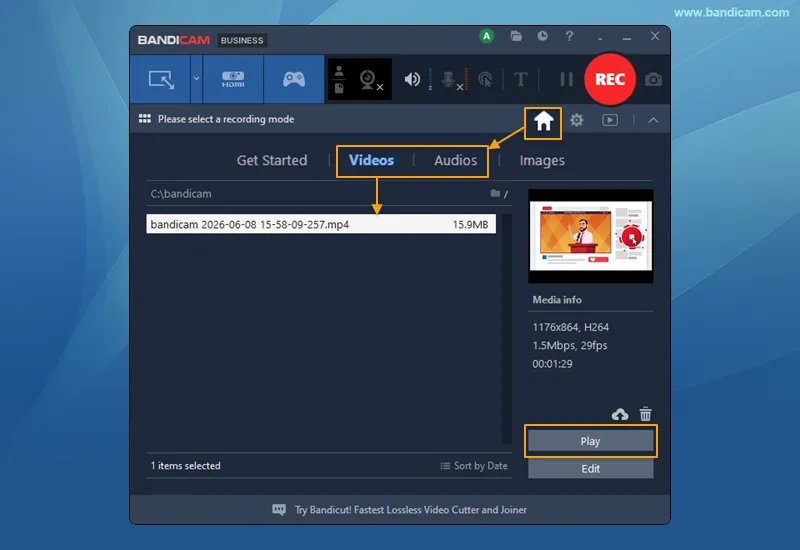
Click Stop or press F12 again. Go to Home > Videos to play, edit, or upload the recording.
![Recorded files in Bandicam]()

Why is my recording black?
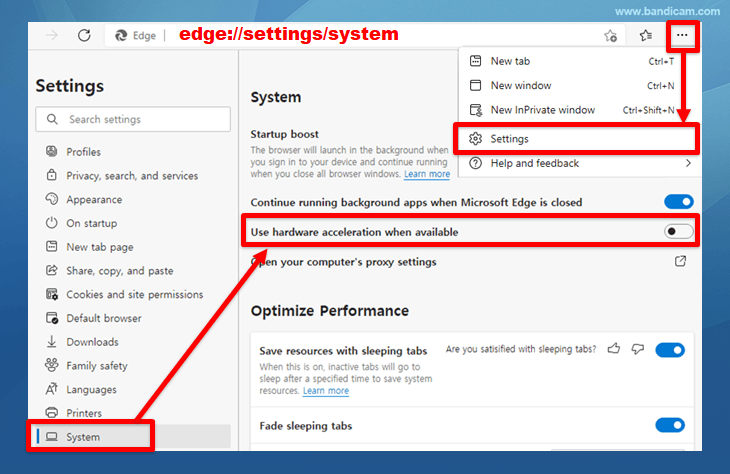
Content protection can cause a black screen. If a video you have permission to record appears black, try opening Bandicam before your browser. To check for a browser graphics issue, try the settings below, restart the browser, and make a short test recording.
Microsoft Edge
Go to Settings > System and performance and turn off Use graphics acceleration when available.
Google Chrome
Go to Settings > System and turn off Use graphics acceleration when available.

Mozilla Firefox
Go to Settings > General > Performance. Uncheck Use recommended performance settings, then uncheck Use hardware acceleration when available.

Additional recording tips
Stop recording automatically
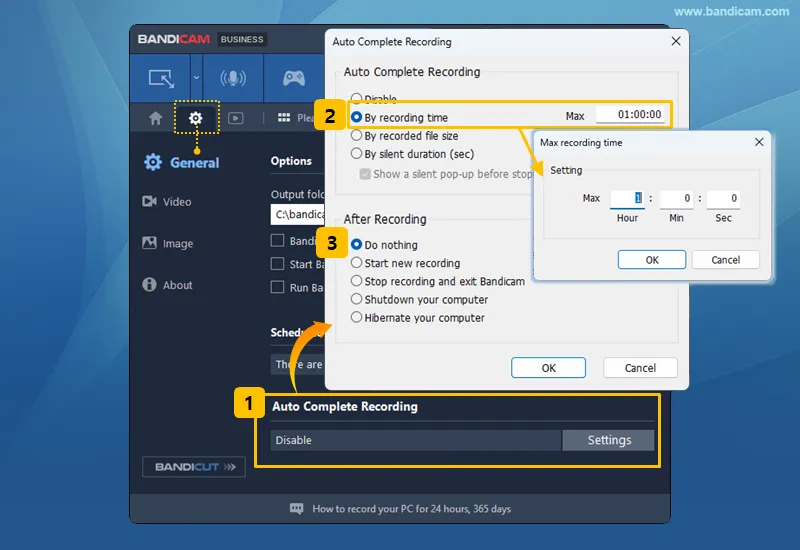
In Auto Complete Recording, select By recording time and set Max time to 01:00:00. Under After Recording, select Do nothing to stop after one hour.
Trim a recording or save a clip
Use Bandicam's built-in editor to trim the beginning or end of a recording. Use Bandicut to save a clip from the middle, remove sections, or join clips.

Last Updated on