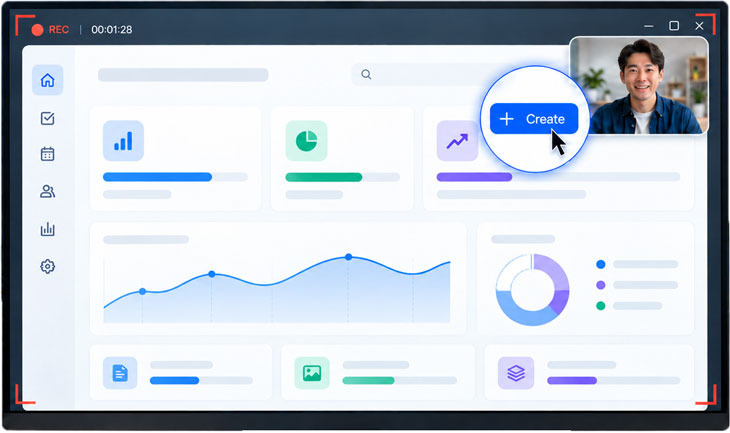
A product demo video shows how a product works and helps viewers understand what they can accomplish with it. For software, apps, and SaaS products, this usually involves recording a real workflow on screen and explaining how it solves a specific problem.
Before recording, choose one audience, one problem, and one workflow. Use sample data and follow a simple structure: Problem → Workflow → Result → Call to Action.
In this guide, you’ll learn how to make a product demo video on Windows by preparing your screen, recording your product, adding a webcam when needed, highlighting important actions with Smart Zoom, generating captions, and exporting the finished video. You’ll also learn how to use AI tools to translate and repurpose the demo for different audiences.
How to Make a Product Demo Video in 5 Steps
Follow these five steps to record, edit, and share a clear product demo video on Windows.
Step 1: Download Bandicam and Choose a Recording Mode
Download and install Bandicam Screen Recorder. Run Bandicam and select Rectangle area or Fullscreen to capture your product. These modes also support Smart Zoom after recording.
Step 2: Set Up Audio, Webcam, and Privacy Blur
Check your microphone and system audio before recording. If private information is visible, click the blur icon and place a blur area over it. You can move, resize, add, or remove blur areas while recording.
To include your face, turn on the webcam overlay from the control bar. Move or resize the webcam frame and choose an original, blurred, transparent, or virtual background.
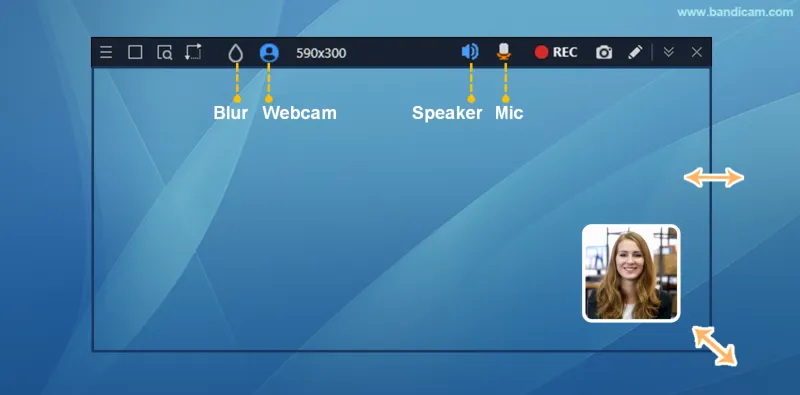
See how to blur sensitive information or add a webcam overlay for detailed instructions.
Step 3: Start Recording Your Product Demo
Click the REC button and follow the workflow in your script. Move the cursor slowly and pause briefly after important clicks so viewers can see what changed.
Step 4: Stop, Trim, and Add Smart Zoom
Stop recording when the demonstration is complete. The video will open in Bandicam’s built-in player. Click Edit, trim the beginning or end with the sliders, and turn on Smart Zoom.

Preview the result, then click Export to save the edited video as an MP4. Smart Zoom automatically zooms in and out based on the mouse clicks and movements captured during recording.
See how to apply Smart Zoom to a screen recording for the complete steps.
Step 5: Generate Captions and Share the Video
Open the finished recording and select Transcribe to convert its speech to text. Review product names, technical terms, and caption timing before using the transcript or subtitles.
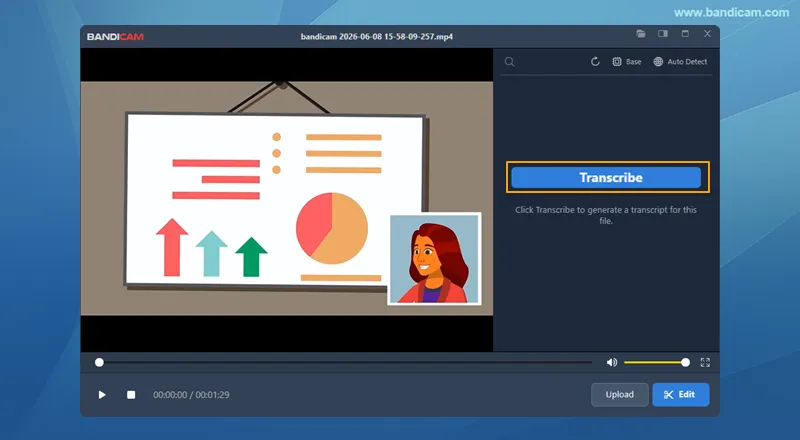
Review the final MP4, then upload or share it on your product page, YouTube channel, presentation, or support center. End the video with one clear call to action.
Bonus: Add Subtitles and Voiceovers with AI
Once the main demo is complete, AI tools can help you adapt it without rebuilding the entire video. This is especially useful when the same product is marketed in several countries or across multiple channels.
Bandicam AI Studio includes tools for AI-generated video, images, audio, effects, subtitles, and voice translation. Depending on the project, you can use it to create supporting assets or prepare localized versions of a product demo.
Generate and translate subtitles
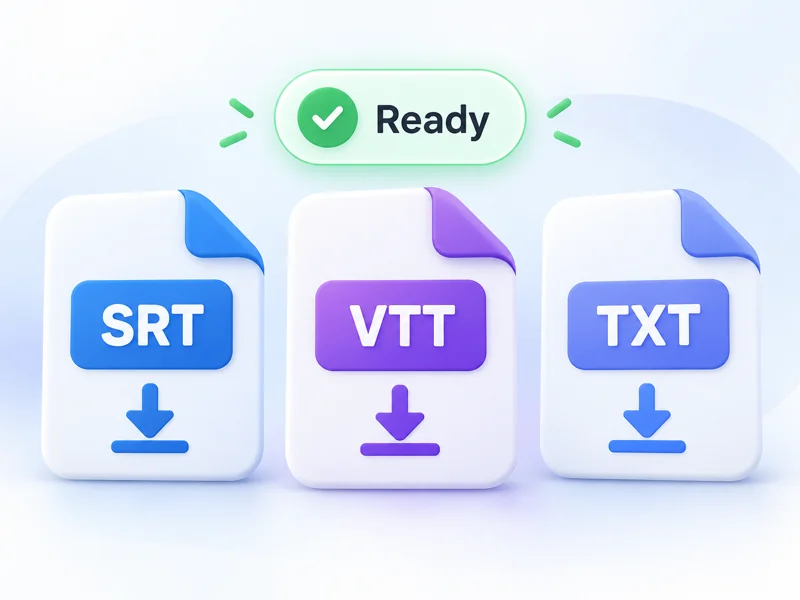
Upload the exported video or audio to the AI Subtitle Generator to create editable subtitles. Review the transcript, translate it, and download it as an SRT, VTT, or TXT file. Speaker identification can also help when a demo includes more than one person.
Create narration from a scriptCreate or translate a voiceover
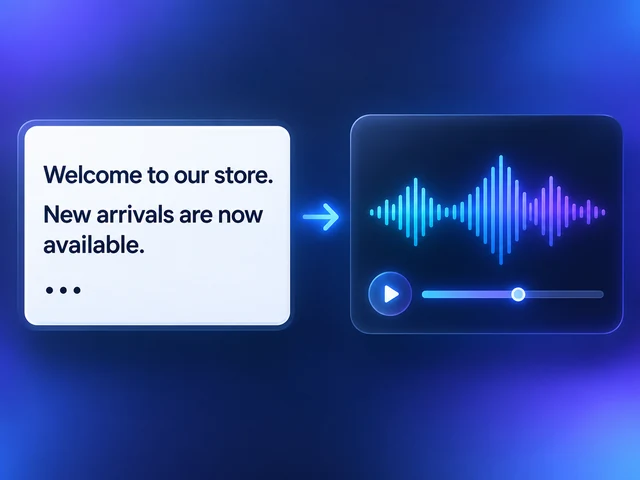
Use an AI Voice Generator to create narration from a script, or an AI Voice Translator to translate the recorded voice into another language. Review product names and technical terms before publishing.
Create a short talking presenter clip
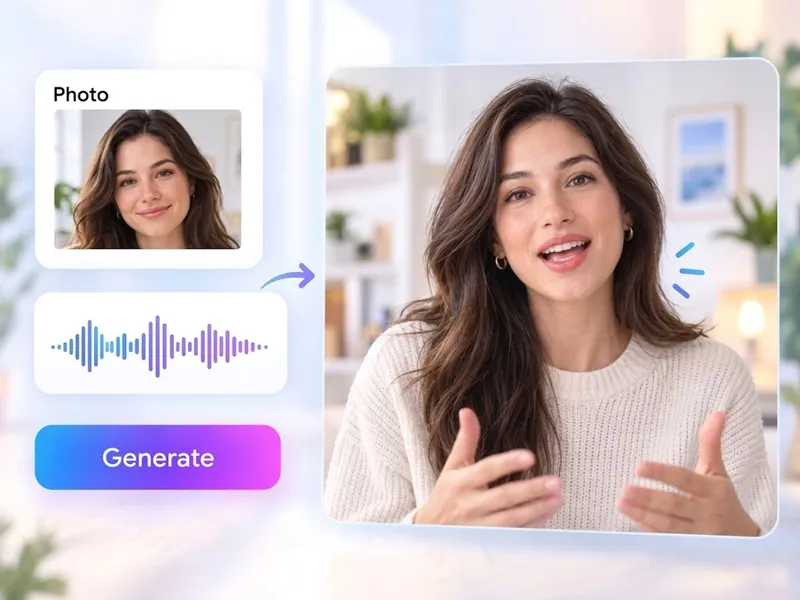
To add a brief presenter or mascot introduction, upload a clear portrait and an audio file to AI Lip Sync. It animates the image to follow the speech and works best for short intro, outro, or explainer clips.
Frequently Asked Questions
A product demo video shows how a product works and solves a specific problem. Software demos usually combine screen recording with narration, captions, and zoom effects.
Record one useful workflow with a screen recorder, trim unnecessary footage, and add automatic zoom and captions. End the product demo video with a clear call to action.
Keep a product demo video long enough to explain one useful workflow. A landing-page overview can be brief, while sales, onboarding, and feature demos may need more detail.
Yes. An AI subtitle generator can translate captions, while an AI voice translator can create narration in another language. Review product terms and timing before publishing.
Summary
The best product demo videos are focused, easy to follow, and built around a real user outcome. Start with one workflow, record a clean version of the product in action, and edit only what improves clarity. Features such as privacy blur, webcam overlays, automatic zoom, transcription, and AI translation can support the story, but the product and its result should remain the focus.