
Watching a video is easy. Making one is not. A single clip can eat up an afternoon of scripting, shooting, and editing, and that’s before the reshoots when something doesn’t land.
AI has changed the equation. You can now type a sentence and get back a usable clip in minutes, and the models behind those clips have gotten good enough that viewers can’t always tell they’re AI-generated. But the space moves fast, and it’s crowded. New models arrive every few weeks, each one better at something different, and picking the wrong tool can mean spending half a day regenerating clips instead of shipping.
The tricky part in 2026 isn’t finding an AI video generator—it’s that most of them run on the same handful of underlying models but package them very differently, at very different prices. Some sell polish and control. Some sell speed. Some just give you access to a lot of models at once. This guide covers the ones worth knowing about, sorted by what each does best, with enough detail on pricing and trade-offs to help you actually make a choice.
The best AI video generators at a glance
| Tool | Best for | Free plan | Starting paid price |
|---|---|---|---|
| Google Veo | Reliable, high-quality results from prompts | 50 credits/day | $19.99/mo for 1,000 credits |
| Runway | Cinematic, film-style creation and editing | 125 one-time credits | $12/mo for 625 credits |
| Bandicam AI Studio | Trying several models on one affordable plan | 100 welcome credits | $6/mo for 1,000 credits (billed annually) |
| Adobe Firefly | Commercially safe, licensed output | Limited daily generations | $9.99/mo for 2,000 credits |
| invideo AI | Social media videos from a single prompt | Limited credits, watermark | $17/mo (billed annually) |
| Synthesia | Talking-head videos with digital avatars | 10 min/mo | From $18/mo (billed annually) |
How to choose an AI video generator
Before looking at the list, a few things are worth deciding up front to narrow the field quickly:
- Generation vs. editing vs. assembly: Some tools generate footage from scratch (Veo, Runway). Some assemble a finished video, including script, voiceover, and stock clips, from one prompt (invideo). Some create talking-head presenters (Synthesia). Knowing what you’re trying to make rules out most of the list immediately.
- How credits map to output: Nearly every tool runs on credits, and the monthly price tells you almost nothing on its own. What matters is how many finished videos those credits actually buy, which depends on the model, resolution, and clip length you choose.
- Commercial rights: If the video is going in front of a client or into an ad, how the model was trained—and whether the provider indemnifies you—matters more than raw quality.
- Learning curve: A more powerful tool that takes a week to learn isn’t the right pick for a one-off clip due tomorrow.
The most reliable AI video generator
Google Veo
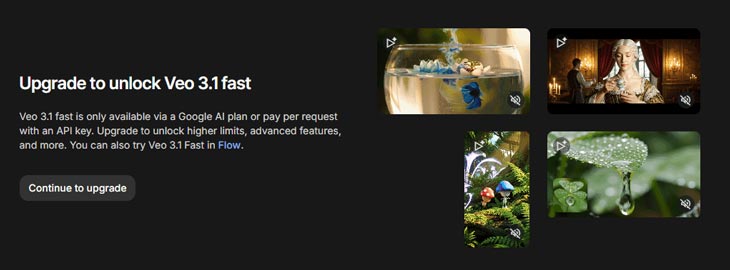
For a tool that gets it right most of the time, Veo is the safe pick. Google’s Veo 3.1 model sticks closely to prompts and reference images, combines video and audio generation cleanly, and produces the kind of realism that makes people ask whether a clip is real.
How it works: The way in for most creators is Google Flow, the creator-facing app for Veo—not the developer-focused AI Studio, where Veo is available only as a paid API. Any user with a Google account can start on Flow’s free tier without a credit card. There are a few ways to begin a project (the usual text-to-video route, a set of frames, or a reference image) and dialogue or narration added to a prompt renders with genuinely impressive lip-sync, no extra setup required. Individual clips max out at around 8 seconds, though an Extend feature stitches on more in short hops for longer sequences. Quality tends to drift after a few extensions, so the practical sweet spot is 30 to 60 seconds of combined output.
Where Veo struggles is busy scenes with lots of movement and characters; breaking a shot into simpler pieces usually fixes a generation that keeps falling apart. It’s also worth knowing that Veo runs in different modes—a cheaper draft mode and a pricier quality mode—so matching the mode to the job keeps costs sane.
Pros:
- High-quality, realistic output with very little skill required
- Follows prompts closely and handles native audio and lip-sync well
- Multiple starting points: text, frames, or reference images
Cons:
- Getting watermark-free, high-volume output pushes you into pricier tiers fast
- Tied to Google’s ecosystem: a Google account is required, and generated videos save to Google Drive
- Struggles with complex, high-motion scenes
Price: Google Flow gives non-subscribers 50 free credits per day, no payment info required to start. Google AI Pro is $19.99/month for 1,000 monthly credits and no watermark—roughly 50 clips a month in Fast mode, or around 10 in the higher-fidelity Quality mode. Google AI Ultra runs $249.99/month for far higher limits and 4K upscaling. Costs vary by mode, so drafts are cheap and hero shots are not. (Note: the developer route through AI Studio bills Veo as a paid API, separate from Flow’s free tier.)
The AI video generator for filmmakers
Runway
When cinematic output and real creative control matter, Runway is the tool filmmakers reach for. Its flagship Gen-4.5 model understands industry concepts like camera moves and timed beats, and it’s scored at the top of blind preference tests against the biggest names in the category.
How it works: Gen-4.5 takes images and text as a starting point and is built around film-making ideas—camera pans, tracking shots, handheld movement, and timed beats. But generation is only half of what Runway does. The Aleph model edits footage you already have: change the lighting, swap a sedan for an SUV, adjust the framing or the weather, all with a text prompt. And Act Two maps a recorded human performance onto an AI character, carrying over facial movement and full-body tracking, which is where a lot of the interesting creative work is happening right now.
The trade-off is a steeper learning curve than most tools here. Runway rewards the time put into it rather than handing you a finished clip on the first try, and the Academy help content is genuinely useful for climbing that curve. Runway also connects to automation platforms via API, so studios can wire generation into existing production pipelines.
Pros:
- Multiple models tuned for different film-making tasks, not just one generator
- Strong editing tools (Aleph, Act Two) beyond text-to-video
- Excellent learning resources and API access for automation
Cons:
- Steeper learning curve than anything else on this list
- Best results need deliberate prompting and iteration
- Credit costs add up quickly at high volume
Price: Free plan with 125 one-time credits and limited model access. The Standard plan is $12/month (billed annually) for 625 monthly credits, no watermark, higher export quality, and access to all Runway models. Heavier plans add more credits, and top-ups are available when a project runs long.
The most affordable AI video generator for multiple models
Bandicam AI Studio
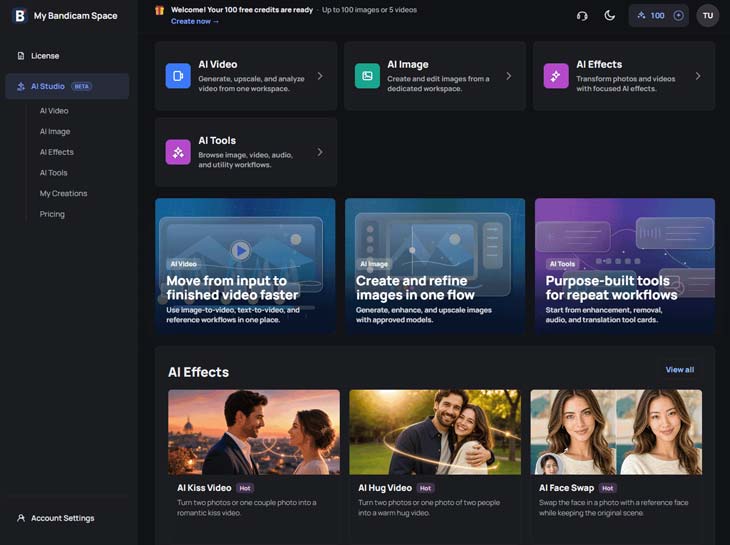
A problem shows up fast once video generation gets serious: no single model wins at everything. Veo is a strong all-rounder, Kling excels at motion, Seedance handles audio and multi-shot sequences well. Subscribing to each one separately gets expensive, and juggling several logins gets tedious.
Bandicam AI Video takes the aggregator approach: it runs a range of current models under one subscription, so you can choose the right engine for each project without jumping between interfaces.
How it works: The lineup includes Seedance 2.5, Kling 3.0, Google Veo 3.1, Wan 2.7, Vidu Q3, and Hailuo 2.3, among others, and the model is chosen per generation—the cheapest option for drafts, a premium one for final output. Projects start from either text or an image, with controls for duration, resolution, and aspect ratio before generating. Because every model bills from the same credit pool, there’s no need to guess which subscription to commit to before knowing what the work needs.
The entry price is what stands out. At $6/month for 1,000 credits on annual billing ($7.99 month to month), it’s one of the lower starting points among multi-model platforms—a low-commitment way to test several models before settling on one. Since every model draws from the same credit balance, there’s no penalty for switching between them mid-project, which suits the kind of experimentation the platform is built for.
Pros:
- Access to many current models (Seedance, Kling, Veo, Wan, and more) in one place
- Low entry price with generous credits per dollar
- One credit pool across every model, so switching engines costs nothing extra
Cons:
- Newer platform, so fewer tutorials, community resources, and integrations
- How many videos a plan makes depends heavily on the models chosen
- Monthly credits don’t roll over, so unused ones are lost each cycle
Price: Billed annually, plans run $6/month for 1,000 credits, $15/month for 3,000 credits, and $37.50/month for 10,000 credits (or $7.99, $19.99, and $49.99 month to month). New accounts get 100 welcome credits to try the platform, and paid plans add a monthly credit allowance from there.
The safest AI video generator for commercial work
Adobe Firefly
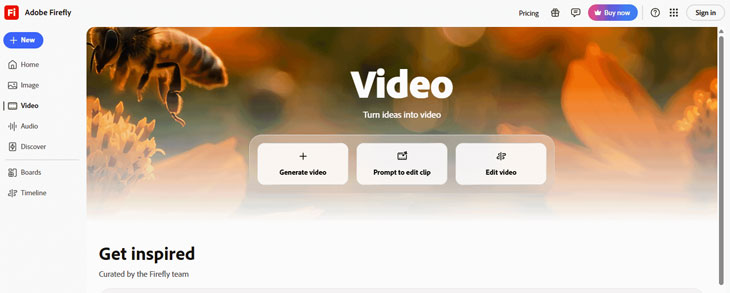
Generate a perfect B-roll clip, drop it into a client’s video, ship it—and then two weeks later, their legal team flags it as a possible copyright problem. Adobe Firefly is built to sidestep exactly that. Its models are trained on licensed Adobe Stock, openly licensed content, and public domain material rather than random web scrapes.
How it works: The interface has the familiar Adobe feel. Start from text or images, choose a camera angle and motion controls, lock in a visual style, and generate—just remember to select the Firefly video model, since the platform can also run partner models. Output quality is solid, if still a step behind Veo and Runway. Firefly also lives inside Premiere Pro, where the Generative Extend feature stretches a clip by a few frames to smooth an awkward cut without a reshoot, and everything syncs through Creative Cloud across devices.
The real draw is peace of mind. Adobe backs Firefly-generated content with contractual IP indemnification on the appropriate plan, meaning the company may assume legal defense and cover damages for covered claims. For commercial and client work, that coverage can matter more than squeezing out the last bit of visual quality.
Pros:
- Trained on licensed and public-domain content, with IP indemnification available
- Intuitive browser-based editor, plus deep Premiere Pro and Creative Cloud integration
- Content Credentials transparency built in
Cons:
- Results can be inconsistent from generation to generation
- Visual quality lags the top generative models
- IP indemnification requires the right plan, not just any tier
Price: The free plan offers a limited number of daily generations to try the tools. Firefly Standard is $9.99/month for 2,000 generative credits, with unlimited standard image generation on paid plans and credits spent mainly on premium features like video and partner models. IP indemnification requires buying the appropriate entitlement, so read the plan details if legal coverage is the reason you’re using it.
The fastest AI video generator for social content
invideo AI
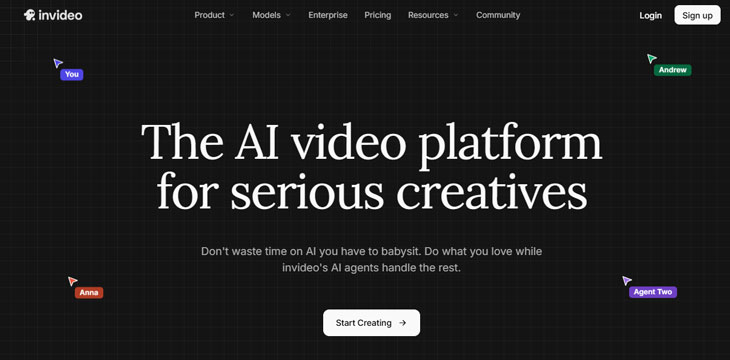
For a faceless social channel or clips that lean heavily on B-roll, invideo AI handles the assembly work end to end. It’s a different kind of tool from the pure generators above: instead of producing raw footage, it builds a finished, publish-ready video from a single prompt.
How it works: Add a prompt, set the style and target audience, and generate. Behind the scenes it writes a script, searches stock libraries for matching clips, and stitches everything together with an AI voiceover, text overlays, music, and transitions. It takes a little time to build, so the workflow is prompt-then-step-away. The standout feature is editing by prompt (typing “add subtitles” or “change the accent” into the editing field applies the change directly) though there’s also a standard editor for swapping footage or rewriting the script by hand. Recent versions also integrate models like Veo for the generated visuals, so the stock-plus-generation mix is flexible.
It’s a strong pick for volume and speed rather than cinematic quality. The lower tiers limit stock media access, so heavier stock use means moving up a plan.
Pros:
- Turns a single prompt into a finished, captioned, voiced video
- Prompt-based editing is accurate and genuinely fast
- Good fit for high-volume, faceless social workflows
Cons:
- The interface can be confusing at first
- Built for assembly and speed, not cinematic or highly original footage
- Full stock library access needs a higher-tier plan
Price: Free plan with limited credits and a watermark. The Plus plan is $17/month (billed annually) for 75 credits, four AI avatars, and no watermark, with higher tiers raising limits and stock access.
The top AI video generator for avatars
Synthesia
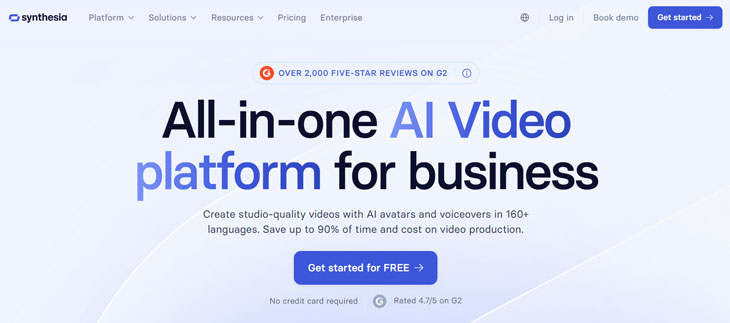
For training or explainer videos where nobody wants to be on camera, Synthesia is the go-to. It occupies its own corner of the category: rather than generating scenes or assembling stock, it creates a realistic digital presenter who delivers a script.
How it works: Pick from a library of dozens of realistic avatars from a range of backgrounds, choose a matching voice, paste in a script, and Synthesia handles the lip-sync and body movement. One-click translation swaps the entire script into another language across 140-plus languages, which is the feature that makes it a staple for localization—the same training video can go out in many languages without re-recording. The interface is deliberately simple and focused on that core avatar workflow, and it connects to automation tools so avatar videos can be triggered from other systems.
The avatars aren’t perfect. On a full screen, the occasional unnatural movement is noticeable. But they’re convincing enough that plenty of onboarding and training videos use them without viewers catching on, and for internal content and localization at scale, that’s more than enough.
Pros:
- High-quality avatars with strong multi-language support and one-click translation
- Simple, focused interface anyone can pick up quickly
- Automation integrations for triggering videos from other tools
Cons:
- Not fully convincing on large screens
- Narrow use case—built for talking heads, not general video
- Realism still falls short of a real presenter for high-stakes content
Price: The free plan includes about 10 minutes of video per month with 9 avatars and a watermark, though videos can only be shared by link, not downloaded. Starter (around $18/month billed annually, or $29 month to month) removes the watermark and unlocks 125-plus avatars and video downloads, while Creator (around $64/month annually) raises the limit to 30 minutes with more personal avatars.
A few more worth considering
The category is moving fast, and these are worth keeping an eye on:
- Kling — Strong on realistic motion and cinematic multi-shot sequences, and one of the cheaper premium models per clip. Available directly or through aggregators like Bandicam.
- LTX Studio — Shot-by-shot storyboarding for extreme control over characters, camera, and composition, with export options aimed at pitching and pre-production.
- Hailuo (MiniMax) — A solid quality-to-price ratio and good generation controls. Worth checking its current commercial-use terms before relying on it for client work.
- Luma Dream Machine — Useful when depth and spatial realism matter. A frequent contender in side-by-side quality tests.
Which AI video generator should you use?
There’s no single best AI video generator in 2026—the right one depends on the job, and most of these run on overlapping models anyway. The real choice is about packaging, price, and fit.
Google Veo is the safest pick for reliable quality with minimal fuss. Runway is the one for cinematic work, learning curve included. For anyone who wants several models on a single affordable plan, Bandicam AI Video covers a lot of ground without juggling separate subscriptions. For commercially safe output, there’s Adobe Firefly; for high-volume social content, invideo AI; and for avatar-led training videos, Synthesia.
Nearly all of them offer a free plan or trial, so the low-risk move is to shortlist two or three that match the work, test the same prompt in each, and see which output—and which credit math—actually fits. From there, it comes down to which one suits the way the work really gets done.
Frequently asked questions
Yes—most tools here have a free tier. Google Veo offers 50 free credits a day through Flow, Bandicam AI Video gives new accounts 100 welcome credits, and Synthesia includes about 10 minutes of video a month. Free tiers are best for testing; sustained output usually needs a paid plan.
Entry prices are low across the board once you’re on annual billing. Bandicam AI Video starts around $6/month for access to multiple models, while Adobe Firefly and Runway sit in the $9–12 range. The catch is credits: how far any plan goes depends on the models and resolutions you use.
It depends on the tool and plan. Adobe Firefly is the safest bet, since it’s trained on licensed content and offers IP indemnification on the right plan. Most others allow commercial use on paid tiers, but it’s worth checking each provider’s terms before using output in client work or ads.