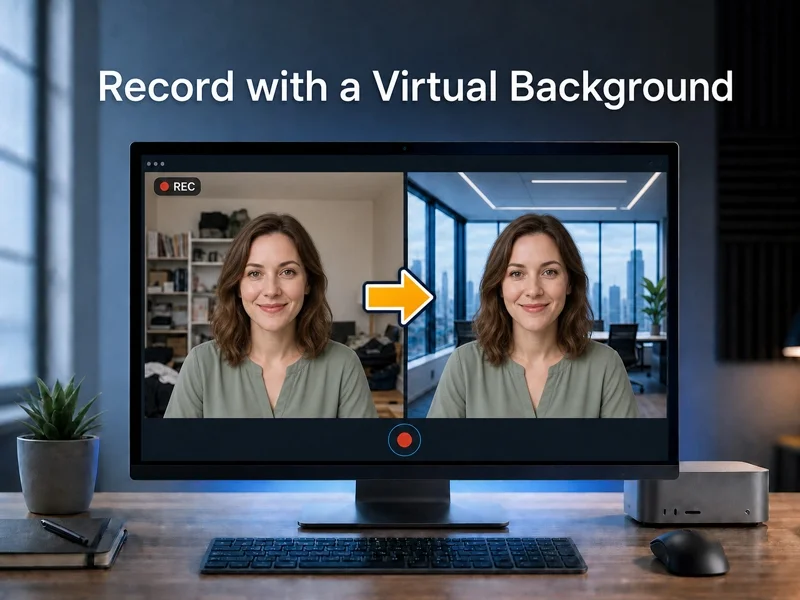
Do you want to record a video without showing your room or setting up a physical green screen? A virtual background can hide distractions, protect your privacy, and give your videos a cleaner and more professional appearance.
Bandicam allows you to remove, blur, or replace your webcam background while recording. This guide explains why virtual backgrounds are useful and how to record video with a virtual background in real time without separate background editing.
Table of contents
Why Virtual Backgrounds Matter for Creators
A virtual background replaces or hides the real environment behind you. It is useful for tutorials, presentations, online classes, gameplay, reaction videos, and other content that includes your webcam.
Using a virtual background offers several benefits:
- Protect your privacy: Hide your room, office, or personal surroundings.
- Reduce distractions: Keep viewers focused on you and your content.
- Create a professional look: Replace a cluttered room with a clean or branded image.
- Save editing time: Apply the effect while recording instead of removing the background afterward.
- Record anywhere: Create polished videos without a studio or physical backdrop.
How to Record With a Virtual Background
Bandicam can record your screen and webcam together while applying a background effect in real time. The AI Virtual Webcam Background feature is available in Bandicam 2027 for Windows.
To record video with a virtual background, follow these steps:
- Download and install Bandicam Screen Recorder.
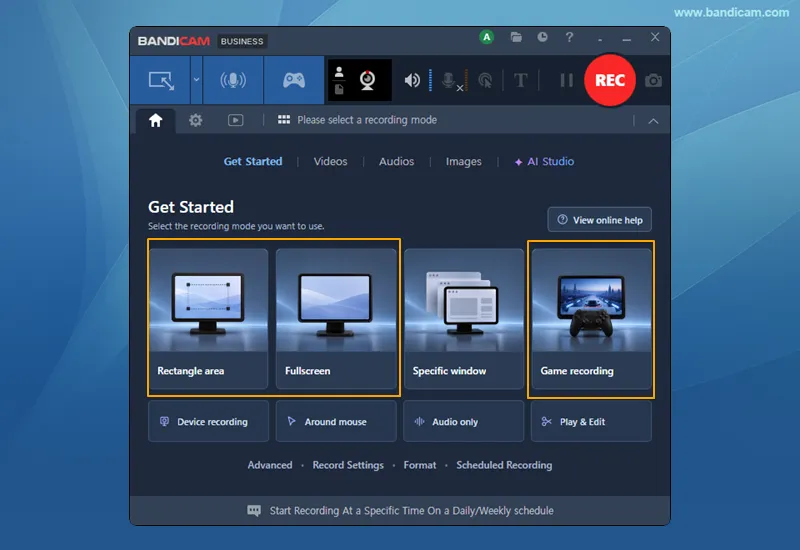
- Run Bandicam and choose a recording mode
Select Rectangle area or Fullscreen to record your screen, or select Game recording for gameplay.
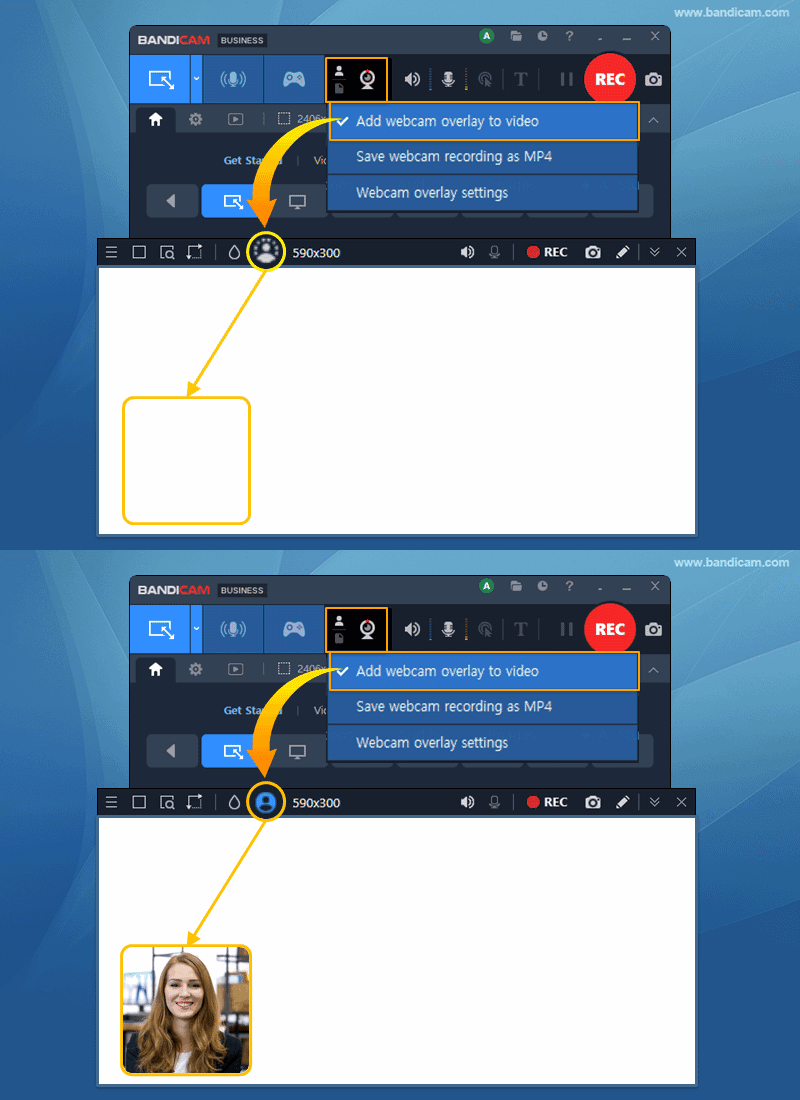
- Enable the webcam overlay.
Select Add webcam overlay to video, then use the webcam icon to show or hide it.
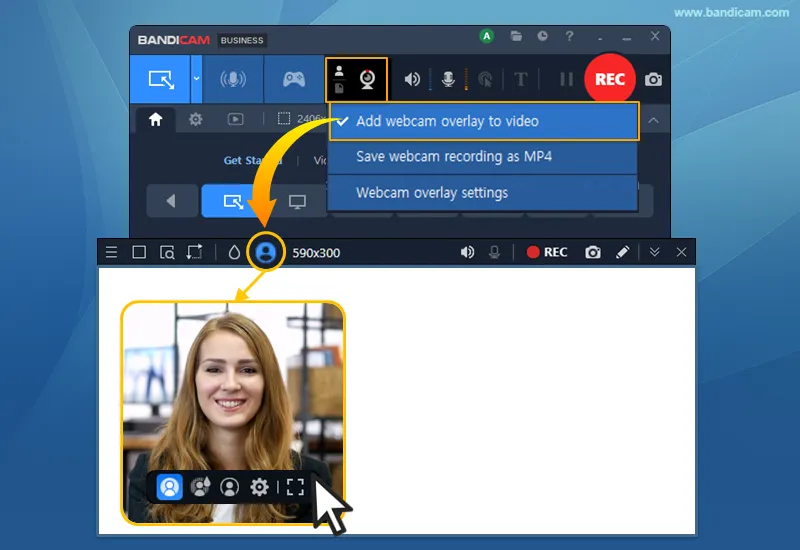
- Choose a background effect.
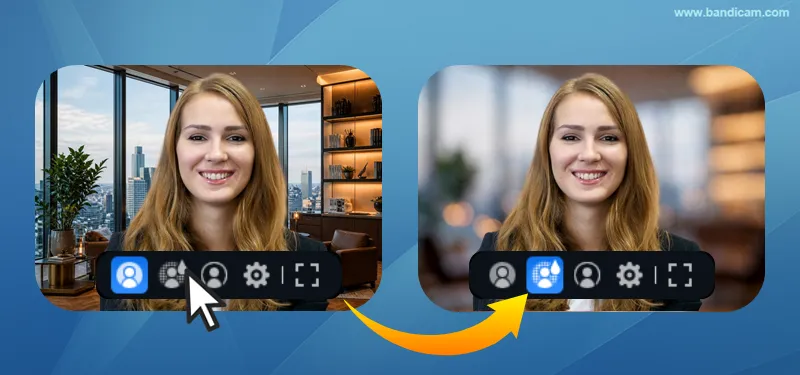
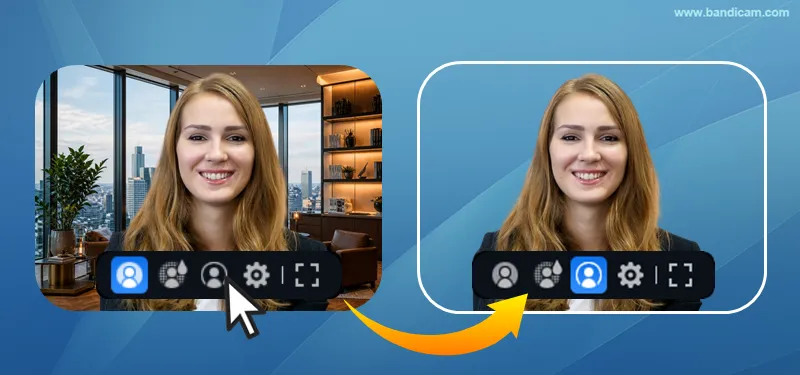
Hover over the webcam preview and select Blur, Transparent, or Settings. You can customize the background in more detail from the webcam settings.
- Start recording.
Click the REC button. Bandicam will record your selected screen or game with the webcam background effect applied.
- Stop and review the recording.
Stop recording when you are finished. The recorded video will automatically open in Bandicam’s built-in media player. Review the video, then click Edit or Transcribe if you need to trim the recording or convert its speech to text.
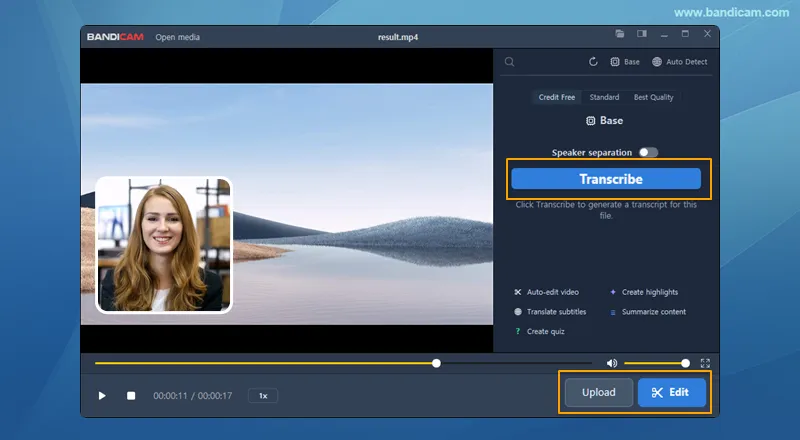
By following these steps, you can record and finish a video with a virtual webcam background without switching between multiple programs.
How to Customize Your Webcam Background
Bandicam lets you blur, remove, or replace your webcam background. Hover over the webcam preview for quick controls, or open Settings for more options.
Blur Your Webcam Background
Select Blur to hide details behind you while keeping a natural-looking background.
Background blur is useful for online classes, presentations, and business videos when you want more privacy without completely replacing your environment.
Remove Your Webcam Background
Select Transparent to remove the webcam background completely.
This creates a clean webcam overlay that places your face directly over a screen recording, presentation, or gameplay video. It also takes up less space than a standard rectangular webcam frame.
Add a Virtual Background
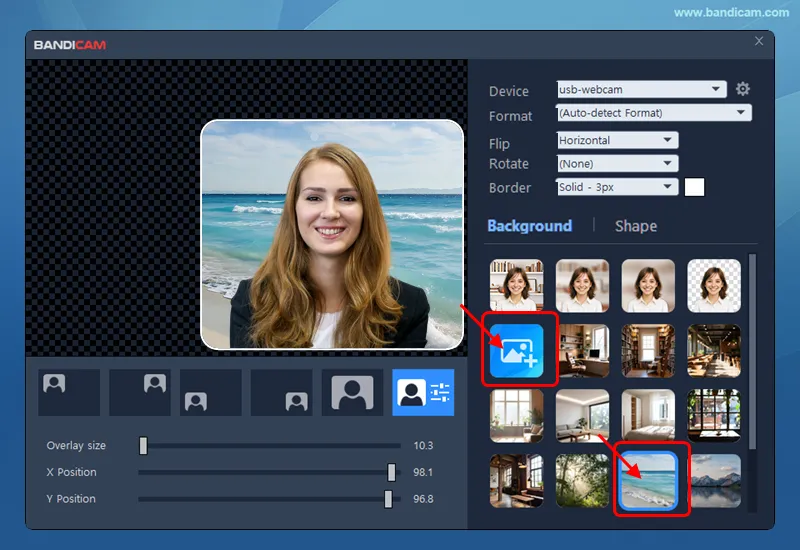
Click Settings and find the Background options. You can choose one of Bandicam’s built-in virtual backgrounds or add your own image.
Use a built-in background for a quick setup, or add a custom image with your company logo, brand colors, presentation theme, or other design.
FAQs About Virtual Background Recording
Yes. With Bandicam, you can remove, blur, or replace your webcam background without a physical green screen.
Yes. Select Blur to hide your surroundings or Transparent to remove the background while recording.
Yes. Open Settings, find the Background options, and add your own image as a virtual background.
Final Thoughts
Virtual backgrounds make it easier to create professional-looking videos without preparing a studio or revealing your surroundings. They are useful for tutorials, online teaching, presentations, gameplay, reaction videos, and YouTube content.
With Bandicam, you can remove, blur, or replace your webcam background while recording, with no separate background-editing step required.