Want to record a WhatsApp video call on your computer? A screen recorder can capture the call window, the other person’s voice, and your microphone in one video. This is useful for interviews, lessons, remote support, and conversations you have permission to save.
This guide explains how to record a WhatsApp video call with audio on a Windows PC using Bandicam. It also covers voice-only recording and common fixes when a WhatsApp screen recording has no sound.
How to Use WhatsApp on a Laptop or Desktop
Download WhatsApp for Windows or open WhatsApp Web in a supported browser. On your phone, open WhatsApp, go to Settings → Linked Devices → Link a Device, and scan the QR code displayed on your computer.

After linking the device, open a chat and select the voice or video call icon. If calling is not yet available in WhatsApp Web on your browser, use the WhatsApp desktop app instead.

How to Record a WhatsApp Video Call With Audio
WhatsApp for Windows supports voice and video calls and provides the most consistent desktop recording workflow. WhatsApp Web calling is also available in supported browsers, although access may vary. For the most reliable setup, use WhatsApp for Windows.
Follow these steps to record a WhatsApp video call with both the call audio and your microphone on a Windows PC. Before recording, let the other participants know and confirm that you have permission to save the call.
Step 1: Open WhatsApp on Your PC
Open WhatsApp for Windows and sign in. Select the contact or group you want to call, then keep the call window ready on the screen.
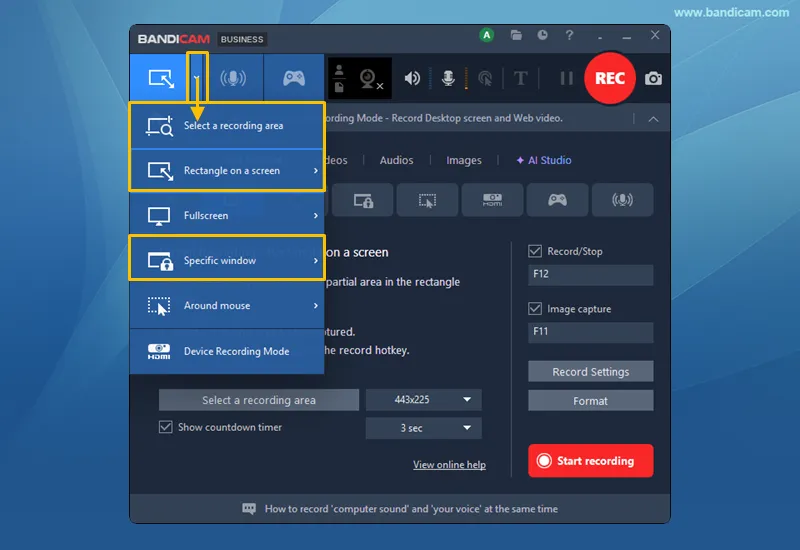
Step 2: Choose a Recording Area
Open Bandicam and go to Home → Get Started. Choose Specific window to capture only WhatsApp, or choose Rectangle area to record a selected part of the call window.
Step 3: Select the Speaker and Microphone in Bandicam
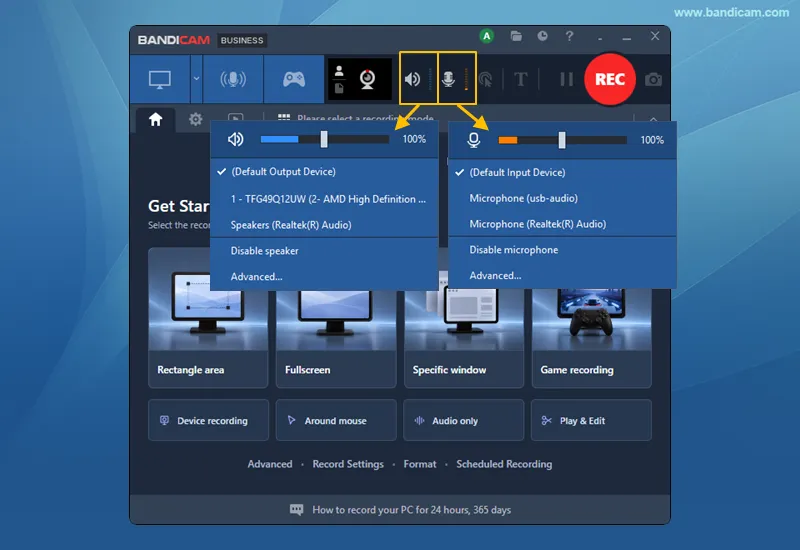
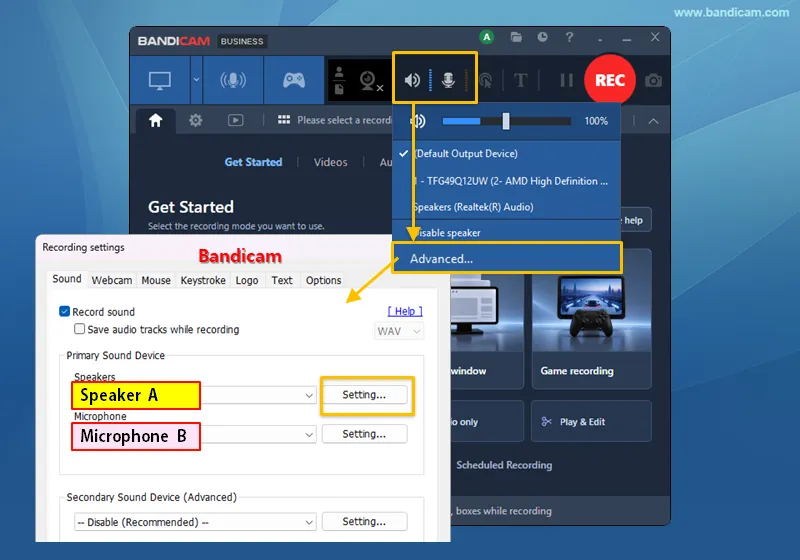
In Bandicam, select the speaker device that plays the WhatsApp call and the microphone you use to speak. This allows the recording to include both the other participant’s voice and your voice.
Step 4: Start the Call and Recording
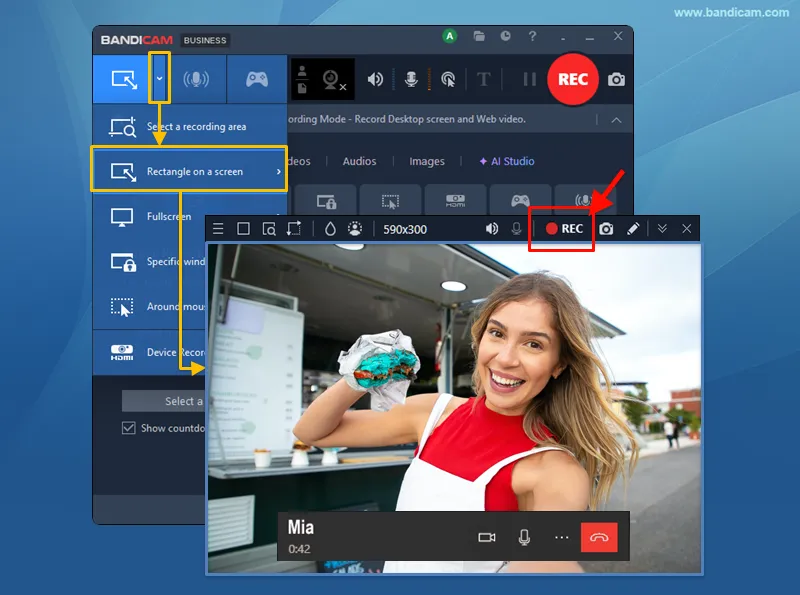
Start the WhatsApp video call, then click the red ● REC button in Bandicam or press F12. Keep the WhatsApp window inside the selected recording area. Press F12 again when the call is finished.
Step 5: Review the Recorded Call
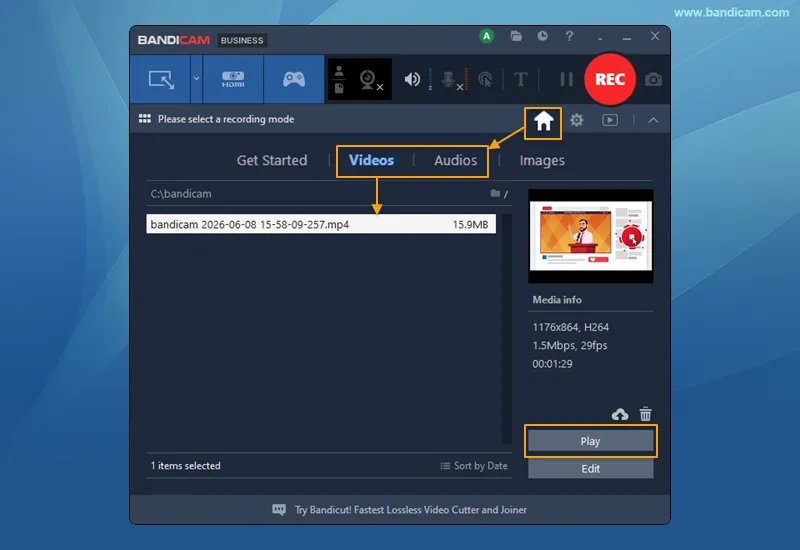
After recording, go to Home → Videos in Bandicam and select the recorded file. Click Play to check the video and audio, or click Edit to trim the beginning or end.
How to Record WhatsApp Audio Calls
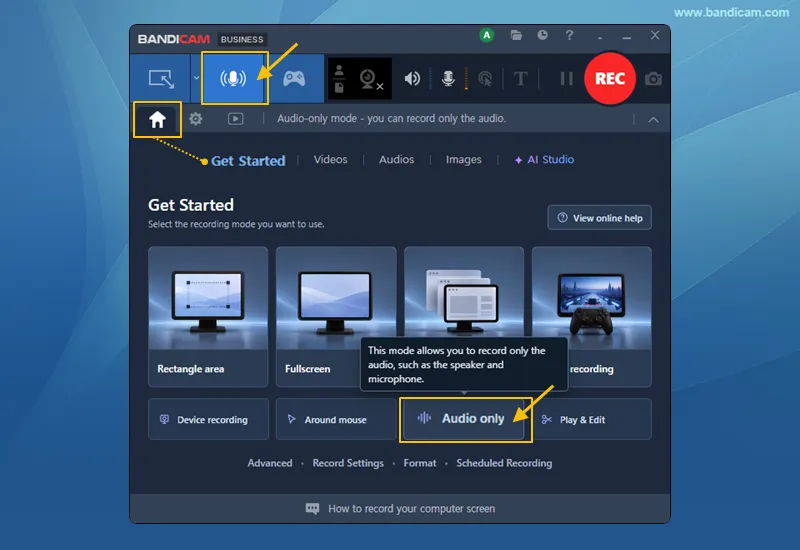
If you only need the conversation audio, open Bandicam’s Audio recording mode. Select the speaker that plays the WhatsApp call and your microphone, start the voice call, and then begin recording. The finished recording can be saved as an MP3 or WAV file.
Why Does My WhatsApp Screen Recording Have No Sound?
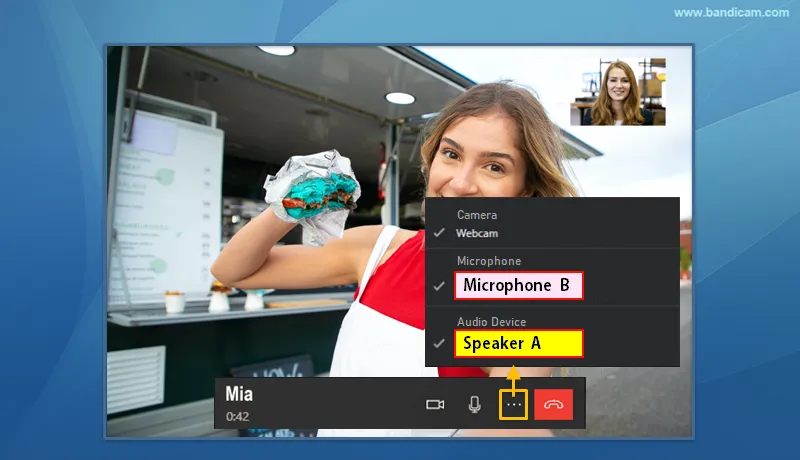
If your WhatsApp recording has no sound, make sure Bandicam and WhatsApp use the same speaker and microphone. Also allow microphone access in Windows and make a short test recording before the call. Use a headset if you hear an echo.
Frequently Asked Questions
Yes. On a Windows PC, record the WhatsApp window and enable both the speaker and microphone in Bandicam. Test the audio before starting an important call.
Open WhatsApp for Windows, select its window in Bandicam, choose the speaker and microphone devices, and press REC or F12.
Yes. Bandicam for Mac can record WhatsApp Desktop or WhatsApp Web with system audio and microphone sound, subject to macOS permissions.
Yes. Use Bandicam’s Audio recording mode to capture the call audio and your microphone without recording the screen.
Summary
To record a WhatsApp video call with audio on a PC, select the WhatsApp window in Bandicam and use matching speaker and microphone devices in both apps. Make a short test recording, start the call, and review the finished file under Home → Videos.
For a voice-only call, use Audio recording mode and save the result as an audio file. Record calls only when you have permission from the participants.