How to record specific sounds
Bandicam 2025 includes a new feature that allows you to capture audio from a specific window. This will enable you to select a window from any program you want, such as a game, online lecture, video player, or browser, and record only the sound from that window.
Record sound from a specific program
(Windows 11)
Bandicam 2025 offers a Specific Window Recording mode that enables precise screen and audio capture from a chosen window, including the ability to record audio exclusively from that selection.
Download and install Bandicam.
Choose "Specific Window" and "Capture audio exclusively from a specific window process," and then select the program.
- This setting will record only the screen and audio of the selected program.
- This option is available only on Windows 11.
![capture specific audio]()
Note: When recording a browser, be careful of tab sounds mixing.
Since most browsers share audio output, sounds from other tabs in the same browser may also be recorded.
- Solution: In this case, it is recommended to separate the recording browser and the working browser.
- Example: When recording audio from a specific Chrome window, use Edge (or another browser) for your other tasks.
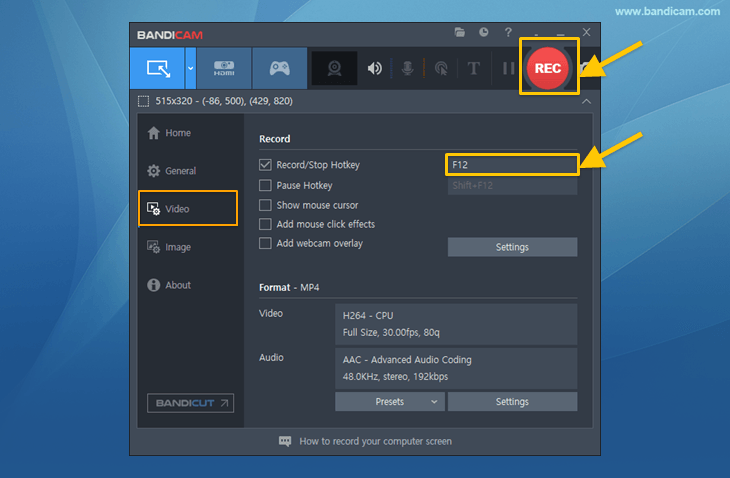
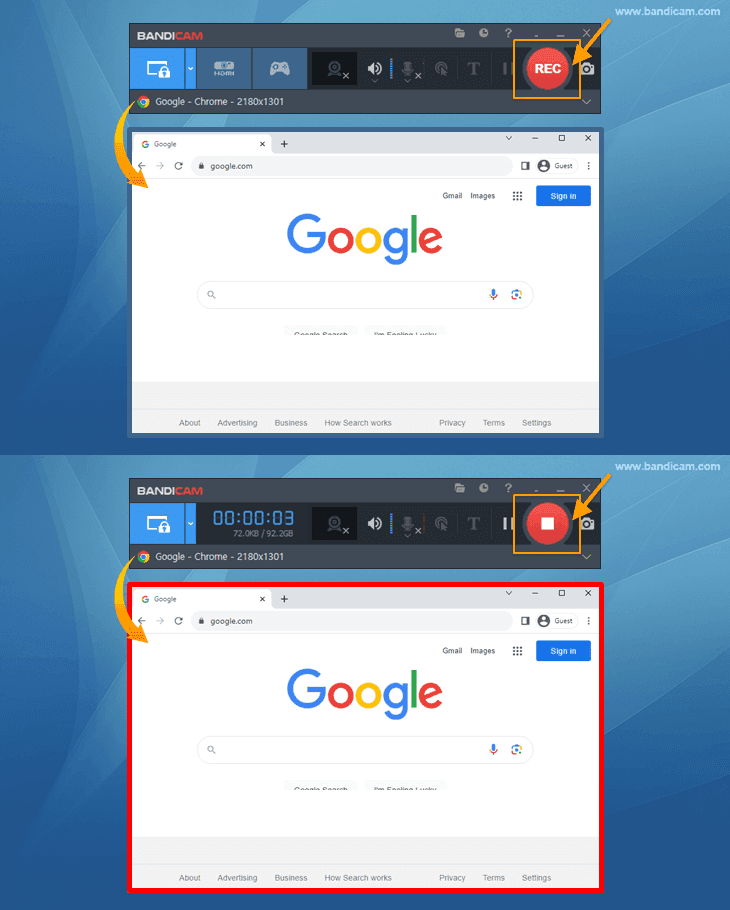
Click the '● REC' button to start/stop the recording.
You can also start and stop recording with the shortcut key F12, and the shortcut can be changed
 .
.![specific area recording]()
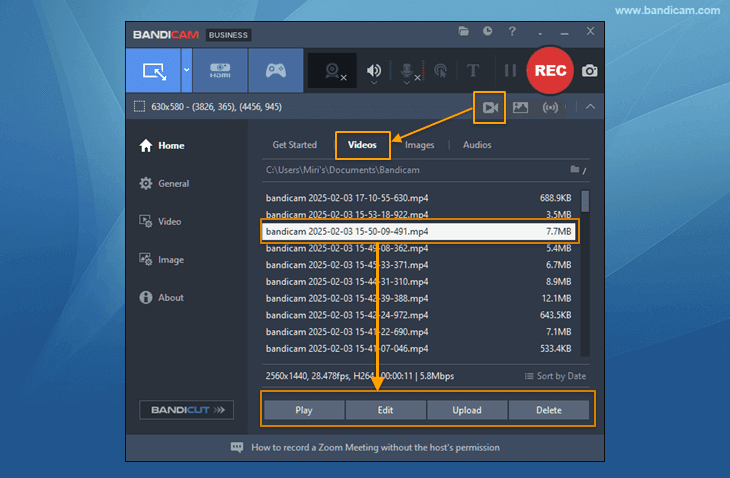
Stop the recording and check your recorded video.
Click on the video icon to play, edit, or upload the captured videos to YouTube, Google Drive, or Vimeo.
![Bandicam, recorded videos, captured videos]()
Using the above method, you can record only the screen and audio of a specific program (e.g., game, online lecture, video player, Youtube).


Record audio from a single application
(Windows 7/8/10)
In Windows 7, 8 or 10, you can record sounds from a specific program if you meet these two conditions:
- You have two or more sound playback devices connected to your computer (e.g., speakers and a headset).
- The program you want to record from allows you to select a specific sound (output) device (e.g., configuring Zoom to use only a headset).
Download and install Bandicam.
Sound settings for Windows and Bandicam
![Bandicam, sound settings]()
- If "Speaker A" is selected in Windows, select another device “Speaker (Speaker B)” in Bandicam.
- Check "Do nothing" under the [Communications] tab in Windows settings.
Sound settings for specific programs you want to record
![Windows Media Player speaker settings]()
- In the program settings, if you select "Speaker (Speaker B)," same as in Bandicam, you can capture only the audio from the specific program without recording other computer sounds.
- Examples of sound settings for programs : Zoom, Teams, Windows Media Player
After setting the sound as explained above, select the recording mode and start recording.
![Bandicam, record stop button]()
- Press the recording start/stop shortcut key (F12) or click the '● REC' button. (Shortcut can be changed to other shortcut).
- Press the recording start/stop shortcut key (F12) or click the '● REC' button. (Shortcut can be changed to other shortcut