Discord remains the heartbeat of online communities in 2026, serving as the go-to platform for everything from intense gaming sessions to professional podcast interviews.
Recognizing the demand for capturing these moments, Discord recently introduced a built-in “Clips” feature that allows users to save the last few minutes of gameplay and voice chat. While this is a great addition for saving spontaneous funny moments, it has significant limitations: it cannot record entire sessions, restricts recording time (often to just 2 minutes), and lacks advanced audio separation options.
Therefore, for creators who need to record full-length episodes or separate microphone inputs for editing, dedicated screen recording software is still essential. In this guide, we review the best Discord screen recorders that offer high-quality video.
8 Best Recording Software to Record Discord Audio & Video calls
1. Bandicam

Compatibility
- Windows, Mac
Features
Bandicam is a popular screen and game recorder that can easily and securely record Discord audio and screen. Moreover, it has the capacity of capturing from any video device, including a webcam, IPTV set-top box, smartphone, PlayStation, and Xbox console. You can record various 2D/3D games in 4K UHD video and capture footage at up to 480 frames per second with a choice of frame rates using Bandicam’s video capture software. It’s a fantastic option if you want a free Discord recorder for voice and gameplay screen in a fast and easy manner.
How to record only Discord
If you want to record the Discord program only, use the ‘Specific window‘ recording mode in Bandicam. The ‘Specific window’ recording mode allows you to select and record a specific program window, even if it is covered by other program windows.

Pro Tip: Recording Discord Voice Chats (Audio Only)
Many creators use Discord for hosting podcasts or interviews because of its high-quality voice servers. If you don’t need the video feed, you can save storage space by recording only the sound.
👉 Learn how to do it: Check out our guide on How to Record Discord Audio to capture crystal-clear voice chats from your channels or calls.
| Pros | Cons |
|
|
2. OBS Studio

Compatibility
- Windows, Macs, and Linux
Features
OBS Studio is an abbreviation for Open Broadcaster Software, a free Discord recorder for recordings and live broadcasting downloaded on the internet. Additionally, OBS may be used to record the screen and audio of Discord while playing games or talking with pals. Download and install it on your computer to give it a go.
| Pros | Cons |
|
|
3. Apowersoft

Compatibility
- Web-based, can be opened in any OS.
Features
Because Apowersoft online screen recorder is a web-based tool, you won’t have to worry about installing anything. Instead, you launch this Discord screen recorder on your browser and start recording your screen. This program does not require a Java Applet, but you will need to install a launcher if this is your first time using it. After this, you may record your screen online without any restrictions.
| Pros | Cons |
|
|
4. Snagit

Compatibility
- Windows and Mac
Feature
Snagit allows you to capture screenshots, edit your pictures, and make lightweight screen recordings all in one convenient package. It’s ideal for providing feedback, producing clear documentation, training materials, and teaching others how to do a task.
It is possible to capture information that scrolls up and down, including websites that seem to be endlessly scrolling, as well as panoramic content that stretches beyond your screen in all directions—up, down, and side to side.
| Pros | Cons |
|
|
5. Monosnap

Compatibility
- Mac OS X and Windows
Features
Monosnap is a Discord video recorder for Mac OS X and Windows that allows you to quickly take screenshots and store them for future editing and discussion. It’s perfect for recording pictures for documentation or posting to social media streams.
The provided editing tools are simple but sufficient, including the standard circles, rectangles, cropping, and line capabilities, as well as (and perhaps most significantly for screen capture) a blur tool for concealing passwords or other sensitive information.
| Pros | Cons |
|
|
6. QuickTime Player
Compatibility
- Mac OS
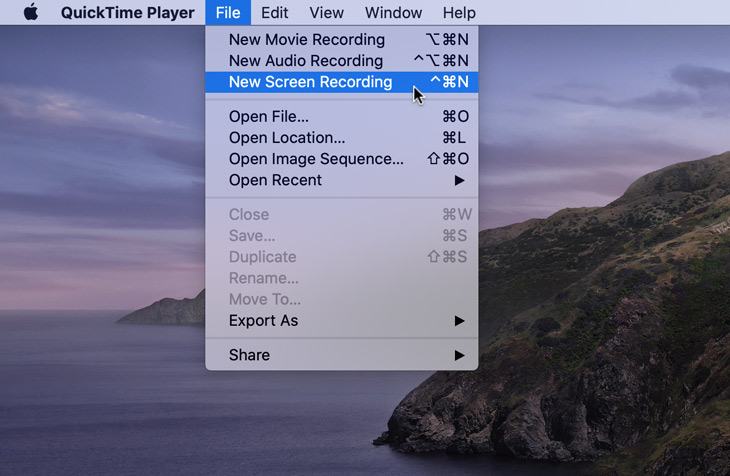
QuickTime Player is a multimedia player developed by Apple Inc. It is capable of handling various formats of video, audio, and image files. QuickTime Player allows users to play, record, edit, and share digital media files on Mac operating systems. It also supports various streaming protocols for playing online videos and provides features such as screen recording and file conversion.
| Pros | Cons |
|
|
7. ScreenFlow

Compatibility
- Mac
Features
Add a fun touch to your screen recordings with Telestream’s ScreenFlow, which has a higher learning curve than the other software listed on this blog. Even though its editor seems to be simple at first glance, there are many options to go through.
Readily the most useful of these resources is Telestream’s stock media collection, which has more than 500,000 pictures, audio clips, and movies (some in 4K) that can be used to give your screen recording a professional gloss. A subscription to the stock media collection costs $60 per year, but it is worth it if consumers or big audiences see your films.
| Pros | Cons |
|
|
8. Fraps

Compatibility
- Windows
Features
Fraps is for benchmarking and video game recording. It does not have any editing capabilities or screen control since it is intended to record video games alone.
Using Fraps is also a very straightforward process. Fraps may be obtained and installed from the company’s website. Set a recording path and a hotkey to start recording video movies in the video movies section of the settings menu.
| Pros | Cons |
|
|
Summary
Recording Discord is the best way to keep your gaming memories or important conversations safe. The right tool depends on what you want to capture:
- For Short Clips: Use Discord’s built-in “Clips.” It’s the easiest way to save the last 2 minutes of gameplay.
- For Video & Audio Recording: Use Bandicam. It is the most flexible option. You can choose to record the full screen with sound (for videos), or simply switch to “Audio Only” recording mode to record just the conversation (MP3).
- For Live Streaming: Use OBS Studio. It is the best choice if you want to broadcast your Discord call to Twitch or YouTube.