Try Bandicam Screen Recorder!
Download Bandicam (Free)Automatically Pause Recording When Your PC Is Inactive
The auto pause recording feature pauses your screen recording when no mouse or keyboard activity is detected for a set period and resumes once motion is detected. This feature is particularly beneficial for continuous, or 24/7, PC screen recording and saves system resources, ensuring your PC runs efficiently and avoids unnecessary strain.
In addition, by ensuring that recordings only capture relevant activity, you can maintain higher quality and more concise recordings, which are easier to review and utilize.
Automatically pause recording when idle

Bandicam Screen Recorder allows you to easily set the recording to automatically pause when no mouse or keyboard activity is detected for a certain period of time. Here's how to use the Auto Pause Recording option:
Download and start Bandicam Screen Recorder.
Click on Video tab -> Settings -> Options menu -> Check the “Auto-Pause Recording” option.
You can choose between 5 and 60 seconds. For example, if you select 10 seconds, recording will pause if there is no mouse or keyboard movement for 10 seconds, and will resume when movement is detected again.
![auto pause recording when idle]()
Choose your desired screen recording mode. Then, click the ● REC button to start and the ■ stop button to end your recording.
![screen recording mode]()
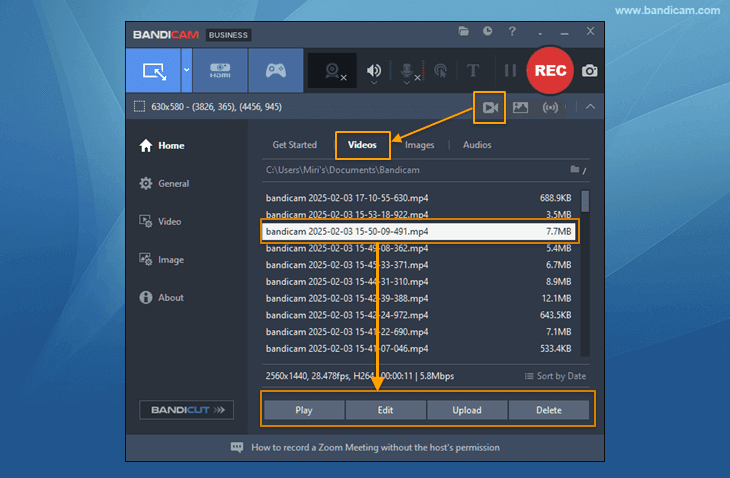
Click the video icon to Play, Edit, or Upload the recorded video to YouTube or Google Drive.
![recorded videos]()


[Additional Tips] Optimal Use of Auto-Pause Recording
1. Can I automatically screen record a monitor/laptop on Windows startup?
Yes, you can automatically record your entire computer screen every time Windows starts for monitoring purposes.
See how to monitor your laptop/computer screen »

2. Can I automatically record multiple screens on Windows startup?
With Bandicam Screen Recorder, you can automatically record multiple computer screens when Windows starts.
See how to monitor multiple screens »
3. Is there an easy way to check the recording status?
To check the recording status on Bandicam, simply add the Bandicam icon to the system tray (Green = Ready to record, Red = Recording, Gray = Paused).

Last Updated on