Bug reporting becomes significantly more effective when you include a clear screen recording. Text alone often fails to show the exact steps that lead to a bug, but a video helps developers and QA teams reproduce and resolve issues much faster.
Why Screen Recording Is Essential for Bug Reporting
Screen recording is becoming the standard for bug reporting because it
– Reduces miscommunication between QA and developers
– Clearly shows the exact steps to reproduce a bug
– Accelerates debugging and issue resolution
– Enhances collaboration among remote and distributed teams
– Provides visual documentation that supports long-term tracking and analysis
This guide introduces the best screen recorders for bug reporting and explains how to record bug report videos on Windows and macOS.
Best Screen Recorders for Bug Reporting
This section offers an in-depth review of the top bug reporting and screen capture tools used by professionals. The rankings below are based on criteria such as performance, clarity, workflow speed, annotations, file size, cross-platform support, and ease of sharing.
1. Bandicam
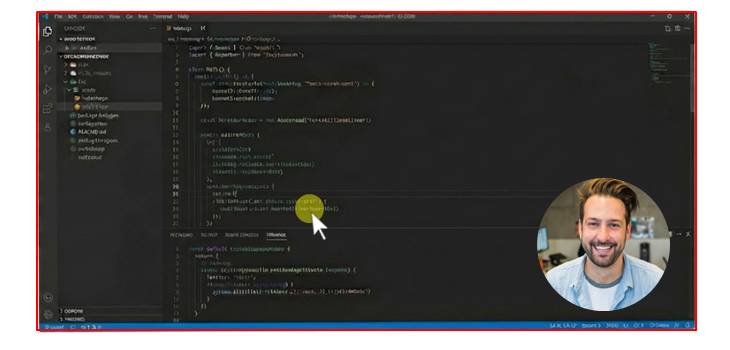
Bandicam is widely used in professional software companies because it balances performance and quality better than most screen recorders. For bug reporting, file size efficiency also matters: large files slow down uploads to Jira, Slack, Google Drive, and internal bug tracking tools. Bandicam’s compression solves this issue by keeping videos lightweight without losing clarity. It also reliably supports long-duration recordings and includes a Bandifix recovery tool to restore recordings that fail to save, making it ideal for bug reporting.
Key Features
- High‑quality screen recording with compression
- Low CPU usage during long sessions
- Cursor highlighting & click effects
- Window, region, and full‑screen recording modes
- Bandifix recovery tool for unsaved recordings
- Available for Windows and macOS
Pros: Produces crystal-clear bug report videos with small file sizes, while reliably supporting long recordings and offering recovery support
Cons: Advanced settings may feel overwhelming for beginners
2. OBS Studio
OBS Studio is an open-source and extremely powerful software. It supports multiple input sources, advanced routing, audio mixing, and scene transitions. However, OBS is not as beginner-friendly as Bandicam or Loom, so non-technical testers may struggle with the interface. OBS is best suited for testers who need complex multi-window capture or automation-friendly setups.

Key Features
- Unlimited scenes & sources
- Powerful audio mixer
- High‑performance real‑time encoding
- Advanced window capture options
- Supports Windows, macOS, and Linux
Pros: Extremely powerful and customizable for complex bug reporting workflows
Cons: Steeper learning curve compared to simpler tools
3. Loom
Loom is famous for its instant sharing workflow. After recording, the video automatically uploads to cloud storage and generates a link you can paste into Jira, Trello, Slack, or email. Limitations include lower video quality and weaker performance for long recordings, but it’s one of the best choices for quick bug reproduction sharing.

Key Features
- Instant cloud upload
- Automatic shareable links
- Webcam + screen recording
- Browser or desktop recording
- Slack/Jira‑friendly sharing workflow
Pros: Fastest sharing workflow for remote teams
Cons: Lower recording quality and not suitable for long videos
4. ShareX
ShareX is an open-source screen capture tool widely used by QA engineers, developers, and technical testers who need fast, automated workflows. Although its video recording capabilities are not as advanced as Bandicam or OBS, ShareX excels at quick captures, screenshots, annotation, GIF creation, and automated upload workflows—making it extremely effective for bug reporting tasks in fast-moving environments.

Key Features
- Free and open‑source
- Screenshot annotation tools
- Basic screen recording
- Hotkey automation
- Multiple upload integrations
Pros: Best free lightweight option for Windows users
Cons: Not ideal for high‑quality or lengthy bug report recordings
5. ScreenPal
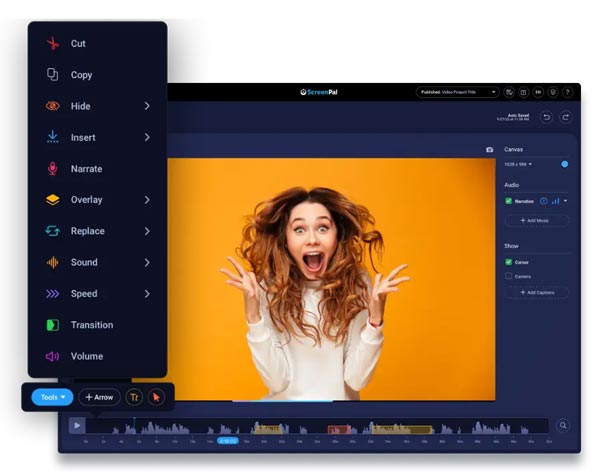
SceenPal is one of the most beginner-friendly screen recorders, making it ideal for non-technical testers, customer support agents, and product managers who need to create simple, clear bug report videos. Its built-in annotation and drawing tools help highlight important elements on the screen in real time, making bug explanations visually clear even for complex interfaces.
Key Features
- Easy to use
- Drawing and annotation tools
- Web‑based recorder option
- Voice narration support
- Quick export options
Pros: Easy for non‑technical users to get started
Cons: Lacks advanced performance and video quality control
How to Record a Bug Report on Windows
Here is a simple tutorial to screen record a bug report on Windows using Bandicam. If you’re planning to use OBS, check out the OBS Quickstart Guide.
1. Install Bandicam Screen Recorder.
2. Choose your desired screen recording method.
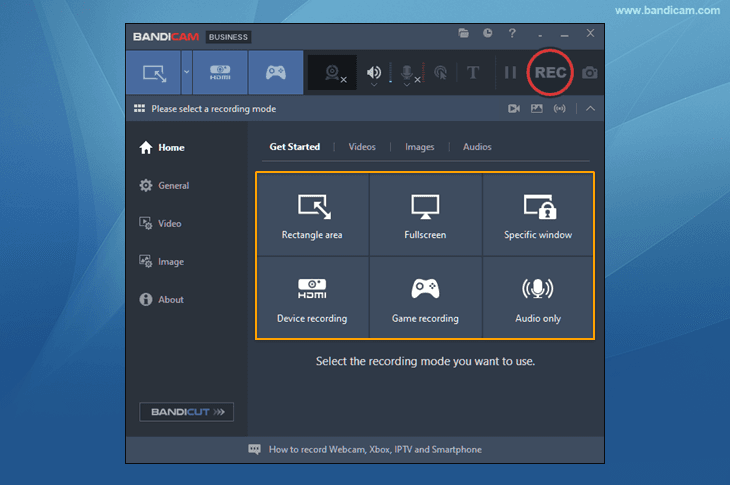
3. Select your speaker and microphone to capture both system audio and your voice.
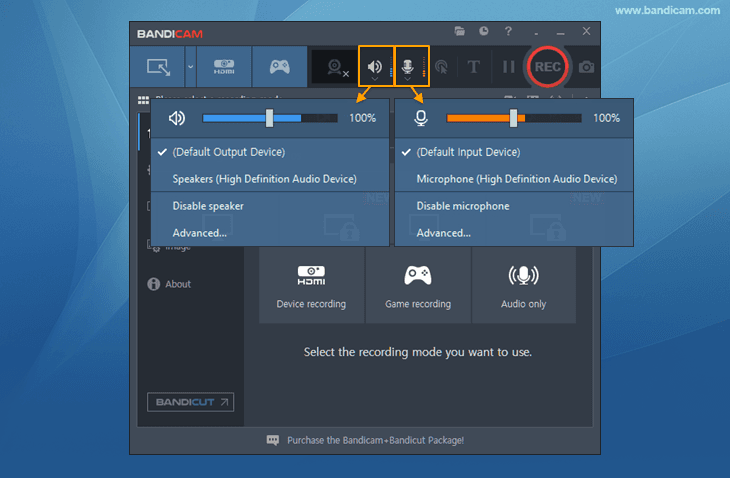
4. Start recording by pressing the ● REC button.
6. Stop the recording, review the video, and upload it to Google Drive if needed.
How to Record a Bug Report on macOS
Check out the simple steps to record a bug report video on Mac using Bandicam. For QuickTime Player, see the QuickTime Player Recording Guide.
1. Install and open Bandicam for Mac.
2. Toggle the audio and microphone icons to record system sound and voice.
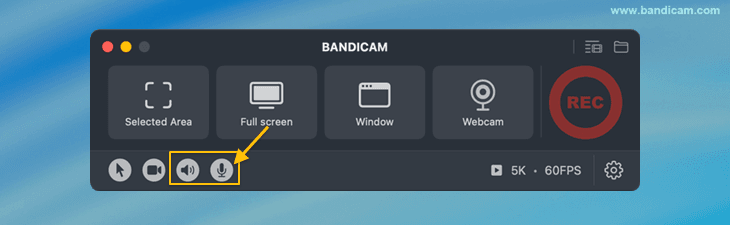
3. Choose the recording method (Selected Area, Full screen, etc.).
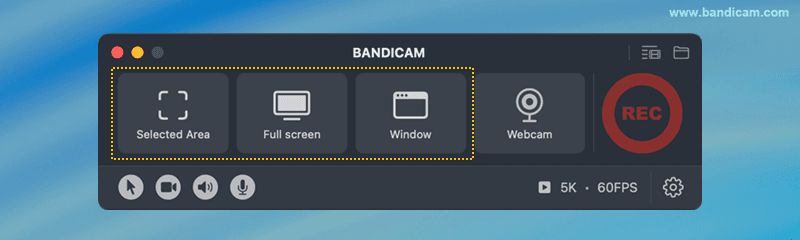
4. Start recording and reproduce the bug.
5. Stop the recording to save the file, and upload it to your bug tracking system.
Conclusion
Bug reporting is far more effective when supported by clear visual evidence. Screen recorders help QA teams, developers, and support engineers reproduce issues quickly, understand the context more accurately, and reduce unnecessary back-and-forth communication.
- Bandicam is the best overall tool for creating professional, high-quality bug report videos with low CPU usage.
- OBS Studio offers maximum control and power for technical teams.
- Loom provides the fastest sharing workflow for remote collaboration.
- ShareX is ideal for lightweight tasks, quick captures, and automated uploads.
- Screenpal is perfect for beginners who need simple, annotated bug report videos.
Choosing the right tool depends on your team’s workflow, technical level, and the type of bugs you need to capture.
Regardless of which tool you pick, incorporating screen recording into your bug reporting process will greatly improve communication efficiency and accelerate issue resolution across the entire development cycle.


