Dell laptops are known for their durability, performance, and popularity among students and business users. Here are some common reasons why Dell laptop users want to record their screens:
- Creating tutorials and presentations
- Recording online meetings and classes
- Capturing gameplay for YouTube or Twitch
- Documenting software bugs or workflows
- Saving streaming content for offline viewing
If you own a Dell laptop and are wondering how to screen record effectively, you’ve come to the right place. In this guide, we’ll walk you through two proven methods using the built-in Windows Xbox Game Bar and the powerful third-party screen recorder, Bandicam.
Whether you’re using a Dell XPS, Inspiron, Latitude, or Alienware, these tips will have you covered.
Table of contents
Method 1: Use Xbox Game Bar (Windows Built-In Tool)
The Xbox Game Bar is a screen recording and overlay feature built into Windows 10 and 11. Originally designed for gamers, it’s now used for general-purpose recording, including browser activity, apps, and more.
Step-by-Step Instructions:
- Open the window or app you want to record.
- Press Windows + G to launch the Game Bar.
- To start recording, either click the Capture widget and then the Record button, or press the keyboard shortcut Windows + Alt + R.
- To stop recording, click Stop or press Windows + Alt + R again.
- To check your recorded file, click “Show all captures” by the Xbox Game Capture tool–this is the Captures directory in your main Videos folder.
Xbox Game Bar: Pros and Cons
| Pros | Cons |
|---|---|
| – Pre-installed – Simple interface – Good for beginners | – Can’t record desktop background – No webcam or overlay – No advanced audio/video controls |
Additional Tip: Use ‘Snipping Tool’ for Quick Clips (Windows 11)
If you are using a Dell laptop with the latest Windows 11, you can also use the Snipping Tool for quick screen recording.
- Press Windows + Shift + S or search for Snipping Tool.
- Click the Camcorder icon (Record) instead of the Camera icon.
- Select the area you want to capture and click Start.
- Note: While convenient for short videos, the Snipping Tool has limited audio settings. If you need to record internal sound and microphone simultaneously, we recommend using Bandicam.
Method 2: Use Bandicam for Professional Screen Recording
Bandicam is a lightweight, high-performance screen recorder for Windows. It offers multiple recording modes, advanced features, and high-quality output with small file sizes—perfect for creators who want control and quality.
Step-by-Step Guide to Screen Record on Dell:
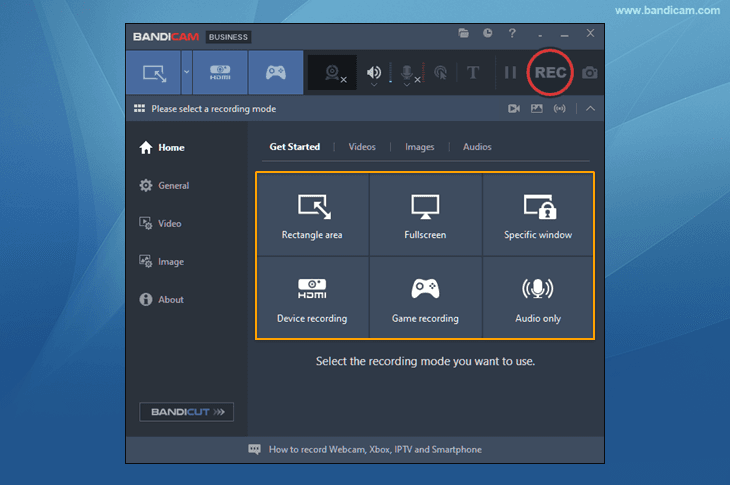
- Install Bandicam Screen Recorder and run.
- Choose your desired screen recording method.
You can use screen recording, webcam capture, gameplay recording, audio-only recording, and more.
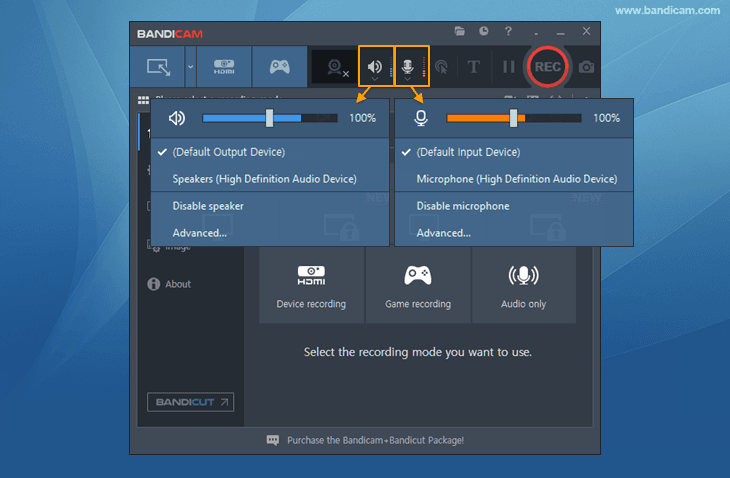
- You can select your speaker and microphone device to screen record on your Dell laptop with audio.
- When the “Rectangle area” recording option is chosen, for example, you can define the capture region and then initiate recording by pressing the ● REC button or the F12 key.
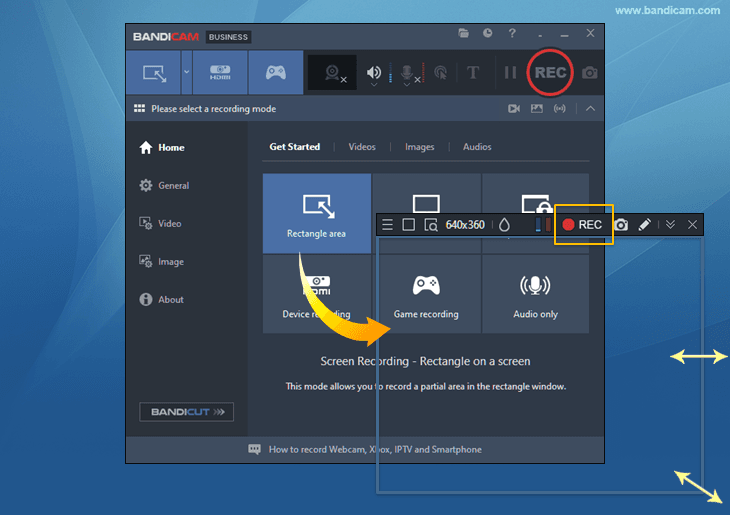
- To save your recording, either press the ■ stop button or the F12 key.
- Afterwards, navigate to the Home tab and select ‘Videos’ to view your saved recordings.
Use Bandicam for Tutorials, Gameplay, and Meetings
- Online Classes: Capture entire lectures with Bandicam’s webcam + screen combo.
- Tutorials & Trainings: Highlight mouse clicks, use drawing tools, and explain software steps clearly.
- Gameplay: Record high-frame-rate gameplay without lag on your Dell gaming laptop.
- Business & Demos: Use scheduled recording and watermarking for product demos or software tests.
Feature Comparison: Xbox Game Bar vs. Bandicam
Below is a detailed comparison of the two tools to help you decide:
| Xbox Game Bar | Bandicam | |
| Record Desktop/Browser | ❌ No | ✅ Yes |
| Record Specific Window/Region | ❌ No | ✅ Yes |
| Webcam Overlay | ❌ No | ✅ Yes |
| Real-time Drawing | ❌ No | ✅ Yes |
| Scheduled Recording | ❌ No | ✅ Yes |
| Game Recording with FPS Overlay | ✅ Basic | ✅ Advanced |
| Custom Codec/Resolution | ❌ No | ✅ Yes |
| Output Formats | MP4 only | MP4, AVI |
| Pre-installed on Windows | ✅ Yes | ❌ No (Manual install) |
FAQs About Screen Recording on Dell
Your Dell laptop includes the free, built-in Xbox Game Bar (Windows 10 & 11), which is great for basic app recording. For more comprehensive features like full-screen recording or advanced controls, explore a dedicated tool like Bandicam.
The Xbox Game Bar provides basic audio recording, capturing in-game or application audio and microphone input. For more precise control over audio sources and higher quality recordings, professional software such as Bandicam offers advanced audio mixing features to capture sounds.
Xbox Game Bar has limited recording capabilities, working mainly within single application windows. For recording the full desktop, File Explorer, or specific screen regions, a more flexible tool like Bandicam is recommended due to its multiple recording modes.
Troubleshooting missing audio involves checking Windows sound settings, the specific application’s audio settings (e.g., Xbox Game Bar capture), and Windows privacy settings for microphone access. Updating audio drivers may resolve persistent issues.
Xbox Game Bar offers free, basic recording. For Dell users wanting high-quality recording and advanced yet user-friendly features like real-time drawing and webcam overlays, Bandicam is more ideal.
Windows 11 retains the Xbox Game Bar for basic recording, similar to Windows 10. For advanced features on Windows 11, ensure third-party software compatibility. Bandicam is fully compatible with Windows 11, offering high-performance recording on Dell laptops.
Summary
Recording your screen on a Dell laptop has never been easier. For quick tasks, the Xbox Game Bar gets the job done. But for serious creators, educators, and gamers, Bandicam delivers professional-grade features with superior video quality.
Whether you’re documenting workflows, making YouTube content, or capturing live gameplay, Bandicam gives you full control.