How to Transcribe Video to Text
Bandicam for Mac allows you to transcribe video to text on Mac using its built-in AI transcription feature. The transcription tool analyzes the audio in a video and automatically generates an .srt subtitle file. You can also edit the transcript, copy it to your clipboard, save it as a .txt file, or export a subtitled video.
Steps to Transcribe Video to Text
To convert video to text using Bandicam, follow these steps:
Step 1. Start recording using one of these options: Selected Area, Full screen, Window, or Webcam.

Step 2. After the recording stops, the Output Video List will appear automatically.
You can also open it by clicking the Output Video List icon in the main window.

Step 3. Select the video file and click on the Transcript tab.
Bandicam will automatically start generating the transcript.

Step 4. Review and edit the transcript.
After the transcription is complete, review the transcript. Click the edit icon next to a transcript line to update the text, and then click Save to apply your changes.

Step 5. Save the transcript or export a subtitled video.
- An .srt file is automatically saved in the same folder as the video.
- Click the download icon to access more options, such as Copy to clipboard, Save as .txt, and Export Subtitled Video.

Useful Tips
![search]() Search: Use the search box to find specific words or phrases in the transcript.
Search: Use the search box to find specific words or phrases in the transcript.![refresh]() Refresh: After changing the AI model or language, click the refresh button to regenerate the transcript.
Refresh: After changing the AI model or language, click the refresh button to regenerate the transcript.![ai model]() Select AI Model:
Click this icon to switch between AI models (Tiny, Base, Small, Medium, or Large Turbo).
Select AI Model:
Click this icon to switch between AI models (Tiny, Base, Small, Medium, or Large Turbo).![Language]() Select Language:
Click the language icon to manually choose the transcription language.
Select Language:
Click the language icon to manually choose the transcription language.![cc]() Captions:
Click the CC button to toggle subtitles. Bandicam Pro lets you view full subtitles during playback.
Captions:
Click the CC button to toggle subtitles. Bandicam Pro lets you view full subtitles during playback.
 Search: Use the search box to find specific words or phrases in the transcript.
 Refresh: After changing the AI model or language, click the refresh button to regenerate the transcript.
 Select AI Model:
Click this icon to switch between AI models (Tiny, Base, Small, Medium, or Large Turbo).
Select AI Model:
Click this icon to switch between AI models (Tiny, Base, Small, Medium, or Large Turbo). Select Language:
Click the language icon to manually choose the transcription language.
Select Language:
Click the language icon to manually choose the transcription language. Captions:
Click the CC button to toggle subtitles.
Captions:
Click the CC button to toggle subtitles. 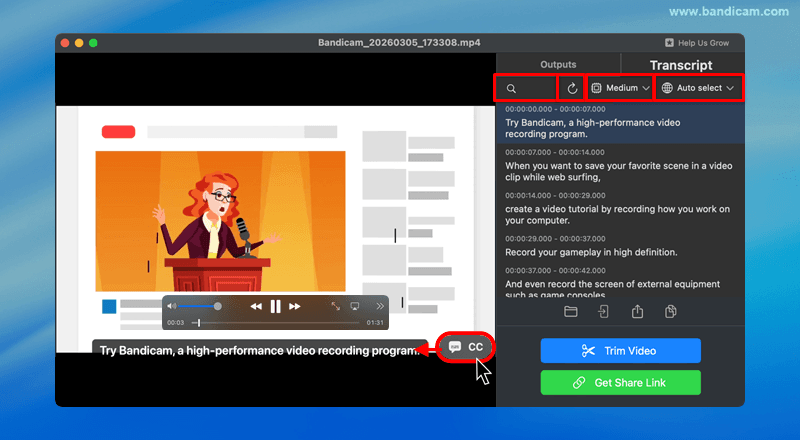
Advanced Transcription Settings
For additional customization, go to Settings → Transcription. See the Transcription Settings guide for more details.
In this section, you can:
- Select the AI model preset: Tiny, Base, Small, Medium, or Large Turbo
- Choose the transcription language: Select a specific language instead of Auto select
- Enable audio preprocessing: Reduce background noise for better accuracy
- Clear the model cache: Remove downloaded AI models

FAQs (Frequently Asked Questions)
1. Can Bandicam automatically transcribe video to text?
Yes. Bandicam includes an AI transcription feature that automatically converts spoken audio in a video into text.
2. What languages are supported for video transcription?
Bandicam supports multiple languages for video transcription, including German, English, Spanish, French, Indonesian, Italian, Dutch, Portuguese, Swedish, Vietnamese, Turkish, Russian, Ukrainian, Arabic, Korean, Simplified Chinese, Traditional Chinese, and Japanese. You can manually select the transcription language or use Auto select to detect the language automatically.
3. How can I improve transcription accuracy?
The Base (Balanced) AI model preset is selected by default. Larger models provide better accuracy, with Large Turbo offering the highest accuracy. You can select your preferred AI model preset in Transcription Settings.