'Screen Recording' mode | Selected Area
Bandicam offers a versatile 'Selected Area' recording option, allowing you to precisely capture a chosen portion of your Mac screen.
How to Record a Selected Area of Your Mac Screen
Step 1. Install Bandicam from the Mac App Store and launch it.
Step 2. Configure Cursor, Webcam, and Audio (Optional)
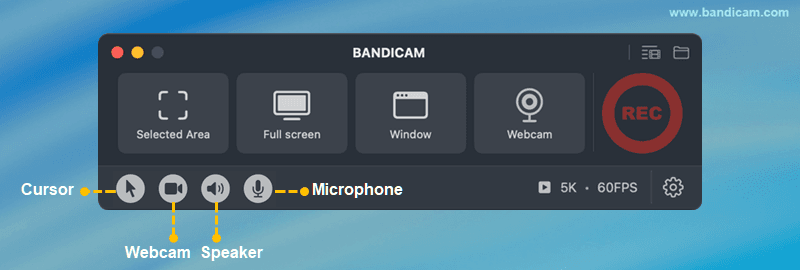
- Cursor: To capture your mouse cursor, click the cursor icon.
- Webcam: To capture your webcam, click the webcam overlay icon.
- Audio: System audio is enabled by default. To record your voice, select the microphone icon.
Step 3. Choose the 'Selected Area' recording option to define a custom recording region.

Step 4. Drag corners and edges to adjust the capture area, then click the red button to record.

Step 5. Click the ❚❚ Pause button to pause/resume, and press the ■ Stop button to finish the recording.

Step 6. Stop recording and review the recorded video file.
After you stop recording, the output video list window will immediately appear.
- After selecting a video, use the buttons to Open in Finder, Delete it, Send it via AirDrop, or Share it through the macOS menu.
- To remove unwanted sections, click the "Trim video" button.

With these easy steps, Bandicam for Mac lets you record a selected area of your screen in high quality—perfect for tutorials, meetings, or app demos with partial screen recording.