How to Record Audio or Voice on Mac
Bandicam allows you to easily record your Mac's system audio and your voice from a microphone, all without installing any extra drivers.
1. Record System Audio / Internal Audio (Default)
Bandicam records your Mac's System Audio by default, capturing internal sounds from apps, videos, or games. Toggle this function with the Speaker icon.

2. Record Microphone
- To add your voice, simply click the Microphone icon.
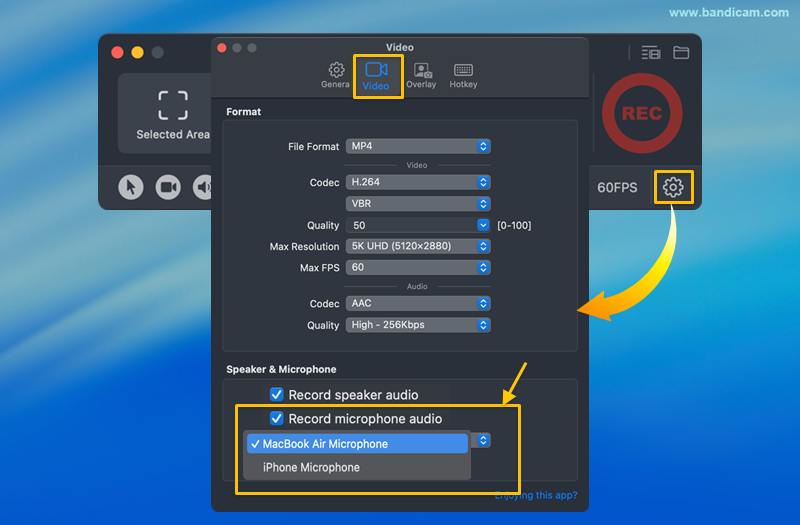
- You can also adjust microphone settings in Settings → Video, under "Speaker & Microphone."

Troubleshooting Audio Recording Issues
1. Can't record your Mac's system audio?
- Check Permissions: Grant Bandicam Screen & System recording permissions in Mac's System Settings > Privacy & Security > Screen & System Audio Recording
 .
. - Check Sound Output Device: In System Settings → Sound → Output, confirm that a working audio device (e.g., speakers, headphones) is selected.


2. Can't record your voice?
- Grant Microphone Access: Make sure Bandicam has permission to use your microphone. You can enable this in System Settings → Privacy & Security → Microphone.
- Select a Different Device: In Bandicam, go to Settings → Video and select a different microphone from the dropdown menu to see if the issue is device-specific.

If the audio recording issues persist, please record your Bandicam and Mac sound settings. Then, send the video file, along with details of your Mac and microphone model, to mac@bandicam.com.