How to Set Up Permissions on macOS
To ensure Bandicam runs perfectly on your Mac, you need to grant a few necessary permissions. This is a standard security measure required by macOS to protect your privacy. Follow these simple steps to get set up.
Screen & System Audio Recording
To record your Mac's screen or audio, macOS requires you to grant permission in your System Settings.
Step 1. Click the "Open System Settings" button.
You may see one of two different messages, as shown below. In either case, please click the Open System Settings button.

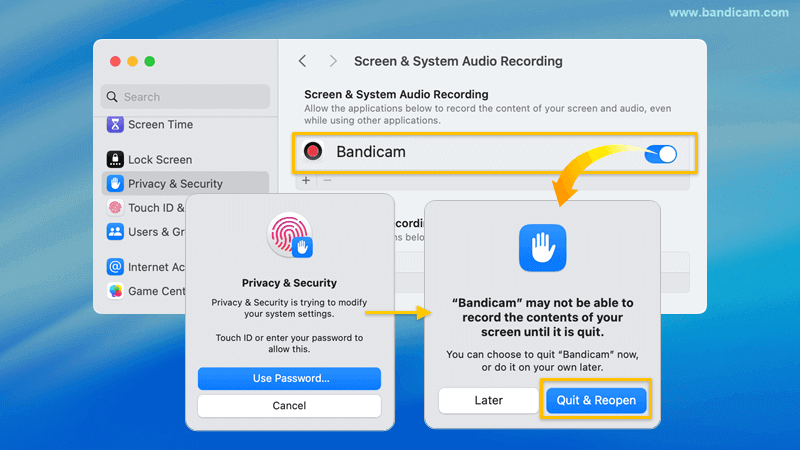
Step 2. Grant permission by toggling on the switch next to Bandicam.
- Find Bandicam in the list and turn the switch ON.
- If prompted, enter your system password.
- Authorize by clicking "Quit & Reopen."
Camera Access
To use the webcam overlay feature, you'll need to grant Bandicam access to your camera. Follow the instructions below based on the pop-up you see.
Case 1: If the "Allow" pop-up appears, click "Allow."

Case 2: If you see the "Permission Required" pop-up, follow these three steps:
- Click Open System Settings.
- Find Bandicam in the list and turn the switch ON.
- Click Quit & Reopen.

Microphone Access
To record your voice or any external audio, you need to allow Bandicam to access your microphone. Follow the instructions below based on the pop-up you see.
Case 1: If the "Allow" pop-up appears, click "Allow."

Case 2: If you see the "Permission Required" pop-up, follow these three steps:
- Click Open System Settings.
- Find Bandicam in the list and turn the switch ON.
- Click Quit & Reopen.
