How to Install Bandicam on Mac
Bandicam requires macOS 13.0 (Ventura) or later. This guide will help you download Bandicam from the Mac App Store and begin your first recording. Follow the steps below to install Bandicam.
Step 1. Click the "Bandicam Free Download" button below.
This will automatically open the App Store on your Mac.
Step 2. In the App Store, click the "Get" button, then click "Install."

Step 3. Launch Bandicam and choose an Output Folder.
When you first launch Bandicam, you will be prompted to select a folder where your recorded files will be saved.

Step 4. Grant the necessary permissions when prompted and start recording.
Upon launching Bandicam on Mac, you will be prompted to grant the necessary permissions for its operation.
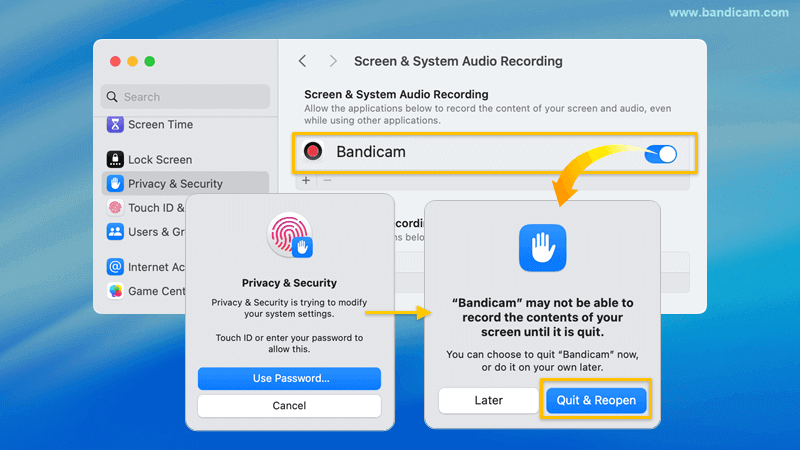
- Screen & System Audio Recording:
- Click "Open System Settings."
- Toggle on the Bandicam switch to grant permission. Next, if prompted, enter your system password and click "Quit & Reopen" to authorize.

- Camera access: Click on the "Allow" button.

- Microphone access: Click on the "Allow" button.
