How to Draw on Screen While Recording
Bandicam for Mac offers screen annotation tools that allow you to add pens, highlighters, lines, arrows, shapes, and text overlays while recording. These markup tools are perfect for creating educational tutorials, business presentations, and YouTube walkthroughs.
How to Use the Drawing Tools
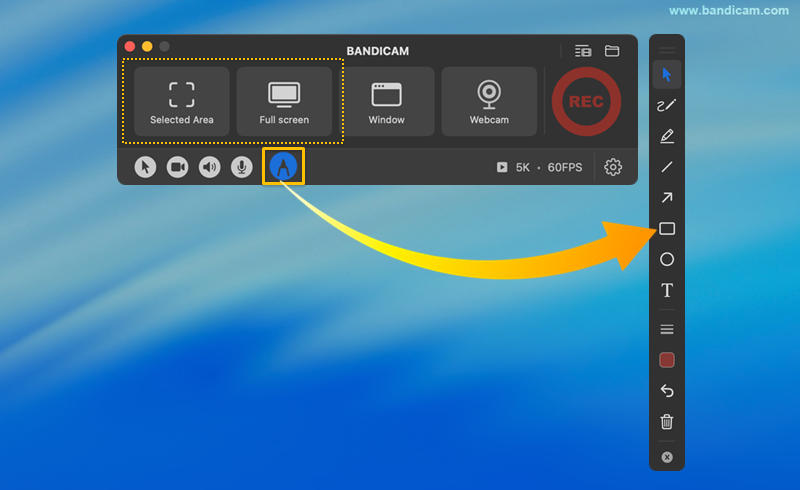
Step 1. Open the drawing toolbar.
You can access the on-screen drawing toolbar at any time, both before and during a recording session.
- From the Main Window: Before selecting a recording mode (such as Selected Area or Full screen), click on the Pen icon to open the drawing toolbar.
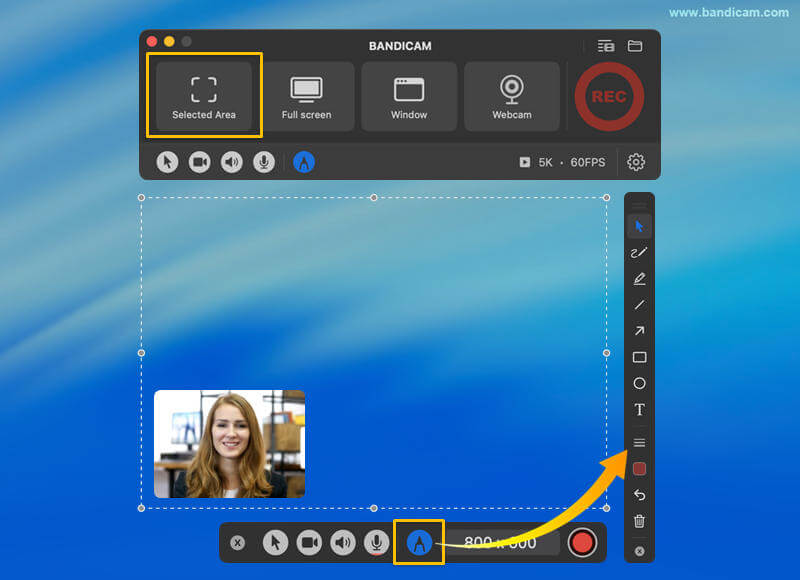
- In Selected Area recording mode: Click on the Pen icon on the control bar to toggle screen annotation tools on or off before or during recording.
Step 2. Select your annotation tool.
Once the toolbar is opened, you can choose from various professional markup tools to enhance your video:
- Cursor: Move your mouse cursor freely to navigate your screen or interact with other windows and apps without drawing.
- Pen & Highlighter: Use for freehand on-screen drawing or highlighting specific text for emphasis.
- Line & Arrow: Draw straight lines or use arrows to point out specific elements on your screen.
- Shapes: Draw rectangle boxes or circles on the screen.
- Text: Type text and press Enter to finish. While the Text (T) tool is active, you can click and drag text to move it anywhere on the screen.
- Undo & Clear: Fix mistakes with the Undo button (Return arrow) or use Clear (Trashcan) to wipe the entire drawing.
- Close: Click on the [X] icon to exit drawing mode.

- Customize thickness and colors: Choose from pens, highlighters, lines, arrows, or shapes, and modify their thickness and colors.
![customize thickness and colors]()
- Customize text:
- Choose a font type, adjust font size, control outline thickness and blur, and set colors separately for text and outline.
- While the Text (T) tool is active, you can drag text to reposition it.
![customize text]()
![drag and move text drawing]()


Additional Tip: Select the cursor tool to click on or navigate your screen while drawing.
If any on-screen drawing tool (pen, highlighter, shapes, etc.) is active, browser clicks and screen movement are disabled. To enable them, simply select the cursor tool.
