
Want to display your iPhone screen on a larger display? Whether for video playback or content streaming, screen mirroring is the perfect solution. Many users search for ways to mirror an iPhone to a PC, often seeking free and easy methods. This guide provides a detailed explanation of how to cast your iPhone screen to your PC.
Table of Contents
How to Screen Mirror Your iPhone to a Windows PC for Free
While Apple’s AirPlay technology makes mirroring to Apple devices seamless, Windows doesn’t support it natively. But don’t worry—several free third-party applications can act as an AirPlay receiver, allowing you to share your iPhone to your PC wirelessly. All you need is to have your iPhone and Windows PC connected to the same Wi-Fi network.
Here are two of the best free options to get you started.
Method 1: Using LonelyScreen
LonelyScreen is a simple, no-frills app that turns your Windows PC into an AirPlay receiver. Setting it up is incredibly easy.
- Download and install LonelyScreen on your Windows PC.
- Open LonelyScreen. It will automatically start its AirPlay receiver; allow it through Windows Firewall if prompted.
- Mirror your iPhone to PC: Open Control Center, tap Screen Mirroring, and then select “LonelyScreen.”

Your iPhone screen will now appear instantly on your PC desktop, as shown in the image below.

Method 2: Using 5KPlayer
5KPlayer is a powerful media player that also features a built-in AirPlay receiver, making it an excellent free choice for mirroring your iPhone to your PC over Wi-Fi.
1. Download and install 5KPlayer from its official website on your PC.
2. Launch 5KPlayer and look for the “AirPlay” icon on the main interface. Click it to ensure the AirPlay service is enabled.
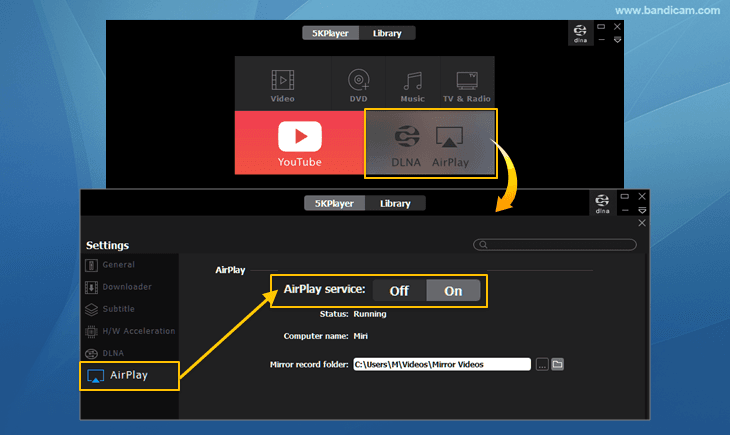
3. Open Control Center on your iPhone, tap Screen Mirroring, and select 5KPlayer to connect your PC.
Your iPhone will now be mirrored, allowing you to cast your iPhone to your Windows PC for free.
How to Mirror Your iPhone to a Mac
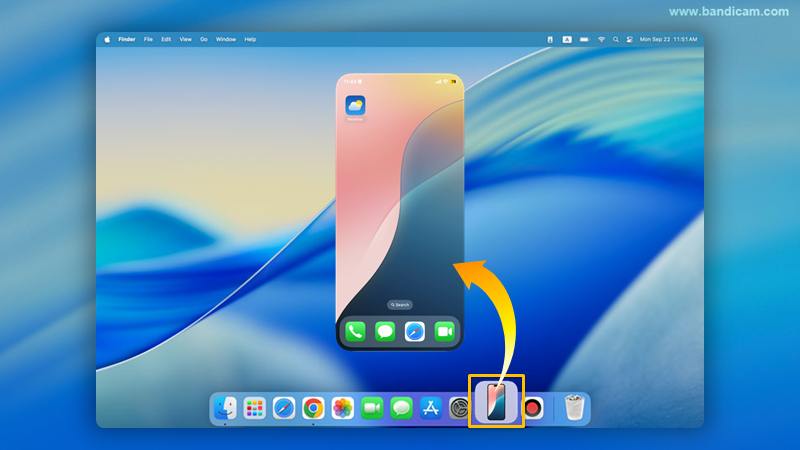
Mirroring your iPhone to a Mac is much simpler because both devices are part of the Apple ecosystem and support AirPlay natively. You don’t need any third-party software. For a complete step-by-step guide on how to mirror your iPhone to a Mac using built-in features, learn how to mirror your iPhone to a Mac.
Bonus: How to Record Your Mirrored iPhone Screen on Windows
Now that you have your iPhone screen displayed on your PC, you might want to record it, such as for creating tutorials and saving gameplay highlights. The best tool for this job is Bandicam.
- Start Mirroring
First, mirror your iPhone to your PC using either LonelyScreen or 5KPlayer as described above.
- Download and install Bandicam.
If you don’t already have it, download Bandicam from the official website and install it.
- Open Bandicam and Select a Recording Mode.
Use ‘Specific Window‘ mode for LonelyScreen, as its fixed window size ensures stable recording. For 5KPlayer, select ‘Rectangle on a screen‘ mode to prevent interruptions caused by automatic window resizing.

- Set the capture area and start recording.
Press the REC button in Bandicam or use the F12 hotkey to start recording.
- Stop recording and check your video.
To stop recording, press REC or F12 again. Click on the video icon to play, edit, or upload the captured videos to YouTube, Google Drive, or Vimeo.

Frequently Asked Questions (FAQs)
Yes, both LonelyScreen and 5KPlayer offer free screen mirroring for your iPhone to a PC.
Yes, the sound will play directly through your computer’s speakers, allowing you to hear everything clearly as you share your iPhone to your PC.
If screen mirroring from your iPhone to a PC causes issues with certain streaming apps (e.g., video not displaying), try playing the video through a web browser (e.g., Safari, Chrome) on your iPhone. This often resolves disconnections and allows successful casting.
Summary
Mirroring an iPhone screen to a Windows PC allows you to view content on a larger display and record mobile gameplay in high quality. Since Windows does not support AirPlay natively, using a wireless mirroring app is the most effective solution in 2026. Once your screen is mirrored, simply use Bandicam to capture the specific window. Whether you are making a tutorial or saving a gaming highlight, this combination offers the easiest workflow for creating professional mobile content on your PC.


