Looking for a free screen recorder for Mac that delivers high-quality videos without a watermark? We’ve tested the most popular tools on macOS Sequoia (Apple Silicon) and compared how well they capture sound, maintain quality, and handle real-world recording tasks.
Here’s what we found — including the best free options and the one tool that perfectly balances quality, simplicity, and audio capture.
Quick Comparison (2026)
| App | System + Mic Audio | Quality Control | Ease of Use | Watermark | Built-in Transcription |
|---|---|---|---|---|---|
| 1. Bandicam for Mac | Yes (system + mic) | Granular | ★★★★★ | No | Yes — built-in AI |
| 2. QuickTime Player | Limited* | Basic | ★★★★★ | No | No |
| 3. OBS Studio | Yes (macOS 13+) | Advanced | ★★☆☆☆ | No | No — plugin required |
| 4. Loom | Yes | Basic | ★★★★☆ | No† | Yes — cloud-based |
| 5. ScreenPal | Yes | Moderate | ★★★★☆ | No | Paid plan |
Bandicam for Mac stands out by combining high-quality screen recording with built-in AI transcription, allowing you to turn recorded speech into searchable text, subtitles, or captions.
*System audio requires macOS 27 or later.
†Loom’s free plan does not support video downloads.
Tested on macOS Sequoia (Apple Silicon, M1–M4).
How We Compared These Mac Screen Recorders
We compared each Mac screen recorder based on internal audio capture, recording quality, ease of use, watermark policy, built-in transcription, and free-plan limits.
1. Bandicam for Mac (Pro Quality & Audio)
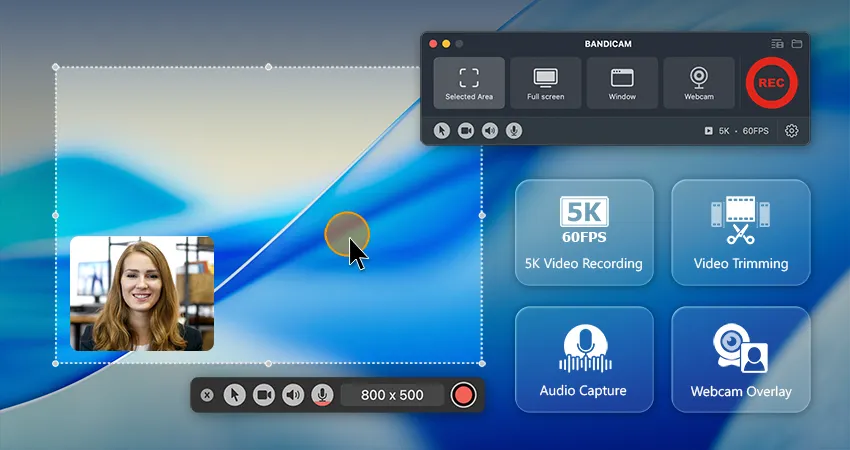
Bandicam for Mac provides an ideal balance between simplicity and high-performance recording. It’s designed for Mac users who want to capture both system sound and microphone with crisp 5K quality. With Apple Silicon optimization and an intuitive interface, Bandicam delivers stable, smooth, and professional results.
Key Features
• Records both system audio and microphone simultaneously — no extra drivers needed
• Fine-grained quality controls (resolution, FPS, codec, bitrate) for sharp output
• Smooth 5K/60FPS recording
• Real-time annotation tools for drawing and highlighting during recording
• Cursor highlight and click effects for tutorial videos
• Optional webcam overlay to record screen + face together
• Transcribes recorded audio into text for notes, subtitles, or captions
Pros
– System + mic audio recording supported
– Built-in transcription for turning recordings into text
– No watermark on the free plan
– Built-in basic video editor
Cons
– 5-minute recording limit on free version
Best for: Tutorials, online classes, Zoom or FaceTime recordings, and professional presentations
Also available for Windows: Bandicam for Windows offers screen, game, webcam, device, and audio-only recording modes for Windows PCs.
2. QuickTime Player (Built-in)
QuickTime Player comes pre-installed on every Mac and is ideal for capturing quick screen recordings. It’s easy to start: just open QuickTime → File → “New Screen Recording.”

Key Features
• Pre-installed on every Mac — no download needed
• Supports full-screen, window, or region capture (⌘ + Shift + 5 shortcut)
• System audio on macOS 27+; microphone audio on earlier versions
• Exports in H.264 MOV format with simple trimming tools
Pros
– Free and watermark-free
– Supports basic video rotation
– No installation required
Cons
– System audio is unavailable on macOS 26 or earlier without additional software
– Limited settings (no FPS, bitrate, or quality control)
– Cannot record webcam and screen simultaneously
Best for: Quick clips and simple built-in screen recordings.
3. OBS Studio (Free & Open Source)
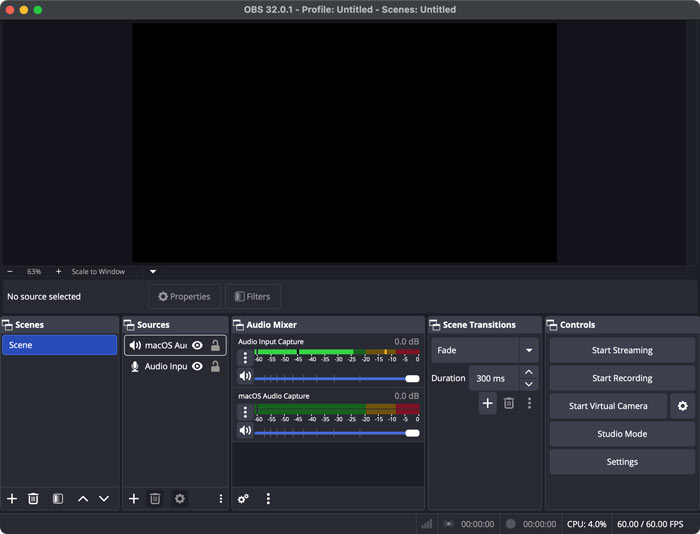
OBS Studio is a professional-grade recorder and live-streaming tool used by creators worldwide. It offers immense flexibility for combining multiple sources like webcam, screen, and overlays in one project. Although it can look intimidating at first, OBS remains one of the most powerful free options available.
Key Features
• Multi-source capture (screen, webcam, audio, images, text) with custom scenes
• Advanced encoding controls (resolution, FPS, bitrate, keyframes)
• Built-in audio mixer with gain control, noise gate, and compressor filters
• Live streaming via RTMP (YouTube, Twitch, Facebook, etc.)
Pros
– Free and watermark-free
– Advanced settings for resolution, bitrate, and sources
– Scene management and filters for professional users
Cons
– Complex interface for beginners
– Audio setup may feel complex for beginners
– Steeper learning curve
Best for: Streaming, multi-input recordings, advanced video projects
4. Loom (Fast Cloud Sharing)
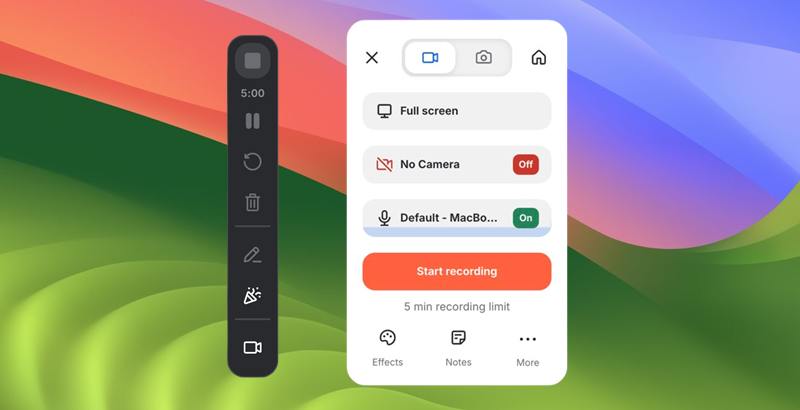
Loom is a cloud-based recording app that’s all about speed and convenience. It automatically uploads your recordings and generates a shareable link — perfect for teams and remote collaboration. While the free plan has time limits, Loom’s seamless sharing workflow makes it incredibly popular for business communication.
Key Features
• Screen + webcam recording with automatic cloud upload and shareable link
• Basic editing (trimming, thumbnail selection, captions)
• Viewer analytics and comment threads (for paid plans)
• Emoji reactions and feedback tools for collaboration
Pros
– Instant upload & sharing
– No watermark on free plan (time-limited)
– Browser and desktop versions
Cons
– Internet required for saving videos
– Free plan limited to 5-minute videos
– No fine control over quality
– No custom capture area in free version
Best for: Workplace updates, quick tutorials, asynchronous communication
5. ScreenPal (Education-Friendly)
ScreenPal, formerly Screencast-O-Matic, is a trusted screen recorder widely used by educators and trainers. It focuses on accessibility and clear communication with captions, highlights, and step-by-step annotations. While it’s not the most advanced tool, its reliability and simplicity make it perfect for classroom and tutorial use.

Key Features
• Beginner-friendly UI for screen + webcam + mic recording
• Built-in caption and annotation tools for clear tutorials
• Simple timeline editor for trimming, text, and subtitle import
• Zoom-in and pointer highlight to focus attention
• Local or cloud saving options for schools and support teams
Pros
– Subtitles and annotations supported
– Affordable paid plans for schools and educators
Cons
– Limited quality control on the free plan
– Interface feels dated compared to modern tools
Best for: Teaching, tutorials, training sessions, customer support guides
How to Choose the Right Free Screen Recorder
1. Need to capture internal audio? Choose a recording program that captures system sound natively. Bandicam for Mac makes it easy — no plugins or rerouting required.
2. Care about quality? Look for tools that offer FPS, bitrate, or resolution settings. OBS and Bandicam give you the most control.
3. Prefer simplicity? QuickTime and Loom are great for quick captures, but Bandicam is better for professional results.
4. Want watermark-free recordings? QuickTime and OBS have no time limit. Bandicam’s free version records without a watermark for up to five minutes per clip, while the full version removes the time limit.
FAQs
QuickTime is suitable for basic recordings, while OBS offers more control. For high-quality system and microphone audio with built-in AI transcription, Bandicam for Mac provides the most balanced option.
Bandicam for Mac and OBS Studio can capture system audio and microphone. On macOS 27 or later, Apple’s built-in Screenshot app can also include system audio.
QuickTime, OBS, Loom, ScreenPal, and Bandicam for Mac can record without a watermark, although free-plan limits differ. Bandicam supports watermark-free recording up to 5K, with a five-minute limit per clip.
Bandicam for Mac includes built-in AI transcription that converts recorded speech into searchable text, subtitles, or captions. Loom provides cloud-based transcripts, while ScreenPal’s automated speech-to-text requires a paid plan. QuickTime and OBS do not include built-in transcription.
Final Thoughts
If you want something simple and built-in, QuickTime Player works. OBS Studio offers the most customization for power users. ScreenPal and Loom are great for teachers and teams. For high-resolution recording with system audio on Apple Silicon, Bandicam for Mac is a strong free option. Compare the free-plan limits, audio options, recording quality, and editing features to choose the best Mac screen recorder for your workflow.