Wireless communication is becoming the pioneer in expanding relationships across borders, and there are various apps and tools available to meet these needs. One such option is Telegram, a secured, end-to-end encrypted cloud-based app used as a cross-platform for sending and receiving messages and other media such as photos, videos, voice messages, etc. It supports large groups and bots for sending messages in an automated way. While using Telegram, there are times when you may want to save important conversations, such as chats, video calls, or voice calls, for later reference. However, you can only screen record Telegram with a PC screen recorder or smartphone recording abilities.
In this article, you will learn how to record Telegram on devices such as iPhone, Android, and PC.
How to Record Telegram on Smartphones
Whether you have the latest iPhone or Android, both of them support a screen recording feature, which aids in effectively recording Telegram activities without the need to install third-party apps.
Telegram Recording on iPhone
The iPhone’s built-in screen recorder is convenient and straightforward to use. It allows you to record all Telegram activities, including internal and external audio, by using a connected microphone. It also allows you to screen record Telegram video calls if you are attending an important meeting and need to take further notes after it ends.
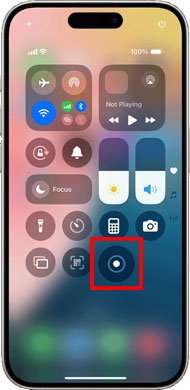
How to use:
Step 1: After unlocking your iPhone, swipe down from the top-right corner of your screen.
Step 2: You will notice a circle icon, which is the screen recording button.
Step 3: Tap the button to start recording, and make a Telegram chat or call.
Step 4: To stop the recording, go to the Control center and tap on the red button. You can check your recorded video in the Photos app.
Telegram Recording on Android
Like iPhone, Android also supports Telegram call recording via a built-in screen recording feature. It is easy and convenient to use, and the other user will not be notified if a screenshot is captured or the call is being screen recorded.
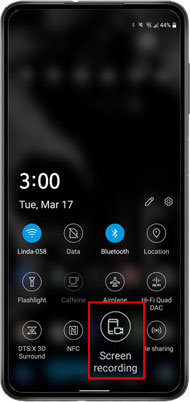
How to use:
Step 1: Unlock your Android phone. Use the swipe-down option at the top or open the Control Panel.
Step 2: Tap on the Screen Recording button to start recording your Telegram call.
If you can’t find the Screen Recording button, click on the pencil icon, select the Screen Recorder, and add it to the Control Panel.
How to Screen Record Telegram on a PC
Telegram also supports a desktop version for users who wish to use it on larger screens like PCs. Although Telegram does not have a built-in screen recording option, it is possible to record Telegram calls on a PC using third-party software like Bandicam.
Bandicam Screen Recorder is lightweight software that produces top-notch videos and allows users to record a particular portion of the screen. The original quality of the video is also preserved via its high compression ratio. While screen recording, Bandicam also allows you to draw boxes, lines, or highlights, making it an apt software for recording meetings, such as those held via Telegram.
Follow the steps below to record Telegram on your PC:
Step 1: Download the Telegram Desktop version from the official website.
Step 2: Install Bandicam Screen Recorder and run it on your PC to start recording.
Step 3: Select a screen area to record in the Screen Recording dropdown menu.
- 1. Rectangle on a screen: This records everything on the screen that is visible within the rectangle window.
- 2. Specific window: This option allows you to select the Telegram window, so that only the Telegram window is recorded.

Step 4: If you want to capture a Telegram video call and record both your friend’s and your voice, select the appropriate speaker and microphone device.
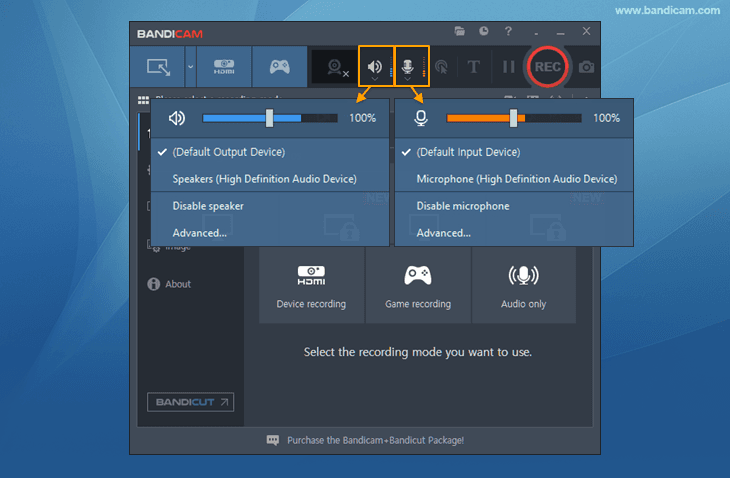
Step 5: Tap the red ●REC button (or click on the shortcut key F12) to initiate recording. You can also stop the recording by pressing F12.
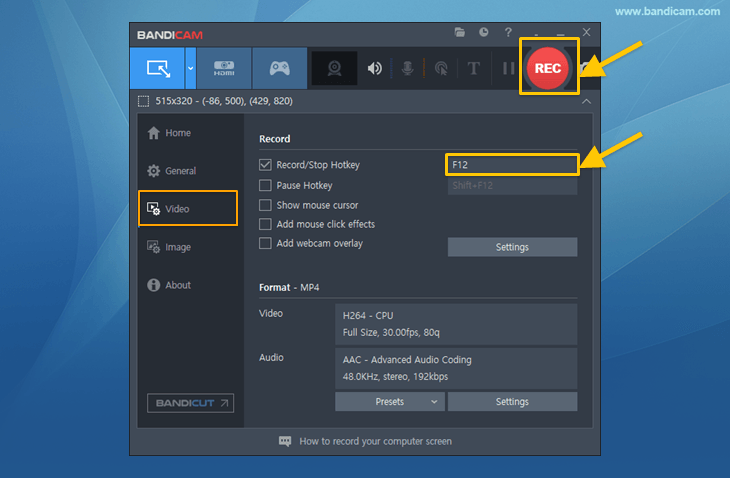
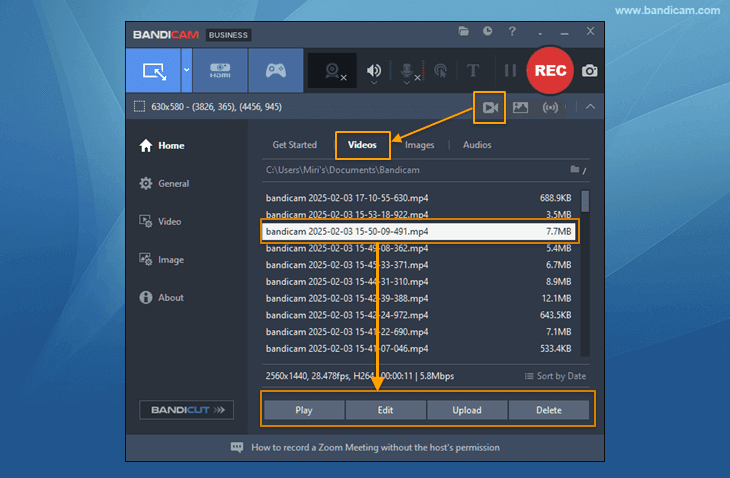
Step 6: Tap on the video icon to play, edit, or upload your video.
How to Screen Record Telegram Secret Chat
Sometimes, you may want to record a Telegram Secret Chat on your mobile device. However, when you try to record it with the built-in recording function on your smartphone, the other person will be notified, and the content in the Secret Chat will not be recorded. A notification is sent to the other user even when a screenshot is being saved. Moreover, if you are using the desktop version of Telegram, recording is not possible because Secret Chats are not visible on a PC. When you enable screen mirroring on your phone, you may notice that the Secret Chat room turns black and cannot be recorded.
Summary
The Telegram app comes with powerful and rich features to encourage communication across borders. It supports large group video calls and chats, allowing users to conduct meetings, classes, and presentations. Especially with the ability to record Telegram calls using built-in screen recording options on iPhone and Android, the accessibility of the app has increased.
Moreover, Bandicam Screen Recorder has made it possible to record Telegram on PC and capture essential conversations, tutorials, presentations, etc., with customizable settings. However, it is currently impossible to record Telegram Secret Chats on mobile devices, enhancing security and user experience.


