
Learn how to make a looping video that plays continuously using Bandicut. This step-by-step guide is perfect for content creators, marketers, and anyone looking to loop videos for YouTube, presentations, or background playback.
Why Create a Looping Video?
A video loop, or repeating video, is a clip that plays continuously without interruption. It replays the same footage repeatedly instead of progressing to the next scene. If you are a video creator, loop videos can be an incredible marketing strategy to upscale your video-making skills and catch viewers’ attention.
What are loop videos used for?
- Seamless promotional videos or animations
- Background visuals for digital signage
- YouTube or social media content that repeats endlessly
Keep scrolling to learn how to satisfy your creative urge and make your own video loop!
Step-by-Step: Looping a Video in Bandicut
How do you repeat a video over and over? Bandicut can help you with this process. As the best video editing app, Bandicut offers a wide variety of video editing options that can unleash your creativity and help you make amazing loop videos for your audience. It also provides a high-speed mode to finish the process quickly. Follow the steps below to start creating loop videos:
Step 1: Install Bandicut on your PC and start.
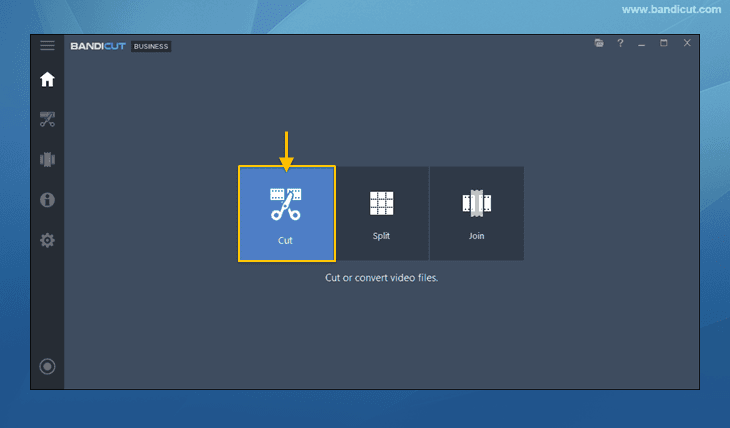
Step 2: Click the ‘Cut’ button, select the video file you want to loop, and click ‘Open.’
Step 3: Use the blue slider to set which part of the video you want to keep.

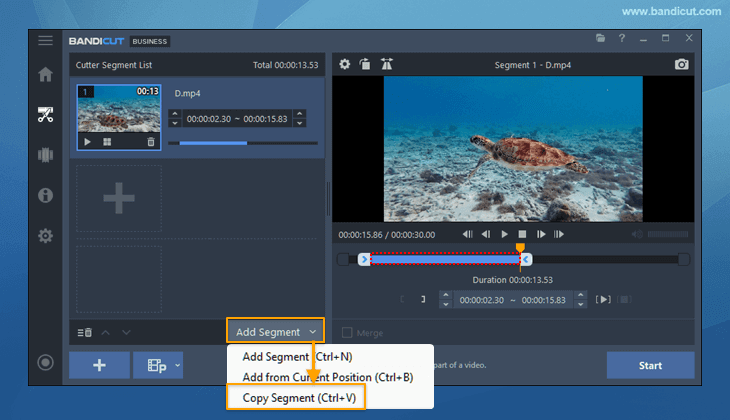
Step 4: To duplicate a segment, either click the Copy Segment button or use the Ctrl + V shortcut.
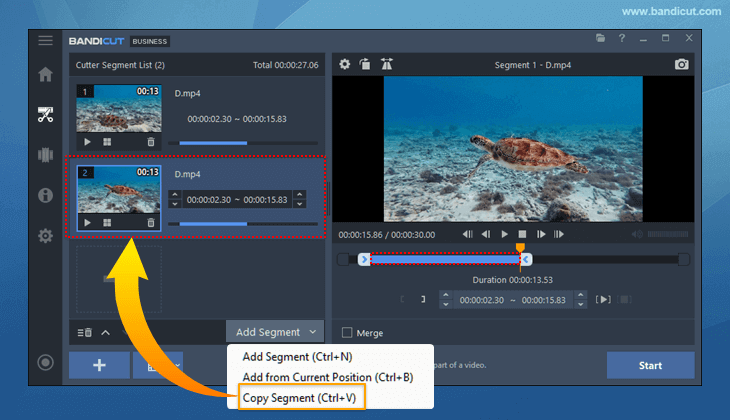
Loops can be generated by simply pressing Ctrl+V (Copy Segment) multiple times as desired.
Step 5: Once you finalize the loop times, check the ‘Merge’ option and click the ‘Start’ button.
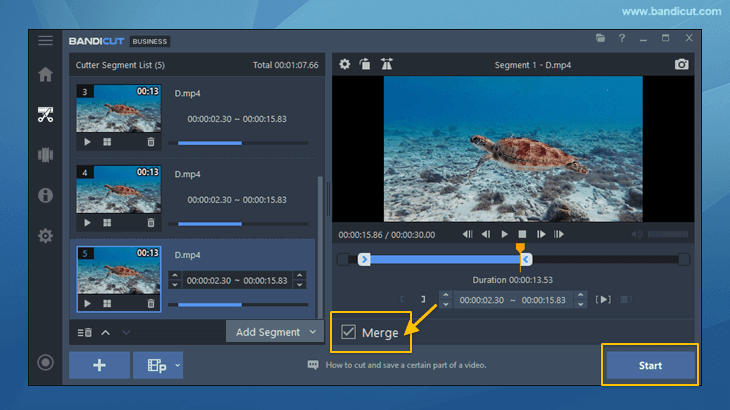
Step 6: Press the ‘Start’ button again to combine the videos in High-Speed/Encoding mode.

Step 7: Once the process is complete, your loop video is ready, and you can share it on any digital platform such as YouTube or Vimeo to grab your audience’s attention.

Features of Bandicut
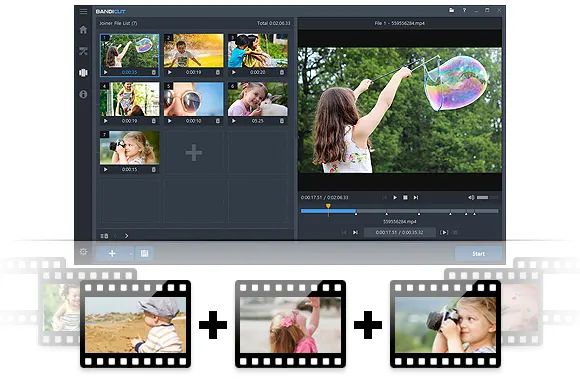
- Bandicut can trim, cut, join, and split videos into different segments
- Bandicut can batch edit multiple videos
- The software supports various formats, such as .avi, .mp4, .mov, .m4v, .mkv, .mpeg
- It can remove or extract audio from video
- It keeps the quality of the output file intact and processes with high-speed
- It supports hardware accelerated H.264 encoders, which can reduce the system load and enable quick video editing
Frequently Asked Questions
For a looping video effect, simply duplicate your video clip within Bandicut several times.
MP4 (H.264 codec) is the most widely supported format for looping videos, especially on websites, mobile devices, and digital signage platforms. It offers high compatibility and small file size.
Yes. To loop a video on YouTube, right-click on the video (desktop) and select “Loop.”
Loop videos add creativity and style, catching the viewer’s attention. Commercial markets utilize this mass appeal technique through social media and other digital platforms to promote their brands uniquely.
Conclusion
Loop videos are a blessing to digital marketing platforms; they project the product into viewers’ minds and influence their buying decision. Repeat videos are all set to mark their trend with the new generation. Use Bandicut to create video loops that make the watching and listening experience more appealing. Video loops make business and entertainment both influential.


