In 2026, the job market is more competitive than ever with the rise of AI-driven recruitment. To stand out among hundreds of candidates, a traditional text resume might not be enough. A video resume is a powerful way to showcase your personality and communication skills directly to recruiters. Here is how to create a professional video resume using the best software in 2026.
What is a Video Resume, and how does it work?
A video resume is a short film produced by job searchers in an effort to persuade prospective employers to hire them for a particular position. In addition to a conventional resume, it is often presented in conjunction with one.
What Is the Value of a Video Resume?
Video resumes, however, may not be fit for everyone; most job applicants do not need one. In fact, video resumes are not required for the vast majority of positions available today. Whether or not you need one is determined by the industry, position, and business you are applying for. Below are a few instances for which you might need a video resume:
- Work in a field requiring creativity and visuals, such as design, cinematography, motion graphics, video production, directing, acting, teaching, and cooking.
- If you want to be successful at your job, your attitude and communication abilities must be on display. For example, you might want to show such abilities when applying for a position that entails facing and enticing potential clients.
- Your recruiter has asked you to put together a video resume for your application.
- You’re looking for a position at a small business that doesn’t utilize an applicant tracking system (ATS) and hasn’t automated its recruiting process.
- You have a lot of experience but want to highlight the parts that are relevant to the position you’re applying for.
What is the best way to create a video CV?

Job searchers must record their video CV or profile by using a video resume builder that records that webcam.
Fortunately, creating a video resume using a Bandicam webcam recorder is a straightforward process. You may record your camera, screen, and voice simultaneously, as well as add additional effects to the video, such as a logo or text.
In this post, we’ll show you how to create a video resume using Bandicam’s built-in features. Making a video resume doesn’t have to be a difficult task; all you need are some good video equipment and basic video editing knowledge. Below are the procedures to follow while creating a video resume.
How to Make a Video Profile for Interviews
1. Create a script for your presentation (Tip: Use AI).
Before recording, jot down what you’d like to express to the recruiter.
- Pro Tip for 2026: You can use AI tools like ChatGPT or Claude to refine your script to be more professional and concise.
- Write as though you are speaking. Keep your sentences brief and avoid reading straight from the paper to prevent sounding robotic.
2. Set up the recording equipment.
- Download and install the Bandicam Webcam recorder.
- Choose the recording option that you wish to use. You have the option of recording your video resume using either the webcam recording mode (option 1) or the screen recording mode (option 2).

3-1. Using a webcam to record (option 1)
In Device recording mode, you may capture video from your webcam.
- Pick “Device Recording” mode from the drop-down menu and then click on the “Device Settings” button to select the device you wish to record with. If needed, you can rotate or flip your webcam screen.

- To record only your voice, pick Disable as the “Speakers” option, and then select the microphone as the “Microphone.” (If you want to record both computer sound and your voice, select the speaker device instead of the Disable option).
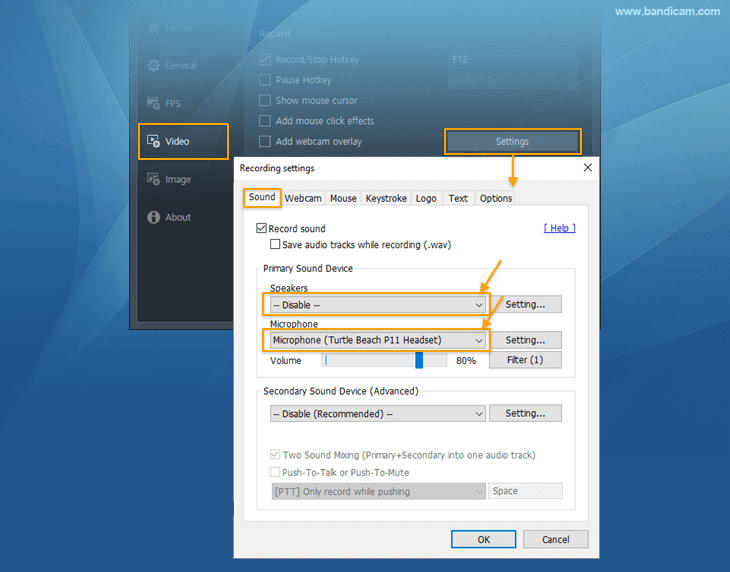
- If you need a logo and/or text overlay, you may add as you desire.

- To start or stop the recording, click the ● REC button or the hotkey (F12) on your keyboard (The hotkey for the ‘Record/Stop’ functions can be changed).

3-2. Making a recording of the screen (option 2)
The instructions listed below will guide you through the process of recording your computer screen and camera simultaneously.
- Select the ‘Screen Recording Mode,’ and pick the ‘Fullscreen’ or ‘recording area’ from the drop-down menu.
- For Social Media (LinkedIn/TikTok): If you plan to upload your video resume to social media platforms, you can set the recording area to a vertical aspect ratio (9:16) using Bandicam’s rectangle selection tool.

- To include a camera in the video, choose the option “Add webcam overlay to video” from the drop-down menu.

- You can toggle between small and fullscreen webcam overlay screen while recording.
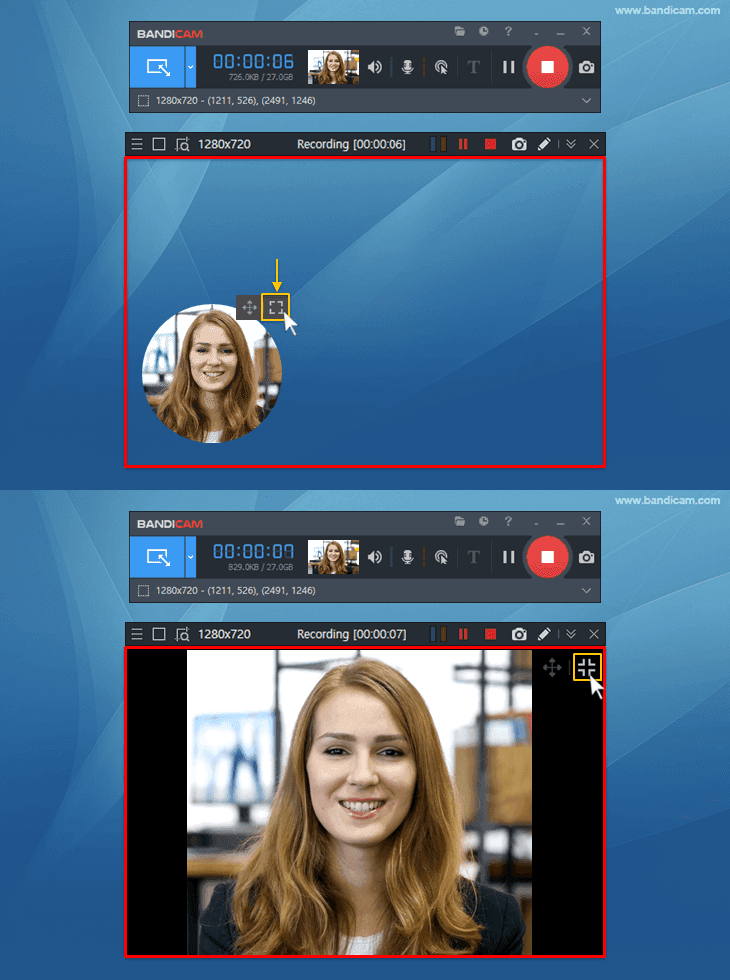
4. Examine and distribute your video resume.
You may see your video inside the output folder if you want to. If you are happy with the recording, send it to your employer or submit it to video-sharing platforms. You can upload your content to Google Drive, YouTube, or Vimeo from the Bandicam interface.

Additional Tip: Blur your screen recording
You can use the blur feature while screen recording for video resumes to protect sensitive information and maintain privacy. If the screen recording includes sensitive data, such as financial or proprietary content, blurring ensures this information isn’t exposed.
Conclusion
The employment market is very competitive; that’s why you should not be afraid to utilize any and all of the resources at your disposal in order to get the position you want. The video resume maker that we have discussed in this article provides a broad range of capabilities, but it is up to you to figure out how to use these tools in a creative manner. What is your preferred technique for putting up a video resume? Please let us know by leaving a comment.


