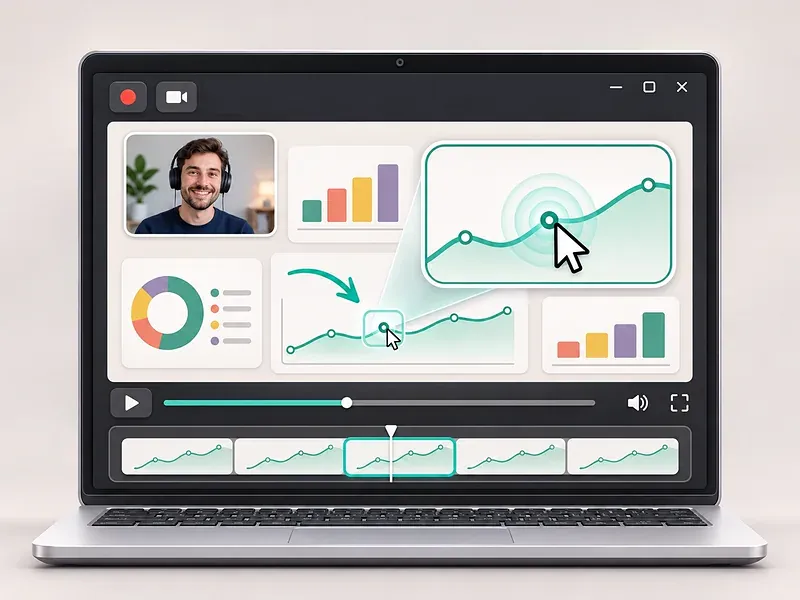
Screen Studio is known for turning ordinary screen recordings into polished videos with automatic zooms, smooth cursor movement, backgrounds, and webcam layouts. However, Screen Studio only supports macOS, so Windows users need a different screen recorder to create a similar result.
This guide compares seven Screen Studio alternatives for Windows that offer real automatic zoom—not only manual zoom and pan effects. We compare how each program creates zooms, what editing tools it includes, and which type of user it suits best.
Is Screen Studio Available for Windows?
No. Screen Studio’s official website states that the app currently supports macOS and that there are no near-future plans for Windows support.
Fortunately, several Windows screen recorders now offer automatic zoom, cursor effects, webcam overlays, captions, and video editing. Some also provide annotation tools, but not every tool lets you draw on the screen while recording. The main difference is how much work each program does automatically after you finish recording.
Quick Comparison of Screen Studio Alternatives
| Software | Auto Zoom | Auto Captions | Webcam Effects | Live Annotation |
|---|---|---|---|---|
| Bandicam | ○ | ○ | ○ | O |
| FocuSee | ○ | ○ | ○ | × |
| CANVID | ○ | ○ | ○ | × |
| Cap | ○ | ○ | ○ | × |
| Camtasia | ○ | ○ | ○ | × |
| Tella | ○ | ○ | ○ | × |
| OpenScreen | ○ | ○ | ○ | × |
Live Annotation means drawing, highlighting, or adding arrows, shapes, and text directly while recording—not during post-production.
All seven programs support automatic zoom on Windows, but the workflow is not identical. Webcam effects and caption options also vary by program. Check the individual descriptions below for the most important differences.
1. Bandicam — Best for Windows Screen Recording
Bandicam is a screen recorder for tutorials, software demonstrations, online courses, and product videos. Its Smart Zoom feature analyzes mouse clicks and cursor movement, then adds smooth zoom-in and zoom-out effects after recording.
Record a selected area or the full screen, open the finished video in Bandicam’s built-in player, and select Edit → Smart Zoom. You can preview the result before exporting the final video. This approach lets you record normally without planning every zoom in advance.
Bandicam also includes webcam overlay, microphone and system audio recording, privacy blur, AI transcription, captions, and basic trimming tools. Its live annotation tools let you draw on the screen while recording with a pen, highlighter, arrows, shapes, numbering, and text. Smart Zoom works with videos recorded in Rectangle or Fullscreen mode.
Best for: Windows users who want automatic zoom, webcam effects, captions, privacy tools, and live annotation in one desktop workflow.
See the complete Smart Zoom guide for detailed instructions.
2. FocuSee — Best for Automatic Video Polish
FocuSee is an auto-editing screen recorder for Windows and macOS. After recording, it generates zoom effects from mouse clicks and adds cursor movement, backgrounds, and camera layouts to create a presentation-ready video.
It is useful when you want the software to handle most of the visual editing automatically. FocuSee also offers captions, post-recording annotations, webcam background tools, and several output layouts for social media and product demos.
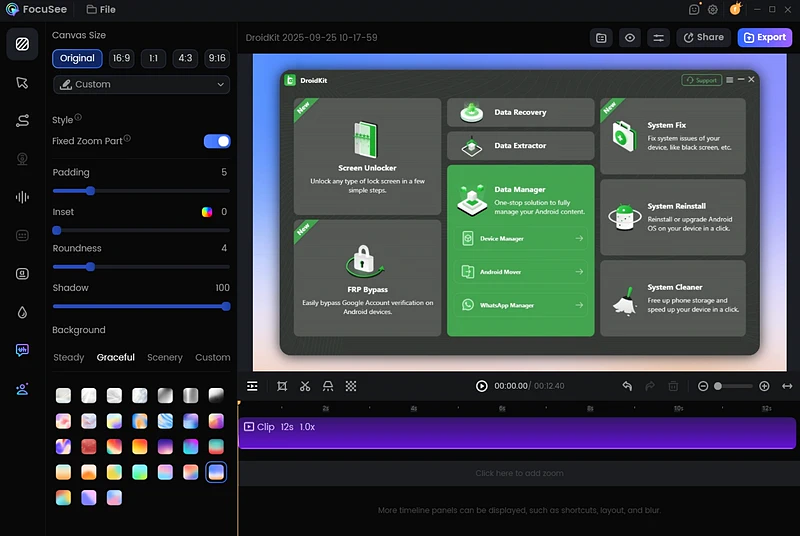
One detail to check is feature availability by operating system. Click-based automatic zoom works on Windows, while FocuSee’s documentation identifies some typing-based automation as Mac-only or still coming to Windows.
Best for: Users who want a heavily automated recording and editing workflow with minimal manual adjustment.
3. CANVID — Best for Customizable Auto Zoom
CANVID records on Windows and macOS and automatically turns mouse clicks into editable zoom segments. Its zoom-detection settings let you choose whether to generate a zoom for every click, a long click, or only when you use Ctrl+Click.
After recording, the zoom segments appear on the editor timeline. You can move, resize, remove, or manually add zooms when the automatic result needs adjustment. CANVID also includes cursor styling, webcam layouts, backgrounds, captions, and audio tools.
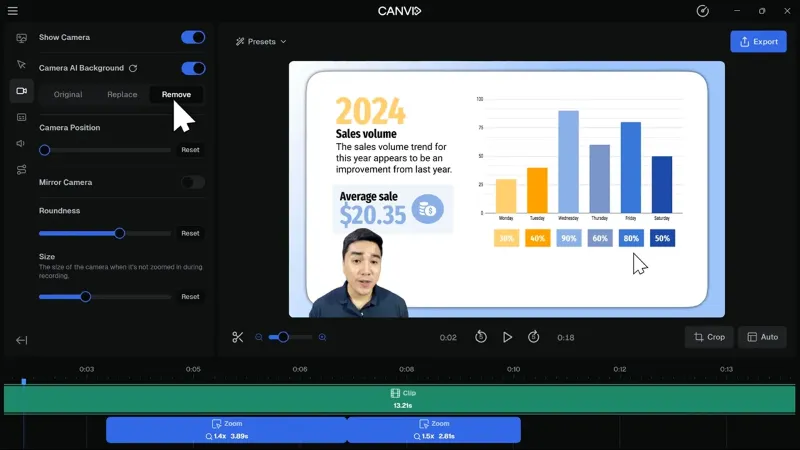
The selectable zoom triggers are particularly useful when a recording contains many clicks but only a few actions need emphasis.
Best for: Users who want automatic zoom but also want control over which clicks create an effect.
4. Cap — Best Open-Source Alternative
Cap is an open-source screen recorder with a Windows desktop app. Its Studio Mode records the cursor and click data needed to create automatic zoom segments in the editor.
After recording, select the option to generate zooms around recorded clicks. The zoom track supports both automatic and manual segments, and you can change the zoom level, timing, and focal point. Cap also includes webcam layouts, cursor smoothing, backgrounds, masks, captions, and local export.
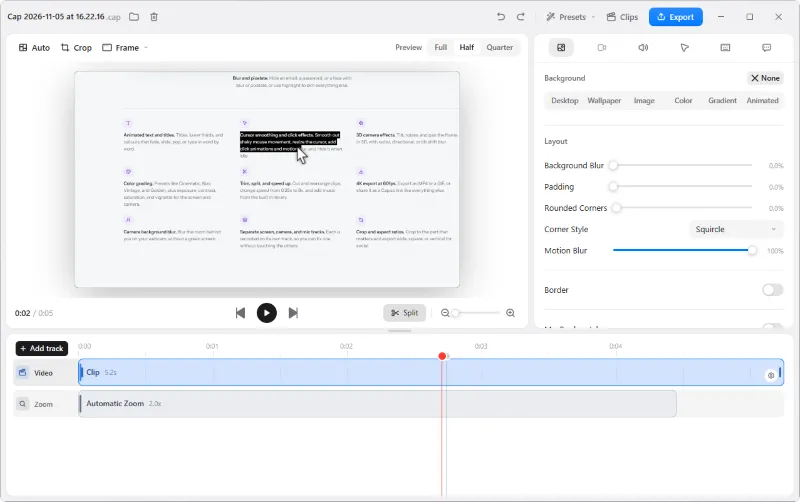
Automatic zoom requires cursor metadata captured by Cap. If you import a regular MP4 recorded with another program, you can still add zooms manually, but Cap cannot reconstruct the original click data.
Best for: Users who prefer an open-source recorder with detailed local editing and optional sharing tools.
5. Camtasia — Best for Advanced Video Editing
Camtasia combines screen recording with a full video editor. Its SmartFocus feature analyzes actions such as cursor movement, clicks, scrolling, and active-window changes, then generates zoom and pan animations.
SmartFocus works best with recordings created using Camtasia because those files retain the interaction data needed to place the effects. You can edit the generated animations, adjust timing and scale, or add manual zooms where necessary.
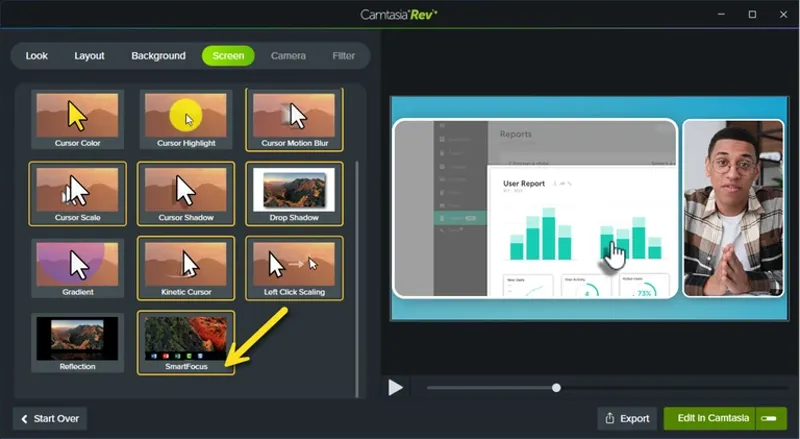
Camtasia offers more advanced editing than most tools in this list, including multi-track editing, post-production callouts and annotations, animations, audio effects, captions, and templates. The tradeoff is a larger interface and a longer learning curve.
Best for: Training videos, courses, and detailed tutorials that require advanced editing beyond automatic zoom.
6. Tella — Best for Online Sharing and Teams
Tella provides Auto Zoom through its Windows app, Mac app, and Chrome extension. It creates zoom effects from clicks and cursor movement recorded during screen capture. Manual zooms can also be added and adjusted in the editor.
Tella combines screen and webcam recording with layouts, captions, automatic cutting, and hosted sharing links. This makes it convenient for teams that want to record, edit, and send a video without managing local files separately.
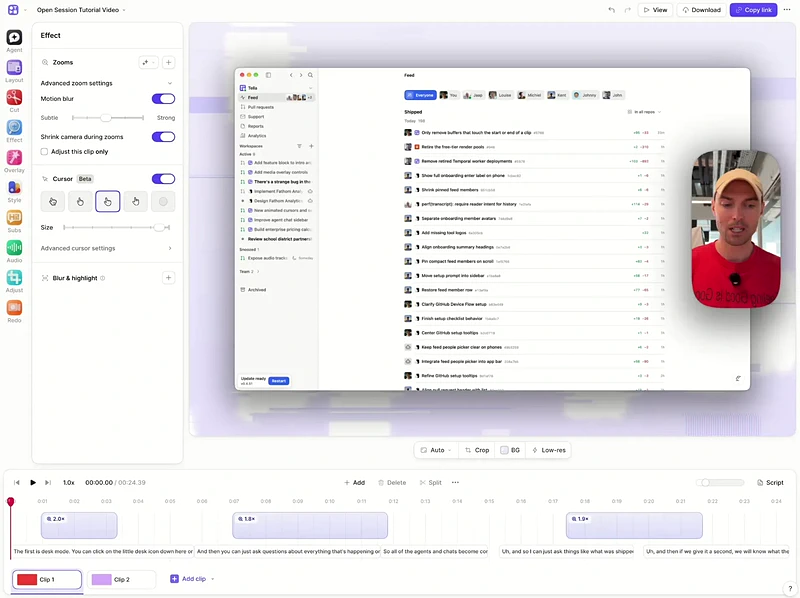
Its workflow is more cloud- and sharing-oriented than a traditional local screen recorder, so it may be less suitable if you want to keep the entire process on your computer.
Best for: Team updates, sales videos, presentations, and product walkthroughs that need quick online sharing.
7. OpenScreen — Best Free Auto-Zoom Alternative
OpenScreen is a free, open-source screen recorder for Windows, macOS, and Linux. It records click and cursor information and can generate automatic zooms in the editor after you finish recording.
The zooms can follow the cursor or focus on a fixed position, and you can adjust their depth and timing. OpenScreen also provides manual zooms, cursor effects, webcam layouts, backgrounds, captions, and local export.
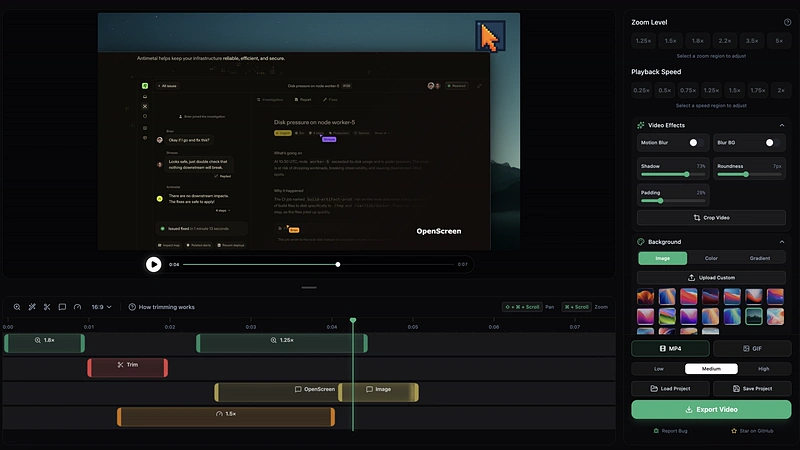
As an open-source project, it is a strong option for users who prioritize cost and local processing. Users who need formal customer support or a highly established commercial workflow may prefer one of the paid alternatives.
Best for: Users looking for a free, open-source auto-zoom screen recorder on Windows.
Which Screen Studio Alternative Should You Choose?
The best choice depends on what you want to do after recording:
- For Windows tutorials and local product demos: Bandicam
- For the most automatic visual styling: FocuSee
- For customizable click-based zoom triggers: CANVID
- For open-source editing and optional sharing: Cap
- For advanced timeline editing: Camtasia
- For team sharing and hosted videos: Tella
- For a free open-source workflow: OpenScreen
Before choosing, record the same short workflow with your preferred options and compare the zoom placement, cursor movement, webcam layout, annotation workflow, and export quality. These details are difficult to judge from a feature list alone.
Frequently Asked Questions
No. Screen Studio is made for macOS and does not offer an official Windows version, including for Windows 11. Windows users need an alternative with similar recording and auto-zoom features.
The best choice depends on your workflow. Bandicam offers Windows screen recording with Smart Zoom, while FocuSee and CANVID focus on automated effects, Camtasia provides advanced editing, and OpenScreen is free and open source.
Bandicam, FocuSee, CANVID, Cap, Camtasia, Tella, and OpenScreen support automatic zoom on Windows. However, their zoom triggers and editing controls vary.
Yes. Bandicam offers a free version with some recording and export limitations. OpenScreen is free and open source, while Cap is free for personal use but requires a license for commercial use.
Summary
Screen Studio is not available for Windows, but several Windows screen recorders offer similar features, including automatic zoom, cursor effects, webcam overlays, and captions.
Bandicam is a practical option for local screen recording with Smart Zoom and live annotation. FocuSee and CANVID emphasize automated effects, Camtasia provides more advanced editing, Tella focuses on online sharing, and Cap and OpenScreen offer open-source options. Choose the Screen Studio alternative that best matches your editing needs, budget, and preferred workflow.