If you’re looking for a no watermark screen recorder, this guide compares 7 options that actually deliver clean exports on Windows or Mac. We tested each tool for watermark-free output, free-use limits, sign-up requirements, and real-world usability so you can quickly see which trade-off fits your workflow best.
Here’s the quick summary before the detailed breakdown:
| # | Tool | Best for | Platform | Watermark | Ease of Use |
| 1 | Bandicam | Best Recorder with AI | Win / Mac | None | Easy |
| 2 | OBS Studio | Best Open Source | Win / Mac / Linux | None | Hard |
| 3 | ShareX | Best for Power Users | Windows | None | Medium |
| 4 | Xbox Game Bar | Best Built-In Windows | Windows | None | Very Easy |
| 5 | QuickTime Player | Best Built-In Mac | Mac | None | Very Easy |
| 6 | ApowerREC | Best for Short Captures | Win / Mac | None | Easy |
| 7 | FlashBack Express | Best for Editing | Windows | None | Medium |
We tested every tool below by recording an actual clip and checking the exported file for any watermark or overlay. A lot of “no watermark” lists include tools that actually add a watermark on the free plan — we left those off this list and focused on the 7 options that actually deliver watermark-free output for free.
1. Bandicam — Best Recorder with AI
Platform: Windows (Bandicam 2027 Beta), Mac (Bandicam for Mac)
Free limit: 5 minutes per clip, unlimited number of clips
Watermark: None on recording
Signup: Not required for free use
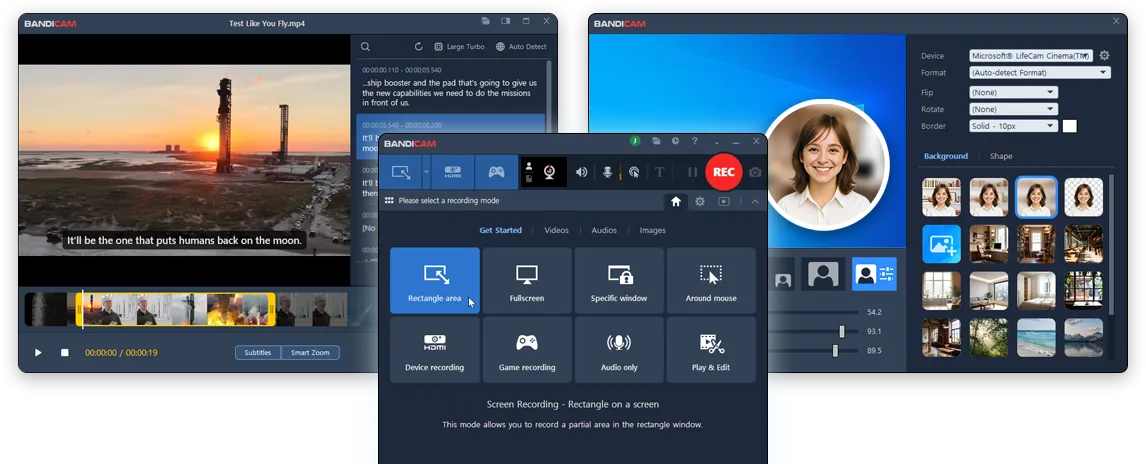
Bandicam has been a dedicated screen recorder for over a decade. The current free version on both Windows (Bandicam 2027 Beta) and Mac follows the same simple policy: clean, watermark-free MP4 output, capped at 5 minutes per clip, no signup required to start recording.
Why it tops the list
- No signup, no cloud upload — neither downloading the app nor starting a recording requires you to sign in. Files stay on your computer, not in someone’s cloud.
- Real watermark-free recording — no logo, no banner, no overlay. Your raw recording stays completely clean.
- Multiple recording modes — full screen, custom area, specific window, and webcam on both Windows and Mac. The Windows version also includes a dedicated Game Recording mode (DirectX/OpenGL capture for full-screen games).
What’s good
- Built-in AI transcription — transcribe recordings locally on the free version. None of the other 6 tools on this list include this.
- Dedicated game capture (Windows) — captures DirectX/OpenGL games without frame drops. Xbox Game Bar is the closest free alternative, but it only records single app windows.
- Unlimited clips, 5-minute cap — record as many 5-minute clips as you want, no daily or total limit. Ideal for tutorials, demos, and social clips.
What’s not
AI transcription export, editing export, and longer recordings need the full version. Free version transcribes locally and records raw clips clean; the full version unlocks export and unlimited length.
Best for
Anyone who wants clean, watermark-free recordings without signing up, uploading to a cloud, or fighting a steep learning curve. Especially good for short-form tutorials, social clips, bug reports, and walkthroughs on Windows or Mac.
2. OBS Studio — Best Open Source
Platform: Windows, Mac, Linux
Free limit: None (unlimited recording, unlimited duration)
Watermark: None
Signup: Not required
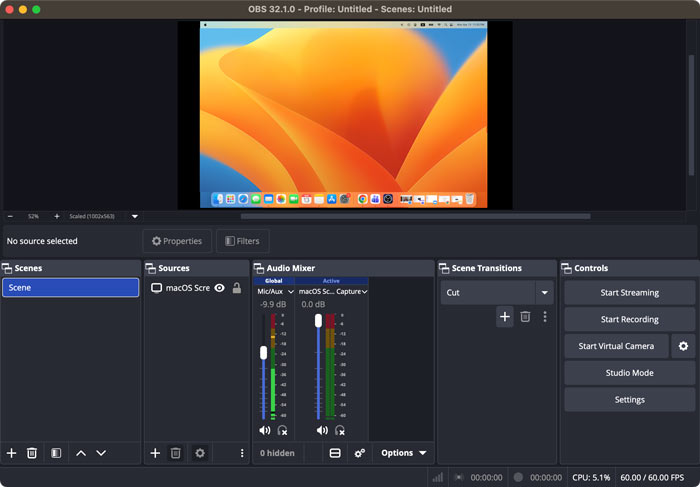
OBS Studio is fully free, fully open source, with no watermark, no time limit, and no feature gating. It’s been the gold standard for streamers and serious creators for years.
What’s good
- Truly unlimited recording — no time cap, no daily limit, no signup. Record for 8 hours straight if you need to.
- Most powerful free option — scene transitions, multi-source audio, custom encoder settings, parallel streaming. If a recording feature exists, OBS can probably do it.
- Cross-platform and open source — Windows, Mac, Linux. Free forever, no upgrade pressure.
What’s not
- Steep learning curve — first-time setup involves configuring scenes, sources, audio tracks, and encoders. Plan for an afternoon to get comfortable.
- No built-in editing — record only. You import the file into a separate editor (DaVinci Resolve, Premiere, etc.) for any trimming or cuts.
- Easy to misconfigure silently — wrong encoder, mismatched sample rate, or missing audio source can break a recording without an obvious error.
Best for
Streamers, technical creators, and power users who don’t mind investing an afternoon in setup to get a free, unlimited no-watermark recording engine.s, social clips, bug reports, and walkthroughs on Windows or Mac.
3. ShareX — Best for Power Users
Platform: Windows only
Free limit: None
Watermark: None
Signup: Not required
ShareX is a Windows-only open-source capture tool that does screenshots, screen recording (video and GIF), and automated workflows. No watermark, no time limit, no account.

What’s good
- Hotkey-driven speed — once configured, capture is faster than any GUI-based recorder. Press a hotkey, get a clip.
- Built-in workflow automation — save to folder, upload to a service, annotate, OCR — all scriptable.
- Truly free and open source — no time cap, no watermark, no account, no upgrade pressure.
What’s not
- Windows only — no Mac or Linux version.
- Wall-of-options UI — powerful, but the interface assumes you know what you’re configuring. Not friendly for first-time users.
- No built-in editing — like OBS, you record and import elsewhere for editing.
Best for
Windows users who want a free, scriptable capture tool with no watermark and don’t need cross-platform support. Especially good for developers, sysadmins, and anyone whose workflow involves frequent screenshots and short screen recordings.
4. Xbox Game Bar — Best Built-In Windows Recorder
Platform: Windows 10, Windows 11 (pre-installed)
Free limit: ~2 hours per clip
Watermark: None
Signup: Microsoft account recommended (not strictly required for local recording)
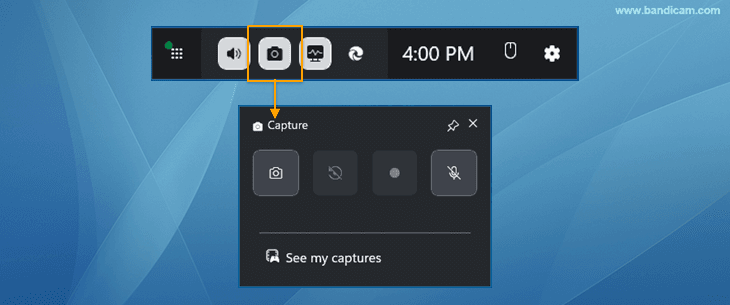
Xbox Game Bar comes built into Windows 10 and Windows 11. Press Windows+G to open it. It records the active application window without a watermark.
What’s good
- Already on every Windows 10/11 PC — no download, no install, no signup. Press Windows+G to open.
- Generous 2-hour clip limit — far longer than most freemium tools.
- Clean output by default — no watermark, MP4 format, standard encoding.
What’s not
- Single app only — can’t record the desktop, multiple windows, or a custom region. File Explorer and some system UIs can’t be recorded at all.
- Gaming-first interface — designed around game capture, so the workflow feels off for tutorials and demos.
- No webcam overlay, no editing — capture only. Anything more involves a different tool.
Best for
Quick recordings of a single app on Windows when you don’t want to install anything. Especially good for gameplay clips and one-off demos of a specific application.
5. QuickTime Player — Best Built-In Mac Recorder
Platform: Mac (pre-installed on every Mac)
Free limit: None
Watermark: None
Signup: Not required
QuickTime Player comes pre-installed on every Mac. The screen recording feature (File → New Screen Recording, or Cmd+Shift+5) captures any portion of your screen without a watermark. Completely free, no signup, no time limit.

What’s good
- Already on every Mac — no download, no install, no signup. Open and record.
- No time limit, ever — record as long as you want, no per-clip cap.
- Zero learning curve — Cmd+Shift+5, drag the area, click record.
What’s not
- Mac only — no Windows version.
- No system audio by default — requires a separate audio routing tool (BlackHole, SoundFlower) to capture what’s playing on your Mac.
- Basic features only — no scene switching, no game capture mode, no advanced encoding. Trim is the only editing function.
Best for
Mac users who need quick, watermark-free screen recordings without installing anything. Especially good for short tutorials, bug reports, and one-off captures where you just want to record and share.
6. ApowerREC
Platform: Windows, Mac
Free limit: 1 minute per recording
Watermark: None on recording
Signup: Not required for recording
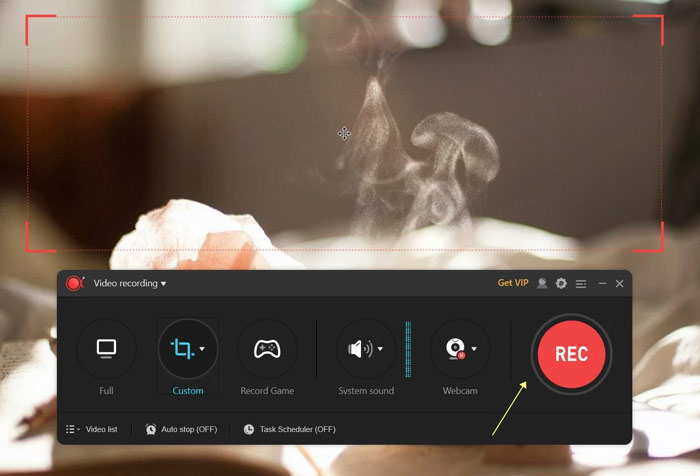
ApowerREC is Apowersoft’s desktop screen recorder for Windows and Mac. The free version produces clean recordings without a watermark, capped at 1 minute per clip.
What’s good
- Cross-platform with one interface — same workflow on Windows and Mac, unlike most free recorders.
- Picture-in-picture webcam overlay — record screen and webcam together on the free version.
- Clean watermark-free output — raw recordings on the free version have no watermark, no overlay text.
What’s not
- 1-minute per-recording cap on the free version — the tightest time limit on this list. Fine for very short clips, but for anything longer you’ll need the paid version.
- Editing requires a paid license — opening the editor triggers a sign-in prompt, which leads to a purchase screen. No watermark-export option on free; you can record clean clips, but you can’t trim or modify them without upgrading.
- Scheduled recording and advanced export are paid-only — basic capture is free, but most workflow features are behind the upgrade.
Best for
Casual users who need very short, clean recordings (under 1 minute) and don’t mind paying if they later want editing. Good for quick screen captures, brief bug reports, and short demos — not for tutorials or longer content.
7. FlashBack Express
Platform: Windows
Free limit: 2 minutes per recording
Watermark: None on recording
Signup: Not required
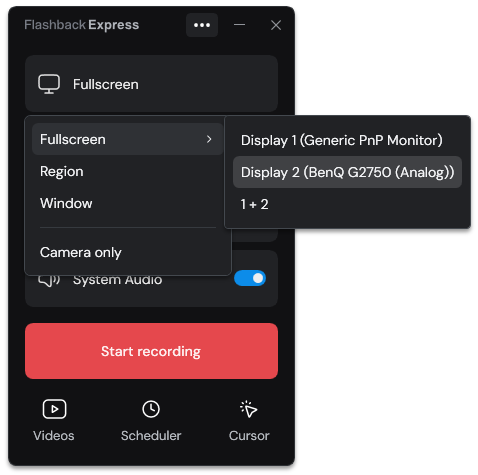
FlashBack Express is the free version of FlashBack Pro. It records without a watermark and includes basic editing — rare in a free tool — but caps each recording at 2 minutes.
What’s good
- Watermark-free recording on Windows free — no logo or overlay on raw clips.
- Includes basic editing — trim, cut, arrange clips inside the app. Most free recorders skip editing entirely.
- Multiple output formats — MP4, AVI, WMV.
What’s not
- 2-minute per-recording cap on the free version — short enough to rule out most tutorials, lectures, and demos. FlashBack Pro removes the cap.
- Edited exports add a watermark on the free version — raw recordings are clean, but trim or modify a clip and the export carries a watermark (FlashBack Pro removes it).
- Windows only, dated UI — no Mac or Linux version, and the interface feels older than newer recorders.
Best for
Windows users who need very short, watermark-free clips (under 2 minutes) with basic editing as a bonus. For longer recordings, OBS Studio or the Bandicam (full version) are better options.
How to Choose: Quick Decision Guide
Picking from 7 no-watermark options is easier with a few clear questions:
If you want the simplest watermark-free workflow
Go with Bandicam on Windows or Mac. Download, install, record. The 5-minute clip limit is the trade-off, and it covers most short-form needs.
If you need unlimited recording length
Go with OBS Studio (cross-platform, steep learning curve) or ShareX (Windows, hotkey-driven). For unlimited recording plus editing and transcription in one app, the Bandicam (full version) is the cleanest option.
If you’re on Mac and want zero install
Use QuickTime Player — already on your Mac, no download, no signup, no watermark, no time limit.
If you’re on Windows and want zero install
Use Xbox Game Bar (Windows+G). Pre-installed on Windows 10 and 11, watermark-free, generous time limit. Best for recording a single app window.
If you want a simple cross-platform recorder
Use Bandicam for the longer 5-minute clip limit, or ApowerREC if a 1-minute cap fits your use. Both run on Windows and Mac with no signup and watermark-free output.
If you want maximum power and don’t mind setup
Use OBS Studio or ShareX. Both are free, open source, with no watermark and no limits — at the cost of a steeper learning curve.
Frequently Asked Questions
For most users, Bandicam offers the best balance — clean watermark-free output on Windows and Mac, no signup, 5-minute per-clip limit on the free version. OBS Studio is the right pick if you want unlimited recording and don’t mind the learning curve.
Yes. OBS Studio, ShareX, and QuickTime Player (Mac) offer unlimited free recording without a watermark. The trade-off is either complexity (OBS, ShareX) or platform limits (QuickTime is Mac only). For an easier workflow with a per-clip time cap, Bandicam is the simpler option.
Summary
Free no-watermark screen recording in 2026 isn’t about finding one perfect tool — it’s about picking the right trade-off for your workflow. Short clips with the simplest setup? Bandicam or ApowerREC. Unlimited recording with the most power? OBS Studio or ShareX. Zero install on your existing OS? Xbox Game Bar or QuickTime Player.
Every tool on this list delivers clean output on the free version, but the way you get there differs — time limits, learning curves, platform support, and feature gates all shape which one fits best.
Looking for platform-specific picks? See: