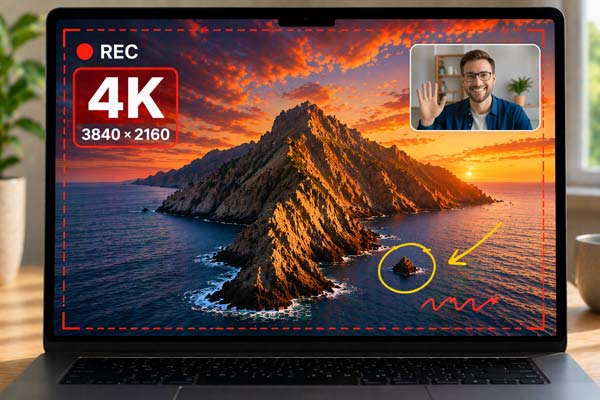
If you want to record your screen in 4K on a Mac, the best app depends on which features you prioritize most.
Some tools are better for simple high-resolution screen capture, while others offer more control over audio, frame rate, annotation, webcam overlays, or editing.
In this guide, we compare the best 4K screen recorders for Mac for different user needs including free options, built-in tools, and apps with more advanced recording features.
Table of contents
Best 4K Screen Recorders for Mac at a Glance
To compare the best 4K screen recorders for Mac, we looked at recording flexibility, frame rate and resolution controls, audio options, webcam support, annotation features, editing tools, and ease of use. Some apps are ideal for quick built-in screen capture, while others are better for tutorials, presentations, gameplay, or more advanced recording setups.
Here’s a quick look at the top options before we break them down in more detail.
| App | Best for | 4K recording | Audio options | Extra features | Price |
| QuickTime Player | Basic built-in recording | Yes | Mic input | Simple built-in tool | Free |
| OBS Studio | Advanced free recording | Yes | System audio + mic | High control, streaming | Free |
| Bandicam for Mac | All-in-one recording | Yes | System audio + mic | Webcam overlay, annotation, trimming | Free trial / Paid |
| CleanShot X | Simple recording and sharing | Yes | System audio + mic | Camera overlay, trimming | Paid |
Best 4K Screen Recorders for Mac
1. QuickTime Player: Best Built-In Option
QuickTime Player is the easiest option for Mac users who want a simple way to record their screen. You can start a new screen recording, capture the full screen or a selected portion, choose a microphone, and then open the result in QuickTime Player. Apple also supports basic trimming after recording.

Key features
- Built into macOS
- Record the full screen or a selected area
- Basic trim tools after recording
Pros
- Free and already available on Mac
- Good for simple tutorials, demos, and walkthroughs
Cons
- Fewer advanced recording controls
- Cannot capture system audio
- No built-in live annotation or webcam overlay
2. OBS Studio: Best Free Option for Advanced Control
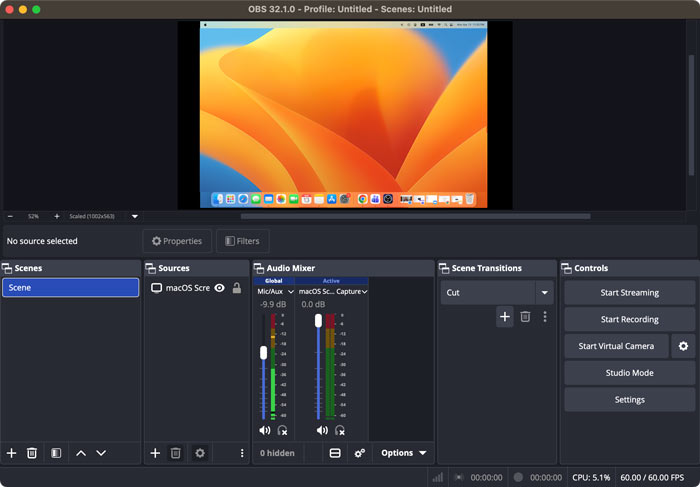
OBS Studio is a strong choice if you want more control over how your recording is captured. OBS’s official overview highlights scenes, sources, settings, and testing tools, and its documentation also shows adjustable resolution and frame rate options for video sources.
Key features
- Free and open-source
- Flexible scenes and sources
- Adjustable resolution, frame rate, and audio setup
Pros
- Excellent for advanced users
- Strong control over recording layout and inputs
- Good option for both recording and streaming
Cons
- More complex than beginner-friendly tools
- Not the fastest option for simple click-and-record use
3. Bandicam for Mac: Best for All-in-One Recording Features
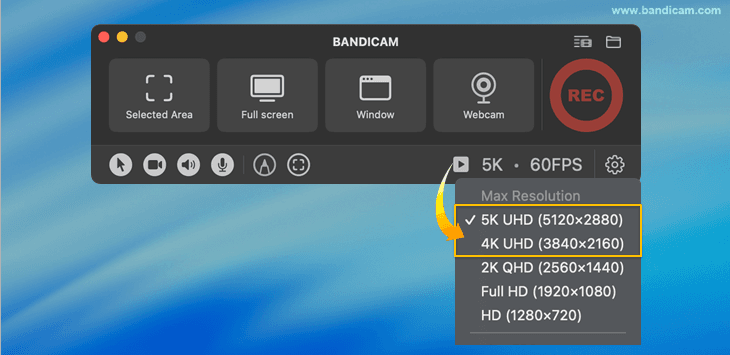
Bandicam Mac screen recorder is a better fit if you want more than basic screen recording in one app. It supports screen recording, webcam overlay, simultaneous system audio and microphone capture, real-time annotation, and built-in trimming. It also includes an AI video-to-text feature that can generate subtitles from recorded audio, edit the transcript, save it as an SRT or TXT file, or export a subtitled video.
Key features
- System audio and microphone recording
- Webcam overlay
- Real-time annotation and built-in trimming
- AI video-to-text transcription with SRT, TXT, and subtitled video export
- Share to Google Drive, OneDrive, and Dropbox with a share link option
Pros
- Good for tutorials, presentations, and creator workflows
- Lets you add visual explanation while recording
- Combines recording, transcription, trimming, and sharing in one workflow
Cons
- The free version has a 5-minute recording limit
- Full access to some features requires the Pro version
4. CleanShot X: Best for Simple Recording and Sharing
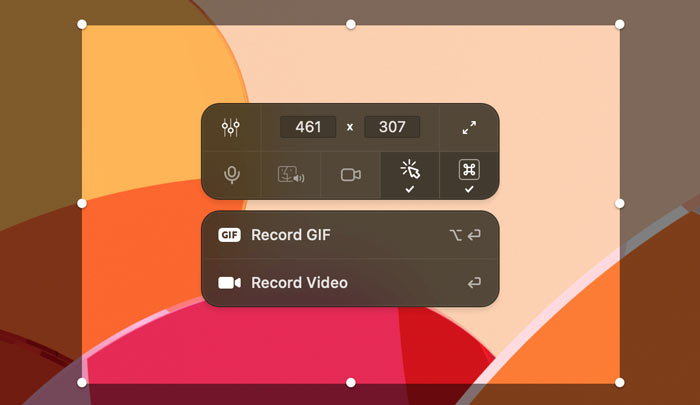
CleanShot X supports fullscreen or custom area recording, along with system and microphone audio capture, camera overlay, and built-in trimming. It also lets you upload recordings to CleanShot Cloud and share them with a link, which is why it works well for a simple record-edit-share workflow.
Key features
- Record fullscreen, window, or custom area
- Record system and microphone audio
- Built-in trimming and CleanShot Cloud sharing
Pros
- Easy and polished workflow
- Supports quick editing and scrolling capture
- Easy link sharing through CleanShot Cloud
Cons
- Paid app
- Download is tied to the purchase/license flow
- Sharing features are tied to CleanShot Cloud
How to Record Your Screen in 4K on Mac
QuickTime Player is a simple built-in option for basic screen recording on Mac, but it is limited when you need features like system audio capture, webcam overlay, and annotation. For this guide, we’ll use Bandicam for Mac because it includes those tools in a more flexible recording workflow.
Here’s a simple way to record your screen in 4K on Mac using Bandicam for Mac:
- Download Bandicam for Mac from the Mac App Store
Go to the Mac App Store, search for Bandicam, and install the app. Once it’s installed, open Bandicam for Mac to get started.
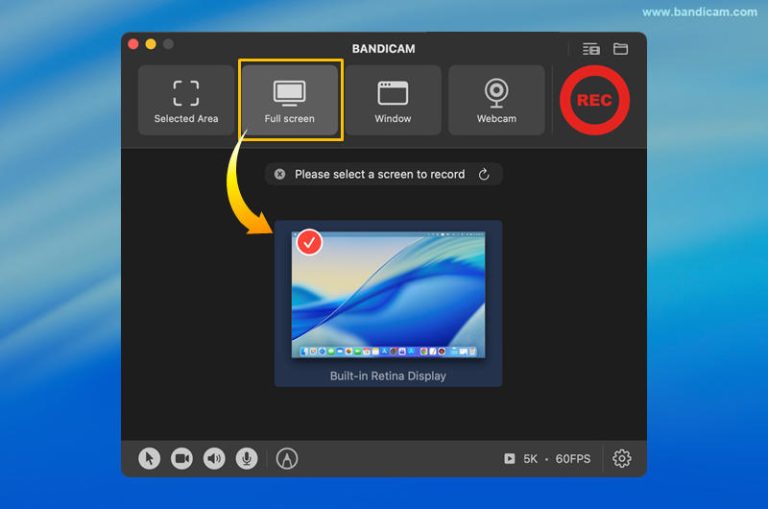
- Choose Full screen mode
For 4K screen recording, Full screen mode is the most straightforward option. It records your entire display.
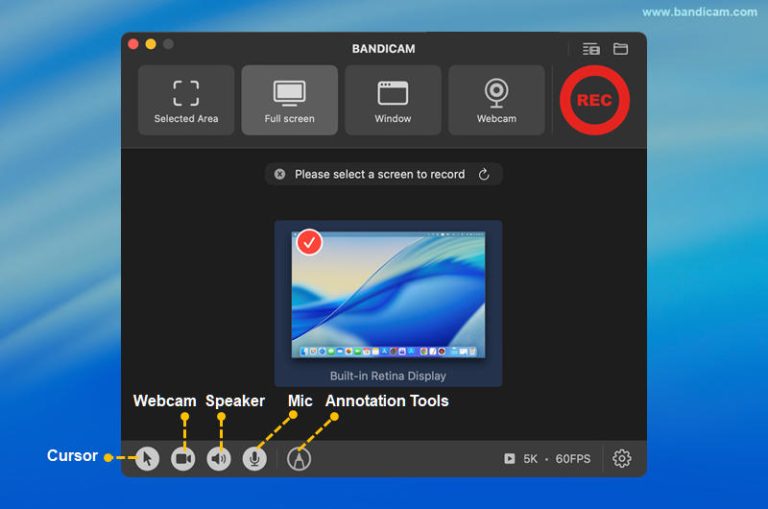
- Turn on system audio, microphone, or webcam if needed
Before you start recording, enable system audio, microphone input, or both if needed. You can also add a webcam overlay if you want to record your screen and face at the same time.
- Start recording and annotate on screen
Click the Record button to begin. While recording, you can use annotation tools to draw or highlight on the screen.
- Trim, transcribe, or share the finished video
After recording, you can trim the video in the app, generate subtitles or text with the video-to-text feature, or share the file through AirDrop, Google Drive, Dropbox, or OneDrive.
FAQs
Yes. QuickTime Player lets you record your screen on Mac, and third-party apps give you more control over features like system audio, webcam overlay, and annotation.
Yes. QuickTime Player can record your screen in 4K on Mac, but it offers fewer controls than third-party apps.
QuickTime Player is the easiest free option if you want simple screen recording. OBS Studio is a better choice if you want more control. If you want a simpler workflow with system audio recording, Bandicam for Mac is another option.
Yes, but you need an app that supports it. Bandicam for Mac records system audio and microphone input together, and CleanShot X also supports system audio recording.
Bandicam for Mac is a strong choice for tutorials because it supports webcam overlay and real-time annotation while recording.
Summary
The best 4K screen recorder for Mac depends on what you need most. QuickTime Player is the simplest built-in option, OBS Studio offers more control for free, Bandicam for Mac is a practical option if you want features like system audio, webcam overlay, and annotation in one app, and CleanShot X works well for a simpler record-edit-share workflow.